
📲 The Substack app does more than you think. Here is what you are missing.
📲 Plus: A save feature that rescues articles from your inbox, how to find the audio tab, and why the app and email work better together than either does alone

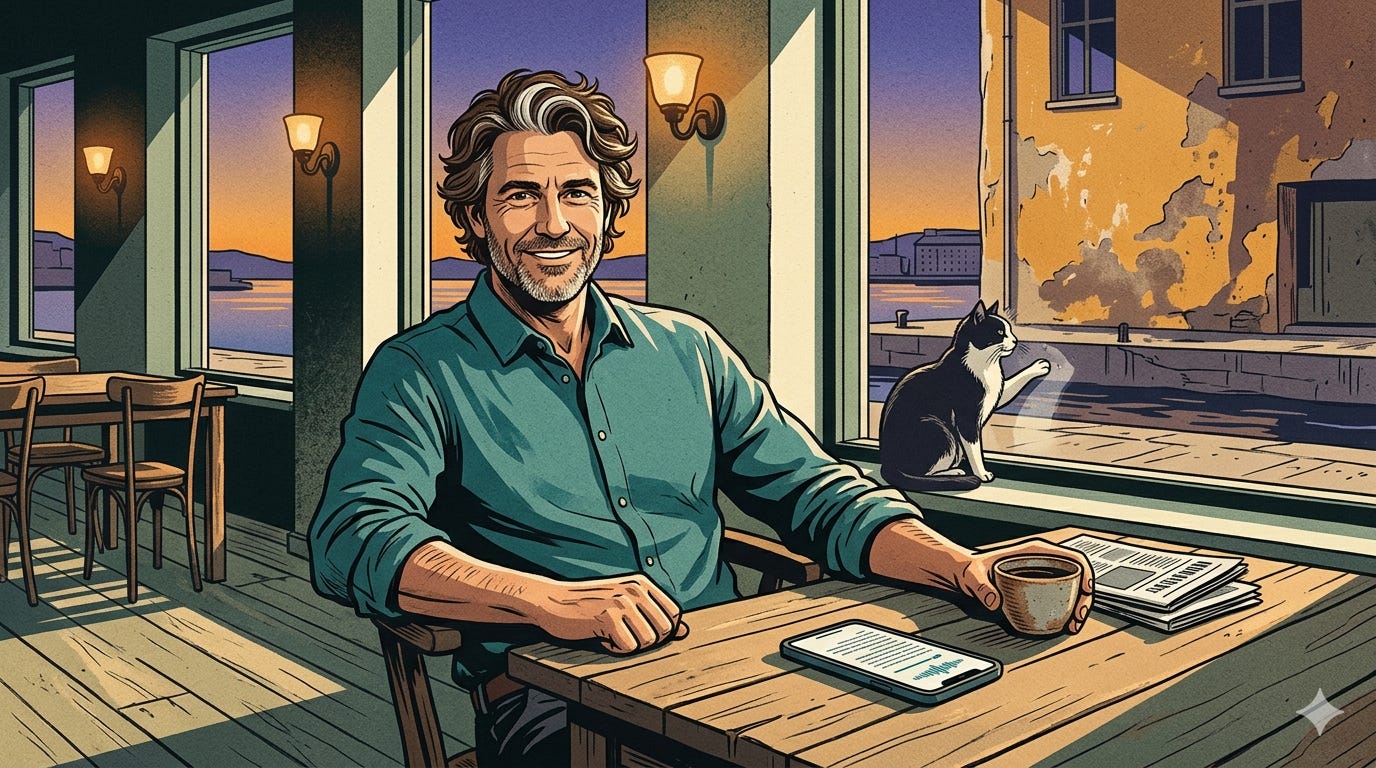
Most people read Substack the same way they discovered it: as emails arriving in their inbox. That works fine, but it means you are using only a fraction of what Substack actually offers. The app — free on both iPhone and Android — turns your collection of newsletters into something much closer to a personal reading library, with tools your inbox simply does not have.
I tend to draw a clear line in my own reading life. When I publish something, I do it on my desktop. When I want to read, I reach for my phone or tablet and open the app. After a while, that distinction stops feeling like a habit and starts to feel obvious. The inbox is where newsletters arrive. The app is where I actually read them.
Today you will learn:
How to download the free Substack app on iPhone or Android
How the Inbox tab works differently from your email
How to save articles you want to read later
How to find audio posts and listen instead of read
How to adjust the app to show less clutter and more content
What the notification settings actually control
For new readers: Screen Skills provides practical digital advice without technical jargon. I focus on tools that enhance your digital life without overwhelming you with complexity. You can apply what you learn here within minutes.
Today, you can get a 20% discount on the first year of your subscription.
If this newsletter provides useful information that reduces your screen frustration, improves your output, and makes spending time online more fun for you, please consider supporting this newsletter that occupies a unique niche on Substack: digital tips for non-digital people.
Why the app exists
The Substack app was built to solve a problem that anyone with more than a handful of subscriptions will recognize: email is a terrible reading environment. Articles arrive mixed in with everything else, get pushed down by new messages, and disappear the moment you lose track of them. The app separates your Substack reading from the rest of your inbox, giving it a dedicated space with its own logic.
It is free to download and free to use. Nothing about your existing subscriptions changes when you install it — you will still receive emails if you want them, and everything you already pay for remains available.
Getting the app
For iPhone users: Open the App Store, search for “Substack,” and download the app with the orange S logo. Sign in with the same email address you use for your Substack subscriptions, and all your existing newsletters will appear automatically.
For Android users: Open the Google Play Store, search for “Substack,” and install the app. Sign in with your subscription email address. Everything you subscribe to — free and paid — will be waiting for you.
The Inbox tab: your reading queue
Once you are in the app, tap Inbox at the bottom of the screen, the second icon from the left. This is where all your newsletters arrive, in the order they were published, with nothing else mixed in. No promotional emails, no alerts from your bank, no messages from your dentist — just the newsletters you chose to subscribe to.
Two small gestures are worth learning immediately. Swipe left on any article to archive it — this removes it from your queue without deleting it permanently. Swipe right to save it. Saved articles go to the top of your reading queue, which is the app’s way of saying: this one first.
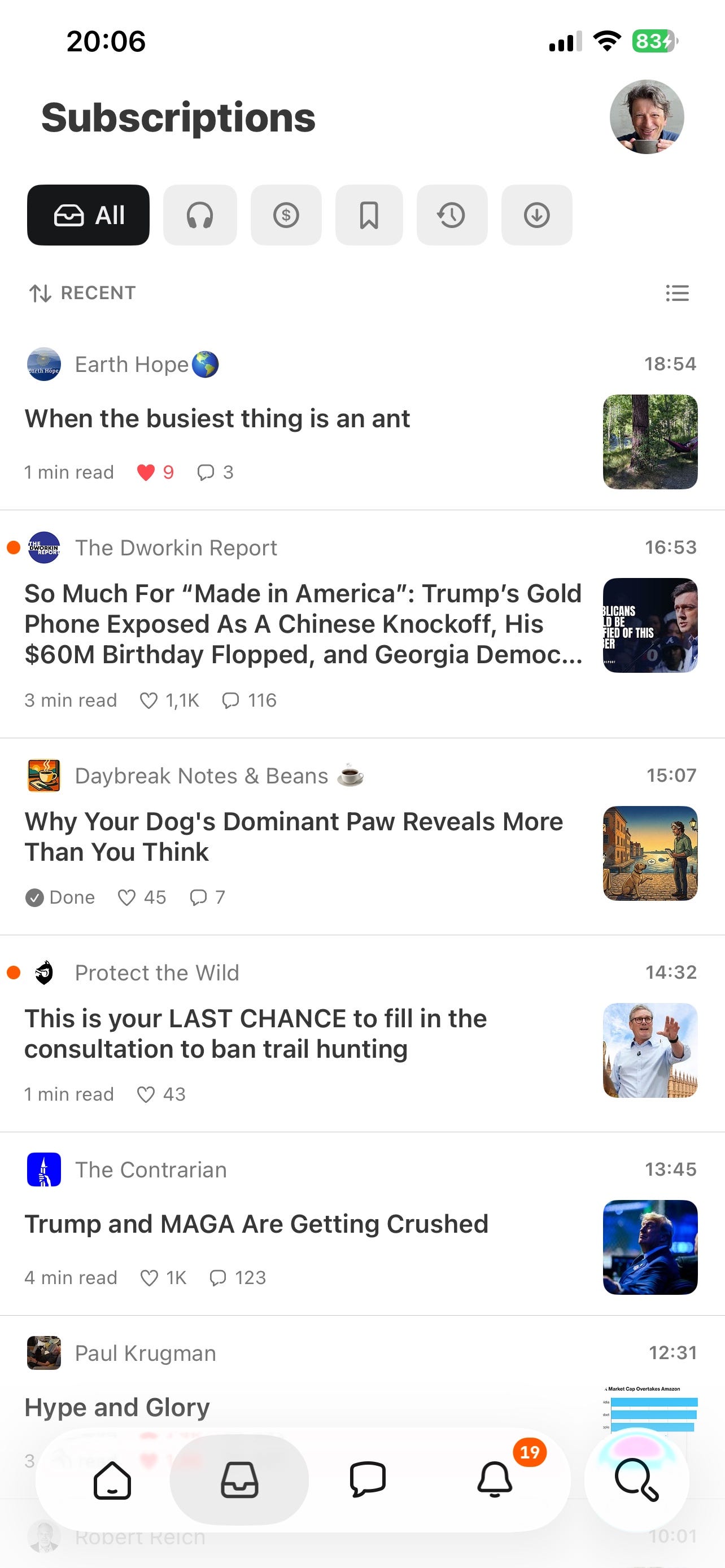
At the top of the Inbox, you will see filter tabs. The one labeled Saved shows everything you have set aside. The one labeled Audio is particularly useful if you subscribe to any newsletters that include podcast episodes or recorded readings — tapping it shows only those, so you can listen without hunting through everything else. The Paid tab filters your inbox to show only content from newsletters you pay for.
A practical tip
If you currently receive more Substack emails than you can realistically read, the app offers a gentler way to manage the flow. You can tell Substack to prefer app notifications over email — so posts show up in the app without filling your inbox — while keeping all your subscriptions. To do this, open the Substack app, tap your profile picture, go to Settings, then Notifications, then Newsletter delivery. Choose Prefer push instead of “Both email and push” or “Prefer email”. This immediately reduces inbox clutter, and you can still open the app whenever you want to read.
If you want to keep a per‑newsletter example in the same spirit, you could add a short, honest note:
If there is one newsletter that overwhelms you, but you still want to read it, the most reliable way today is to open Substack in a browser, go to that publication, click Manage subscription, and turn off the email options there. You stay subscribed, but new posts will appear in the app or on the website instead of arriving by email.
If you wonder whether it’s time for Substack to just add a simple switch to each newsletter to indicate where you would like to receive it, you’re not alone. But for now, this is the way to manage your newsletter delivery.
Worth knowing
The Substack app launched for iPhone in early 2022 and for Android later the same year. The platform now has more than 50 million active subscriptions as of April 2026 — up from 35 million just a few years ago — and monthly active use of the app has grown by 139 percent year on year according to independent traffic data.
More and more readers are shifting from email-only to app-first. That said, there is no obligation to choose one or the other. Many readers use both: email for quick scanning, the app for longer reading sessions on a phone or tablet.
I said in the opening that I write and share from my desktop and read on the app. That is mostly true, but there is a grey zone for notes. I find myself posting most notes from the app because most photos and videos are on my phone, and just typing one line of text with two thumbs is no problem.
Meanwhile
The Substack app has more to offer than fits in one newsletter. Next time, I will cover three parts of the app that most readers have never explored: the Home tab, where new content from people you follow appears; the Search function, which helps you find writers and topics you did not know existed on Substack; and the Chat feature, which some publications use to have direct conversations with their subscribers. More on all of that soon.
Tech news
Apple releases security updates for older iPhones. If you have an iPhone XS, XS Max, or XR — models that no longer receive the very latest iOS version — Apple recently released iOS 18.7.9, a security update specifically for those devices. It does not add new features, but it fixes vulnerabilities that could otherwise leave older phones exposed.
To check: go to Settings, then General, then Software Update. If an update is waiting, install it on Wi-Fi and while your phone is charging.
Substack reaches 50 million active subscriptions. The platform reported this milestone in April 2026, up from 35 million just a few years earlier. Nearly 100,000 publications now earn money on the platform. If you have been considering upgrading a newsletter you enjoy, the writers behind them are increasingly relying on paid subscriptions to keep publishing — and your support goes almost entirely to them directly.
App spotlight: Instapaper (iPhone and Android)
The problem it solves: You find an interesting article while checking your phone, but you have no time to read it right now — and by tomorrow it is gone.
Instapaper saves any article, newsletter, or web page to a clean reading list with one tap, then strips away the ads, pop-ups, and clutter so you can read it properly whenever you are ready. It works offline, which makes it useful on planes or anywhere without a signal. Unlike the Substack save feature, which only works inside Substack, Instapaper works across the entire internet — any page, any source. The basic version is free and covers everything most readers need. Available on iPhone and Android.
Quick fix
Your Substack notifications may be set too broadly. When you first install the app and say yes to notifications, it can end up alerting you about new posts from a lot of different newsletters, which quickly turns into noise if you follow ten or twenty publications. To dial this back, tap your profile picture in the top corner of the app, go to Settings, then Notifications, and look for Newsletter delivery. There you can choose between “Prefer email”, “Prefer push”, or “Both email & push” — picking “Prefer push” cuts down on email, and picking “Prefer email” turns most app pings into quiet email instead. You can always go further and mute or change notification settings on a per‑newsletter basis from your Substack account page if one publication is especially noisy.
Did you read this one?
📲 Google Just Changed How Search Works. Here Is What Is Different.

Something has been quietly shifting every time you open Google. The results look a little different. There is sometimes a long paragraph at the top before you see any links. The search box itself behaves differently. If you have noticed any of this and wondered whether you were imagining it, you were not.
Questions?
What would you like Screen Skills to cover next? Leave a comment, send a DM on Substack, or reply to this email.
Until next time,
Alexander
A few more thoughts to share:
Most technology writing assumes you’re already keeping up. It’s written for people who follow tech news as a hobby, who know the jargon, who want to go deeper. That’s a real audience, but it’s a small one. The much larger group, people who use screens every day for work, connection, and daily life without being specialists, rarely get the clear, patient explanation they deserve.
Screen Skills is for that group.
I will never assume you already know something.
I will never skip a step because it seems obvious.
And I will never make you feel behind for not knowing something that nobody properly explained to you in the first place.
If that sounds like the newsletter you’ve been looking for, consider subscribing.
Until next time,
Alexander
More from Alexander Verbeek:
☕️ Daybreak Notes & Beans
Every morning before dawn, I search for the best news you didn’t see. Science breakthroughs, conservation wins, human kindness, and beauty — delivered in time for your first coffee. Published most days of the week, positive, and unapologetically hopeful.
Today, I published:

🧭 Morning Compass and 🎙️ Morning Comments:
The Morning Compass is the best way to quickly catch up on the more serious news that’s going on during your first coffee. I also share what to expect in today’s news, what happened on this day in history, what I recently published, what I captured, and what I stumbled upon.
This is what I wrote yesterday in Morning Compass:

🎙️ My Morning Comments are short videos where I dive a little deeper into the story that stood out most that morning.
For example:
🌎 The Planet
My political newsletter, written from a European perspective. Analysis of democracy, power, and what’s happening in Trump’s America — with historical parallels and the kind of clarity that distance from Washington can bring.

🎒 The Curious Wanderer
The Curious Wanderer is where I share what my other newsletters have no room for: travel writing, walks through history, museum visits, and the kind of observations that only arrive when you move through a place slowly, on foot, with time to think.

Or if you really don’t know…. ☕️

"The inbox is where newsletters arrive. The app is where I actually read them."
I open all emails so my favorite creators get stats credit for the open. My phone goes everywhere with me so I have access to the best newsletters (e.g. Screen Skills, Daybreak, More 🤭). Thanks for this 📱💻
Screen Skills decodes Substack. Very useful and helpful information here.
I have been on Substack for years but just learned great tips for things I was unaware of.
Saves time and makes navigating the app easier. Thank you for this