
Why Using Private Windows Doesn't Mean You're Browsing Privately
Plus: Understanding what incognito mode really protects, browser security updates, privacy tools worth trying, and a reader tip about YouTube ads


Private browsing windows promise privacy, but most people misunderstand what kind of privacy they actually provide. These windows protect you in specific situations while offering almost no protection in others - and the difference matters when you’re trying to stay safe online.
Your browser’s private window feature deletes your local browsing history and cookies when you close it. This helps in certain situations, but it doesn’t make you invisible or anonymous on the internet. Many people don’t know that and have a false sense of anonymity. Understanding what private browsing actually does helps you to use it effectively without creating a false sense of security.
Today you’ll learn:
What private browsing windows actually protect (and what they don’t)
When to use private windows for legitimate everyday tasks
How to open private windows in Chrome, Safari, Firefox, and Edge
Why browsing privately all the time would make your digital life harder
Current browser security updates that affect your privacy
Two privacy tools that provide real protection
A reader’s discovery about blocking YouTube commercials
For new readers: Screen Skills provides easy-to-follow, practical digital advice that everyone can understand and apply within minutes. Discover hundreds of simple tricks that make your digital life more efficient and enjoyable.
Today, you can get a 20% discount on the first year of your subscription. If this newsletter provides useful information that reduces your screen frustration, improves your output, and makes spending time online more fun for you, please consider supporting this newsletter that occupies a unique niche on Substack: digital tips for non-digital people.
What private browsing actually does
Private browsing creates a temporary session that erases local traces after you close the window. When you visit websites in a private window, your browser doesn’t save your history, search queries, cookies, or form data to your computer. When you close that private window, all that temporary information disappears.
This matters primarily for shared computers. If you check your bank account on your family’s computer using a private window, the next person who uses that computer won’t see your bank in the browsing history or find your account still logged in. The private window deleted those local traces.
However, private browsing doesn’t hide your activity from your internet service provider (the company that provides your internet connection, like Comcast or Verizon), your workplace network, the websites you visit, or anyone monitoring your internet connection. Your internet provider still sees every website you access since you leave your digital fingerprints everywhere you go. Your employer’s network administrator can also still see your browsing. Websites still know your location and device information. Private windows only erase the local traces on your specific computer.

When private windows make sense
Note: Different browsers call this feature by different names, but they all work the same way. I’ll explain the practical uses first, then show you how to access this feature on each browser.
Private windows serve several legitimate everyday purposes. You might want to check how a website appears to visitors who aren’t logged in to your account. Newsletter writers often do this to see what their public page shows to non-subscribers. Private windows let you view the site without your login credentials interfering.
You can also use private windows to compare prices. Some shopping websites show different prices based on your browsing history and cookies. Opening a private window gives you a fresh session without that tracking history, letting you see baseline pricing.
Private windows work well for accessing multiple accounts on the same website simultaneously. If you manage both a personal and business email account, you can log into one in a regular window and the other in a private window. This avoids the constant logging in and out that would otherwise be necessary.
Looking up sensitive health information benefits from private windows when using a shared computer. Medical searches won’t appear in the computer’s browsing history for others to stumble upon later.
How to open private windows
For Chrome users:
Click the three dots in the top-right corner of your browser window. You’ll see a menu appear with various options. Look for “New Incognito window” near the top of this menu. Click it, and a new dark-colored window opens with a message explaining what incognito mode does and doesn’t do. Chrome calls this “Incognito” mode, and you’ll notice the window has a dark theme with a small icon of a hat and glasses in the corner.
The keyboard shortcut works faster once you remember it. Press Ctrl+Shift+N on Windows or Command+Shift+N on Mac. This opens a new incognito window immediately without navigating through menus.
For Safari users:
Click “File” in the menu bar at the top of your screen. You’ll see “New Private Window” in the dropdown menu. Click it to open a private browsing window. Safari private windows look similar to regular windows but include a dark address bar and a notice explaining that private browsing is active.
The keyboard shortcut for Safari is Command+Shift+N on Mac. Unfortunately, Safari isn’t available on Windows computers, so Windows users need to use Chrome, Firefox, or Edge instead.
For Firefox users:
Click the three horizontal lines in the top-right corner. This opens Firefox’s main menu. Look for “New Private Window” and click it. Firefox opens a private window with a purple mask icon in the corner and explains what private browsing protects.
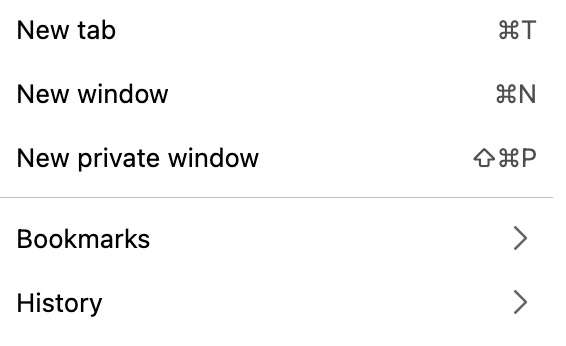
Firefox’s keyboard shortcut is Ctrl+Shift+P on Windows or Command+Shift+P on Mac. This works the same way as Chrome’s shortcut but uses the letter P instead of N.
For Edge users:
Click the three dots in the top-right corner of Edge. The menu includes “New InPrivate window” near the top. Click it to open Edge’s private browsing mode, which they call “InPrivate” browsing. The window displays a blue “InPrivate” label and explains the feature.
Edge uses the same keyboard shortcut as Chrome: Ctrl+Shift+N on Windows or Command+Shift+N on Mac. Microsoft designed Edge to feel familiar to Chrome users, so many shortcuts work identically.
Tip: Private windows don’t save your passwords or keep you logged into websites. If you’re using a private window to check multiple accounts, you’ll need to log in fresh each time you open a new private session.
Today, you can get a 20% discount on the first year of your subscription. If this newsletter provides useful information that reduces your screen frustration, improves your output, and makes spending time online more fun for you, please consider supporting this newsletter that occupies a unique niche on Substack: digital tips for non-digital people.
Worth knowing
Private browsing originated in 2005 when Safari introduced it as a way to prevent websites from tracking your browsing session with cookies. Other browsers quickly adopted similar features, though they chose different names - Chrome calls it Incognito, Edge calls it InPrivate, and Firefox simply calls it Private Browsing.
The feature doesn’t provide complete anonymity because that would require fundamentally changing how the internet works. Websites need to see your IP address to send you the pages you request. Your internet service provider needs to route your traffic. These technical requirements mean true anonymity requires additional tools like VPN services, not just private browsing windows.
You shouldn’t browse exclusively in private windows for everyday internet use. Doing so would eliminate many conveniences that make the internet usable. Your browser wouldn’t remember any passwords, forcing you to log into every website every single time. You couldn’t save items in shopping carts between sessions. Your preferred website settings would never be saved. You’d lose your browsing history, making it impossible to find that interesting article you read yesterday. Private browsing deletes all these conveniences along with the privacy-related data.
Most people use private windows for specific tasks rather than general browsing. The feature works best as a tool you pull out when needed, not as your default browsing mode.
Tech news
Microsoft Edge now blocks third-party tracking by default
Microsoft Edge now prevents websites from using third-party cookies to track your browsing across different sites—a change that rolled out automatically in late 2024 and remains active today.
If you use Edge, this protection works in regular windows without needing InPrivate mode; just click the lock icon next to any site's address to see trackers blocked on that page.
Google Chrome delays third‑party cookie removal again
Google has once more delayed its plan to phase out third‑party tracking cookies in Chrome, pushing the change beyond its earlier 2025 target and effectively putting the rollout on hold for now. The company had already moved the deadline several times, so for the moment, most websites can still use cookies to track your activity across different sites. If you use Chrome and want stronger privacy today, open Settings, choose Privacy and Security, then look under Cookies and other site data to limit third‑party cookies or block them altogether.
Safari’s Advanced Tracking Protection grows stronger
Apple expanded Safari’s privacy features in the latest macOS and iOS updates. The browser now blocks more types of tracking and automatically removes tracking parameters from URLs. When you click a link from an email or social media that includes tracking codes, Safari strips those codes before loading the page. This happens automatically on iPhones, iPads, and Macs running recent updates. Check your device’s software update section to make sure you’re running the latest version.
App spotlight: Privacy Badger (Desktop Browser Extension)
Privacy Badger comes from the Electronic Frontier Foundation, a nonprofit that fights for digital rights. This browser extension automatically blocks many of the hidden trackers that follow you around the internet, using a regularly updated list of known trackers. Unlike ad blockers, Privacy Badger focuses specifically on privacy rather than removing all advertisements.
The extension works by blocking tracking services that appear across multiple websites you visit. You’ll see a small badger icon in your browser toolbar showing how many trackers each website attempted to use. Click the icon to see which specific tracking services got blocked. Privacy Badger also sends signals to websites asking them not to track you, and blocks trackers that ignore those requests.
Privacy Badger works as a free extension for Chrome, Firefox, Edge, and Opera. Search for “Privacy Badger” in your browser’s extension store, click Add or Install, and it starts protecting your privacy immediately. The extension requires no configuration and works automatically. If a website breaks because Privacy Badger blocked something essential, you can temporarily disable protection for that specific site by adjusting the sliders in the extension’s menu.
Scam alert: Fake private browsing extensions
Scammers created fake browser extensions claiming to enhance private browsing with “military-grade encryption” and “complete anonymity.” These extensions actually steal your browsing data and passwords. Real private browsing is built into your browser for free - you never need to install an extension to access it.
If you see ads or pop-ups suggesting you need to pay for better private browsing or install special extensions, close them immediately. Private browsing is a standard browser feature included at no cost. Any company asking you to pay for enhanced private browsing is either selling you something unnecessary or trying to scam you.
Meanwhile: reader tip about YouTube ads
A Screen Skills reader wrote in to share an important benefit of the Brave browser that last week’s security newsletter didn’t mention. When you use Brave to watch YouTube, the browser automatically blocks all commercials. You see videos without the constant interruption of advertisements.
This works because Brave blocks trackers and ads by default as part of its privacy protection. YouTube normally relies on these tracking mechanisms to show you targeted advertisements. When Brave blocks the trackers, it also blocks the ads. This saves time and reduces the frustration of repeatedly watching the same commercials in longer videos.
Brave is free to download for Mac, Windows, iPhone, and Android. The browser works like Chrome underneath, so websites display correctly and your bookmarks transfer easily if you’re switching from Chrome.
Did you read this one?
The New Feature That Turns 50 Notifications Into One Clear Summary

Your phone now includes artificial intelligence that automatically summarizes long text conversations and busy group chats into brief overviews. Instead of seeing dozens of individual notifications, you get a single summary explaining what’s happening. Android 16 and iOS 18 both offer versions of this feature, though they work differently. This newslett…
Questions?
Have you discovered other practical uses for private browsing windows? What privacy features do you wish your browser included? Reply and let me know what privacy concerns are on your mind.
Until next time,
Alexander
Today, you can get a 20% discount on the first year of your subscription. If this newsletter provides useful information that reduces your screen frustration, improves your output, and makes spending time online more fun for you, please consider supporting this newsletter that occupies a unique niche on Substack: digital tips for non-digital people.

I also publish on Patreon:
My stories on Patreon are more personal and informal. For instance, yesterday I wrote: Between Home and Home.

Or perhaps you enjoyed the article and would like to support my writing by buying me a coffee?
Still here?
Then have a look at my other two newsletters:
The Planet: a weekly newsletter examining American democracy, freedom of speech, and environmental policy through a European perspective. Having lived, worked, and traveled extensively in the US and beyond as a backpacker, diplomat, and journalist, I explore current events through historical context, showing how lessons from the past inform today’s challenges to democratic values and planetary health.
For instance:

Daybreak Notes and Beans: a daily newsletter with a focus on positive news to counterbalance the negative headlines you see all day. Five days a week, I share ten uplifting news stories about science, health, art, travel, archaeology, or any other topic that I think you’ll enjoy reading or that will give you hope now that we need that.
Have a look by clicking here:
On Tuesday, I published:

So useful! Browsing with and without private windows simply and clearly explained for a novice.
And shame on you Chrome!
Gotta love an app called Privacy Badger
Military-grade encryption 😂
Re: YouTube: Thank you Screen Skills reader!
📱💻
Nice one - thanks!
"Your browser wouldn’t remember any passwords, forcing you to log into every website every single time." I do that even without private windows. I use four different browsers (and several identities each) - one of them deletes everything every time I close the browser window 😉. The other three are more relaxed.
I also don't get any YouTube ads on another browser, but I don't want to draw attention to that in case it's a glitch 😂.