


Last Saturday I sat with friends in a village near Leiden, where I grew up. We talked about the old days, how much our lives have changed, and the conversation turned—as it often does these days—to digitalization. Fairly quickly, we landed on a feeling I think many people share: a kind of unease about the sheer amount of data companies collect about us. Not one company. Many companies. But the one that comes to mind first, almost inevitably, is Google. The scale of what Google stores about most of us is difficult to fully picture.
Then just yesterday, a friend sent me a message about something that had caught her attention. Gmail had started summarizing her emails, condensing long messages into a few short lines. She found it useful. But then the question came: if Gmail can summarize my emails, it must be reading them. What happens to that information? Where is it stored? Who else has access to it?
It is a good question, and it does not have a single simple answer. What I can tell you is where to look, what you will find, and which controls actually make a difference.
One thing to keep in mind before we start: this newsletter focuses on the information and controls that Google makes visible to you through your account, My Activity, Google Maps, and My Ad Center. It is not a complete inventory of every technical record Google may process. But it covers the things you can actually see and change, which is exactly where to begin.
Today you will learn:
What Google’s Data and privacy page shows you about your own stored activity
What Web and App Activity, Timeline, and YouTube history contain, and how to manage them
How to set history to delete itself automatically so you do not have to remember
What your Google ad profile actually contains, and how to find it in My Ad Center
What Gmail’s AI features do with your emails, and why the answer depends on which feature and account type you use
How to download a copy of much of the data Google makes available through Google Takeout
For new readers: Screen Skills provides practical digital advice without technical jargon. I focus on tools that enhance your digital life without overwhelming you with complexity. You can apply what you learn here within minutes.
Today, you can get a 20% discount on the first year of your subscription.
If this newsletter provides useful information that reduces your screen frustration, improves your output, and makes spending time online more fun for you, please consider supporting this newsletter that occupies a unique niche on Substack: digital tips for non-digital people.
The page that shows what Google stores about you
This is the third newsletter in a series about taking control of your Google account. The first covered account recovery and sign-in protection. The second covered connected apps and devices. This one focuses on activity history, privacy controls, and data exports.
Start at myaccount.google.com and open Data and privacy. This is the central page for understanding and managing what Google stores about you. Google organizes this activity into separate controls for things such as Search, YouTube, and Timeline. The controls and retention options vary by service, and the exact layout may differ slightly between accounts and devices.
Web and App Activity: your Search history
With Web and App Activity turned on, Google can save your Google Search activity and activity from other Google sites, apps, and services. Exactly what appears depends on your settings, device, browser, and use of Google products.
For the clearest view of what has been saved, visit myactivity.google.com. To change what is saved going forward, go to your Google Account, then Data and privacy, then History settings, then Web and App Activity.
You can delete individual items, delete everything at once, or set auto-delete. Google currently offers three automatic deletion periods: three months, eighteen months, and thirty-six months. You can also choose not to auto-delete. Once you set a period, activity older than that threshold is deleted automatically on an ongoing basis. Google notes that location information saved as part of Web and App Activity is automatically deleted after 30 days, regardless of the longer auto-delete period you choose.
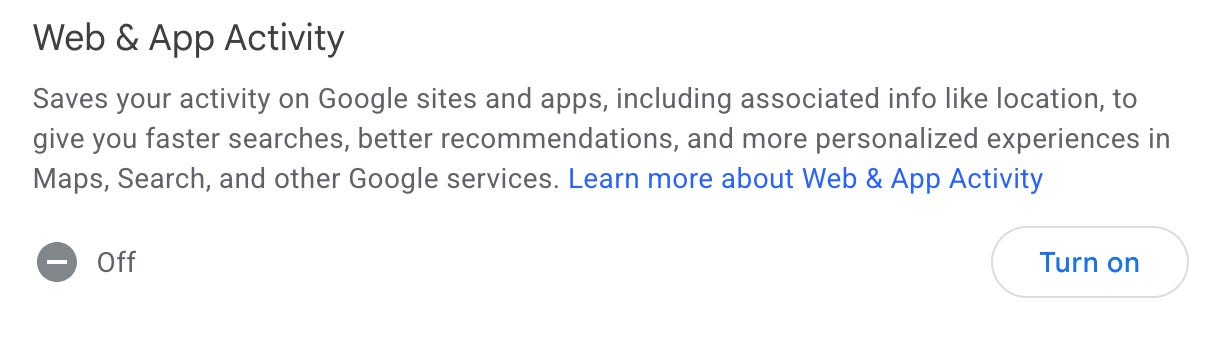
The most protective option is to turn Web and App Activity off entirely rather than setting a deletion period. That is what I have done (see the screenshot I added): switching it off means Google stops saving new activity immediately, rather than accumulating three months of it before deleting. You can do this from the same settings page by tapping the toggle to turn the feature off.
Timeline: what was called Location History
Google Maps now calls this feature Timeline. In current versions, Timeline data is generally stored on each signed-in device rather than as a single cloud-based archive, which is a significant change from how Location History worked before.
If you have granted Google Maps the necessary location permissions and Timeline is turned on, Google Maps can save visits and routes to your device’s Timeline. Depending on your device and settings, this can reveal places visited, routes taken, and timing patterns. If you have saved your home and work addresses to Google, those may appear as well.
To see your Timeline, open the Google Maps app on your phone, tap your profile picture or initial, then choose Your Timeline. The available views and labels can vary by device and app version.
To manage or delete Timeline data, stay in the Maps app: tap your profile picture or initial, then Your Timeline, then More, then Settings. Under location settings, you can delete all Timeline data, delete a specific date range, or turn on automatic deletion. The exact labels can vary slightly by device and app version.
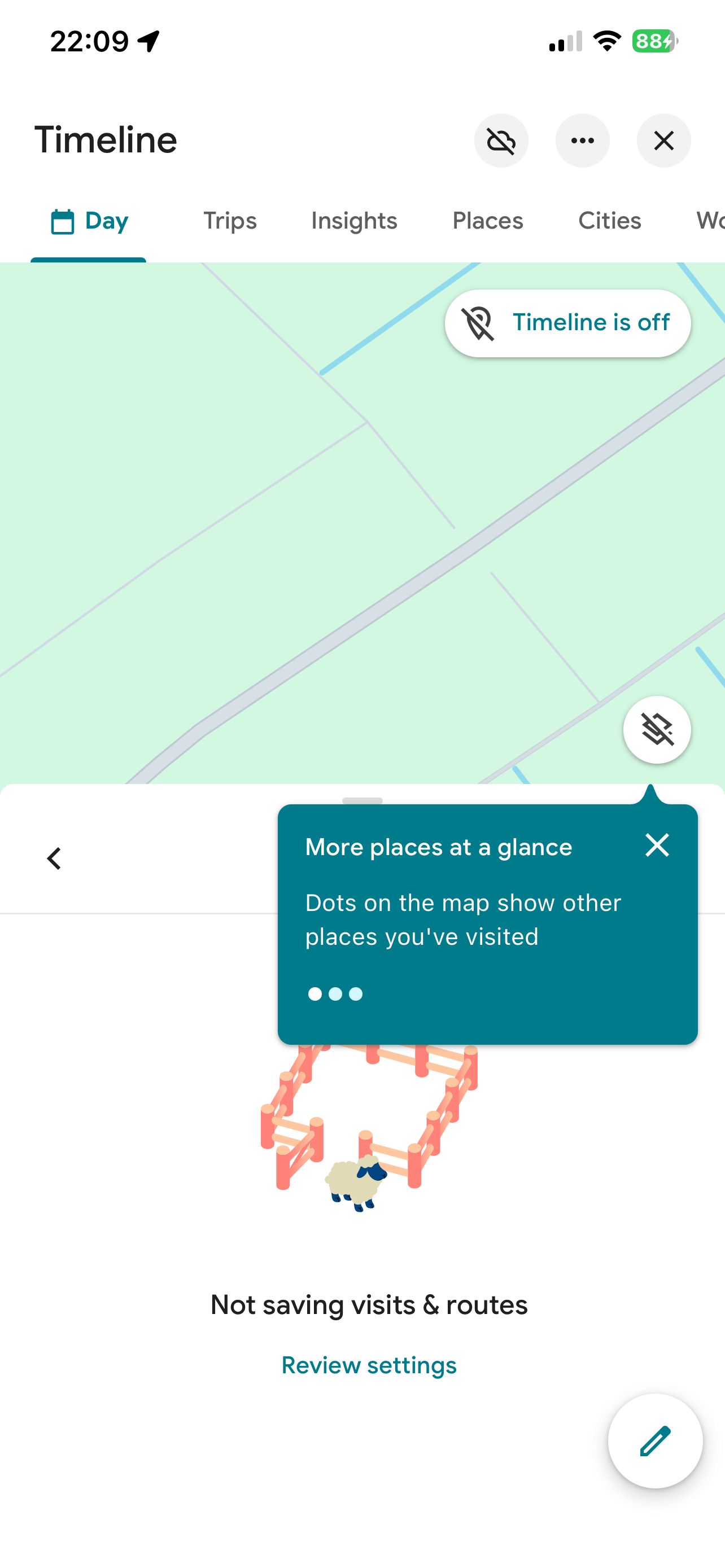
One important point: turning off Timeline stops new data from being saved to it, but does not by itself stop all location-related processing. Other settings, including Web and App Activity, device location permissions, and IP-based location, can still affect what location information Google processes or stores under other controls.
YouTube history
When YouTube History is on, Google can save the videos you have watched and the searches you have run on YouTube, and uses this to shape what the service recommends to you. Pausing or deleting YouTube History can reduce the influence of past viewing on future recommendations, though the practical effect varies and changes may not be immediate.
To manage it, go to your Google Account, then Data and privacy, then History settings, then YouTube History. As with Web and App Activity, you can delete everything at once or set auto-delete with the same three-period options.
Your Google ad profile
Go to myadcenter.google.com. This is Google’s current interface for reviewing and controlling the information used to personalize ads you see on Google’s services.
What you find there may be surprising. It may show account information such as your age range, gender, and language preference, along with advertising categories, activity used for ads, and general areas where you have used Google. The exact content varies by account and region.
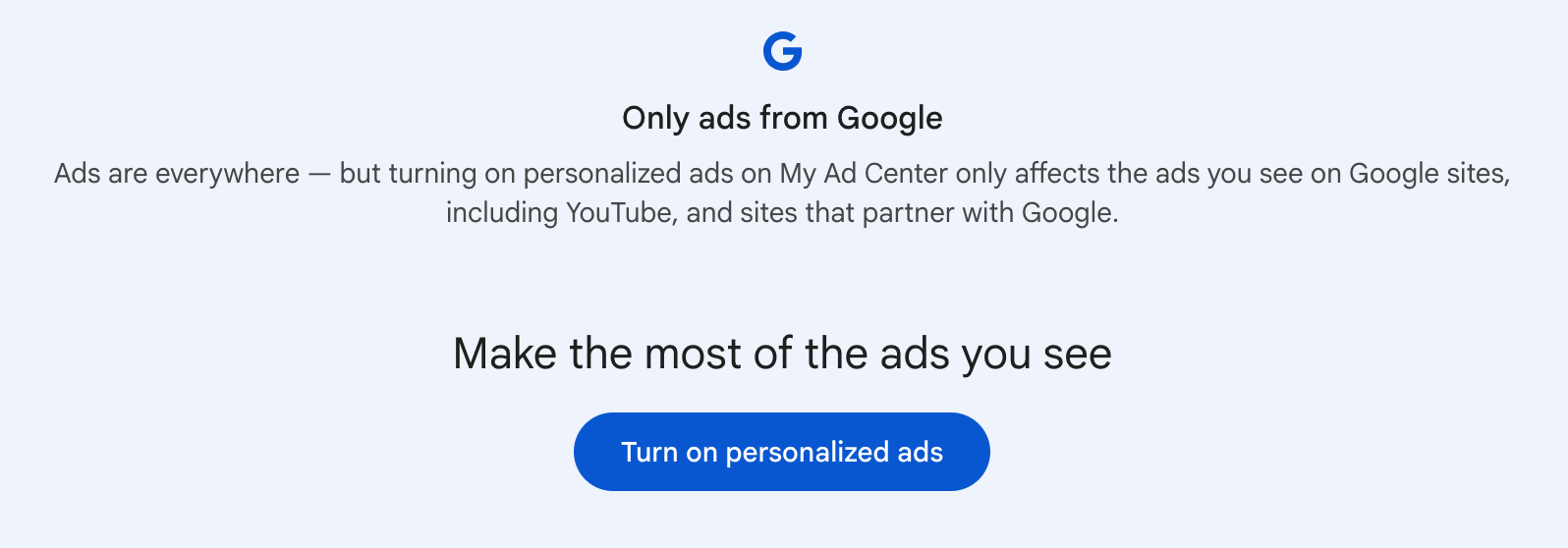
In My Ad Center, you can turn individual ad categories on or off, adjust topics and brands you want to see more or fewer ads about, and turn personalized ads on or off entirely. Turning off personalized ads means Google says it will not use the information and activity saved to your Google Account to personalize ads on its services. You will still see ads, but Google says they will be based on contextual factors such as the page, app, or video you are viewing, the time of day, your current location, or an active search rather than information saved to your Google Account.
What Gmail summaries do with your emails
If you want to turn off Gmail’s AI-generated email summaries, the setting is in Gmail itself rather than in your Google Account dashboard. On a computer, open Gmail, click the Settings gear in the top right corner, then click See all settings. Under the General tab, look for the smart-feature settings and turn them off. Google says this also disables other smart features in Gmail, so you may lose tools such as Smart Compose and Smart Reply alongside the summaries. On a phone, the available controls and labels can vary by account and app version; Gmail’s mobile settings do not currently provide a separate switch specifically for these email summaries.
Turning off the summaries stops Gmail from displaying them, but it does not prevent Gmail from processing message content for other features such as Smart Reply, Smart Compose, spam detection, or inbox categorization. Gmail needs to process message content to provide these features. Whether you want that processing is a separate question.
Gmail’s AI features are not all governed by one simple rule. The relevant privacy terms depend on which feature you use and on whether you have a personal Google account, a Google AI subscription, or a work or school Google Workspace account.
Google says it does not use the content of Gmail, Drive, or Google Photos to show you personalized ads. That is separate from the question of how an AI feature processes information in order to generate a summary or answer a request.
For organizations using Google Workspace, Google says that Workspace content is not used to train or improve Gemini or other generative AI models outside Workspace without permission.
If you use a personal Google account, the controls depend on the specific feature. To turn off the broader set of Gmail smart features on a computer, go to Settings, then See all settings, then the General tab, and look for the smart-feature settings. Depending on your account, you may see Smart features and personalization or newer, separate controls for smart features in Gmail, Chat, and Meet and in Google Workspace. Turning off the relevant Gmail smart-feature setting disables features such as Smart Reply, Smart Compose, and automatic email categorization. Gemini Apps Activity — which covers what Gemini remembers from your conversations — can be managed separately at gemini.google.com through Settings and help, then Activity.
The sensible rule is straightforward: do not put highly sensitive information into an AI prompt simply because the service can access your email. Check the current privacy notice and settings for the specific feature before relying on it for confidential material.
This newsletter grows because of your shares. If you enjoy this article, share the joy with someone else.
How to download a copy of your Google data
If you want to see the range of data Google makes available about you, there is a tool called Google Takeout.
Go to takeout.google.com. From there, you can select which Google services to include: Gmail, Google Photos, Drive, YouTube data, Timeline data where available, and many others. The available categories depend on your account and the products you use. Google prepares the export and notifies you when it is ready. The time required varies substantially with the amount and type of data selected.
Two things worth knowing before you start. First, downloading your data with Takeout does not delete the original data from Google’s servers. It creates a copy for you to keep. Second, the files aren't always easy to interpret—different services use different formats, and some exports are better viewed on a desktop computer.
Most people who do this are surprised by how much data there is. Seeing it in one place tends to change how you think about what you share going forward.
Worth knowing
Advertising has been a central part of the economics of free consumer internet services for decades, and personalized advertising relies in part on information about users and their activity. This is not a secret. What has changed in recent years is the scale of AI processing applied to that data, and the growing expectation from users that they should be able to understand and control what is collected.
The controls described in this newsletter are genuine. Using them can reduce what activity Google retains in your account and can limit how your saved activity is used for personalization and advertising.
One important caveat: deleting activity controls what is retained in those settings. It does not necessarily erase copies held by email recipients, downloaded files, shared documents, or data held by other companies. The controls are meaningful, but they are not a complete reset.
Tech news
Google’s main activity histories can be set to delete themselves. As covered in this issue, you can set Web and App Activity and YouTube History to delete automatically after three, eighteen, or thirty-six months under Data and privacy in your Google Account. For Timeline, use the Google Maps app as described above. Once set, older activity is deleted on a rolling basis without any further action from you.
Apple is currently testing iOS 27. The software is now in its later developer and public beta stages. Apple normally releases its major iPhone software update in the autumn, usually in September, though Apple has not confirmed a specific public release date. When the finished update arrives on your compatible iPhone, check Settings, then General, then Software Update.
Google-impersonation phishing messages remain common. Messages claiming that your Google account has been flagged for unusual activity are a persistent scam pattern. Do not use a link in an unexpected message to check your account status. Instead, open your browser yourself and go directly to myaccount.google.com. Google may send legitimate security notifications, so the safest approach is always to verify account status independently rather than by clicking a link in an email or text. Google says it will never ask for your password by email, text message, or phone. If you suspect a message is a phishing attempt, use your email provider’s phishing-report option and then delete it.
App spotlight: Google Takeout (web, any browser)
The problem it solves: you want to see or keep a copy of much of the data Google makes available about you, or you want to move your data to another service.
Google Takeout lets you request an export of data from many Google products and services, including Gmail, Google Photos, Drive, YouTube data, and Timeline data where available. No special app is needed. Go to takeout.google.com in any browser and sign in with your Google account. Bear in mind that downloading a copy does not delete the original data from Google.
App spotlight: DuckDuckGo (iPhone, Android, and any browser)
The problem it solves: you want to search the web without that activity being tied to your Google account or used to build an advertising profile.
DuckDuckGo says it does not save or share your search history and does not build a personal profile from your searches. Its search ads are based on the query and results page rather than a profile built from your past searches.
You can try it directly at duckduckgo.com without installing anything. On a current iPhone, go to Settings, then Search, then Search Engine, and select DuckDuckGo. In Chrome on Android, tap the three dots, then Settings, then Search engine, and select DuckDuckGo if it appears in the list. DuckDuckGo also offers free mobile browser apps for iPhone and Android if you prefer a dedicated private browser. Search for DuckDuckGo in the App Store or Google Play.
Meanwhile
This is the third and final newsletter in the Google account series. Part one covered how to protect yourself from being locked out, including recovery options. Part two covered which apps and devices are connected to your account and how to manage them. All three issues are in the Screen Skills archive if you want to share the series with someone who would find it useful.
Did you read this one?
Your Phone Is Not Built for Summer Heat. Here Is How to Protect It.

Last week I was sitting outside in Oslo, working on my laptop during what passes for a heat wave here, when the fan started running at full speed, and the screen dimmed on its own. I knew what was happening — the machine was protecting itself — but it made me think about how many people see that same thing and assume something is broken.
Questions?
What would you like me to cover in a future issue? Leave a comment, send me a DM on Substack, or reply to this email.
A few more thoughts to share:
Most technology writing assumes you’re already keeping up. It’s written for people who follow tech news as a hobby, who know the jargon, who want to go deeper. That’s a real audience, but it’s a small one.
The much larger group, people who use screens every day for work, connection, and daily life without being specialists, rarely get the clear, patient explanation they deserve.
Screen Skills is for that group.
I will never assume you already know something.
I will never skip a step because it seems obvious.
And I will never make you feel behind for not knowing something that nobody properly explained to you in the first place.
If that sounds like the newsletter you’ve been looking for, consider subscribing.

Until next time,
Alexander
More from Alexander Verbeek:
☕️ Daybreak Notes & Beans: Every morning before dawn, I search for the best news you didn’t see. Science breakthroughs, conservation wins, human kindness, and beauty — delivered in time for your first coffee. Published most days of the week, positive, and unapologetically hopeful.
On Monday, I published:

🎒 The Curious Wanderer
I write The Curious Wanderer for people who like to move through the world slowly and look at it carefully. If that sounds like you and you enjoy culture, history, and travel storytelling, you may want to join my travel newsletter. Please subscribe below; there is a paid option for those who want to support the writing directly.

✍️ More: where I publish 🧭 Morning Compass and 🎙️ Morning Comments
🧭 The Morning Compass is the best way to quickly catch up on the more serious news that’s going on during your first coffee. I also share what to expect in today’s news, what happened on this day in history, what I recently published, what I captured, and what I stumbled upon.
🎙️ My Morning Comments are short videos where I dive a little deeper into the story that stood out most that morning.
Yesterday, I published:

🌎 The Planet: My political newsletter, written from a European perspective. Analysis of democracy, power, and what’s happening in Trump’s America — with historical parallels and the kind of clarity that distance from Washington can bring.
On Sunday, I published:


Hey, are you still here? Did you get this far? Then what stops you from joining Screen Skills?
"If you want to see the range of data Google makes available about you, there is a tool called Google Takeout."
⬆️ This is outstanding. I consider Google a Frenemy. My favorite words are No and Deny. Thanks for this! 📱💻
Extremely helpful! I’ve applied suggestions from all three Screen Skills and I now feel confident that my privacy is intact! Thank you for this trove of information 😊