
Virtual Doctor Visits Explained: Platform Guide and Preparation Checklist
Plus: Platform differences between Doxy.me and MyChart, privacy basics for protecting health information, and the DEA’s new prescription verification rules

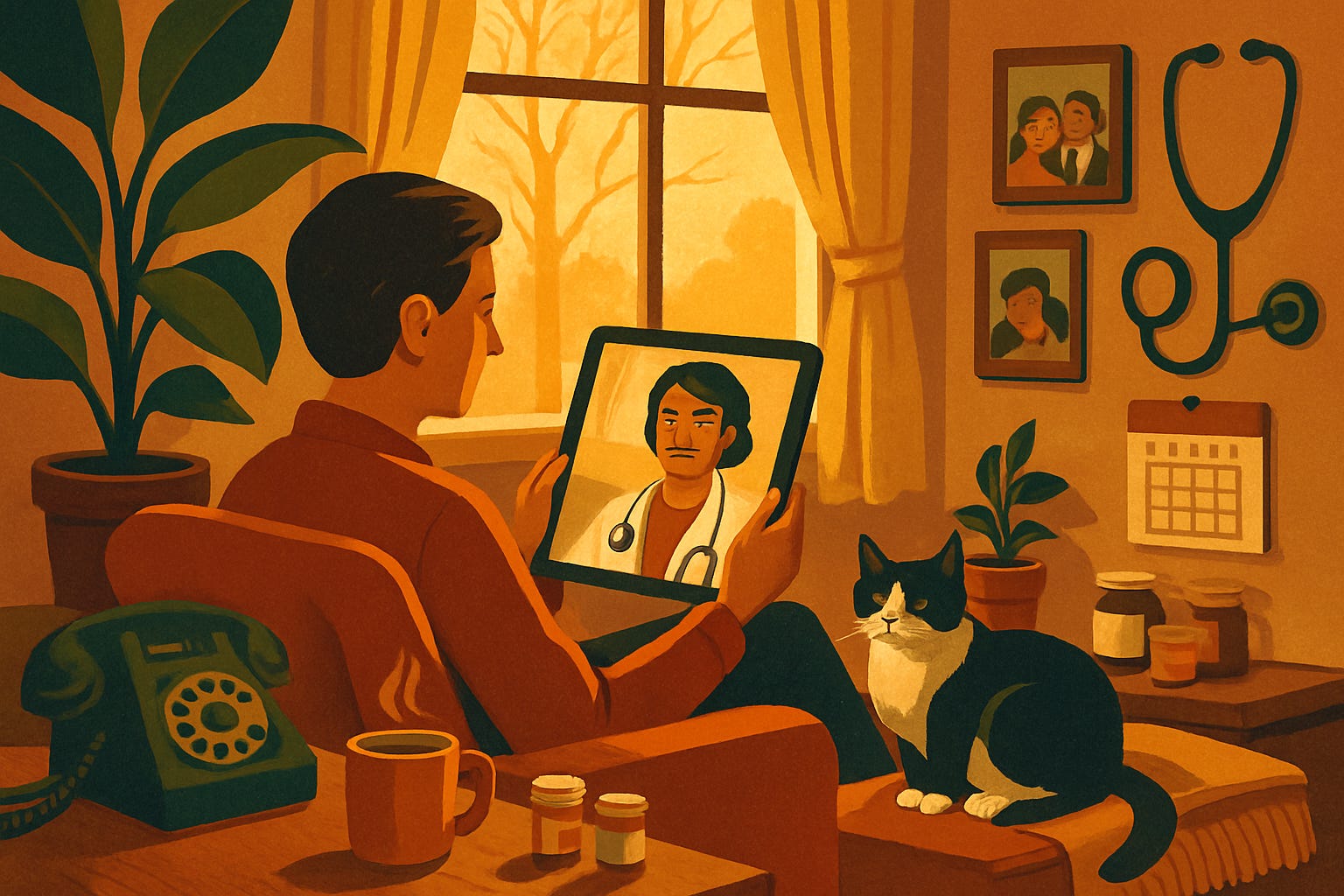
Virtual doctor visits became common during the COVID-19 pandemic and have not gone away. Many healthcare providers now offer telemedicine appointments for routine checkups, prescription renewals, mental health sessions, and minor illness consultations. For patients, this means seeing your doctor from home instead of driving to the office, sitting in waiting rooms, and taking time off work.
I’ve been reading extensively about telemedicine appointments, and I must admit I’ve never actually done one myself—I don’t visit doctors often. What follows is based on a review of research and articles, along with my extensive experience with online meetings and video conferencing during the pandemic, when my international public speaking engagements moved online.
The technology isn’t complicated. Most telemedicine appointments are conducted via video calls such as FaceTime or Zoom, using your phone, tablet, or computer. Your doctor’s office sends you a link, you click it at the appointment time, and your doctor appears on screen. The challenge isn’t the technology itself—it’s knowing what to prepare, how to test your equipment, and understanding which health concerns work well virtually versus which require in-person examination.
I realize this topic is more specialized than the general topics I normally cover. One of you suggested it, so I picked it up today. If you don't need telemedicine information right now, that's perfectly fine—just remember this newsletter is in the archive. When you do have a virtual doctor appointment scheduled, use the search function to find this newsletter, and it will immediately pop up with everything you need to prepare. I promise my next newsletter, coming out Monday, will return to more universally applicable topics.
Today you’ll learn:
How telemedicine platforms work and what happens during a typical virtual appointment
Testing your camera and microphone beforehand, so technology doesn’t cause stress during the appointment
What to prepare, including symptom lists, current medications, and questions you want answered
Privacy and security basics for protecting your health information during video calls
When virtual visits work well versus when you genuinely need in-person examination
Platform differences between specialized healthcare apps and general video calling services
For new readers: Screen Skills provides practical digital advice that everyone can understand and apply within minutes. Discover hundreds of simple tricks that make your digital life more efficient and enjoyable.
Today, you can get a 20% discount on the first year of your subscription.
If this newsletter provides useful information that reduces your screen frustration, improves your output, and makes spending time online more fun for you, please consider supporting this newsletter that occupies a unique niche on Substack: digital tips for non-digital people.
How telemedicine appointments work
Most healthcare providers use one of two approaches to virtual visits: specialized telemedicine platforms or general video calling services like Zoom, which many people already use for work or family calls.
Specialized medical platforms include services like Doxy.me, Teladoc, Amwell, and MyChart (used by many hospital systems). These platforms are built specifically for healthcare, with features including secure medical record integration, prescription management, and enhanced privacy protections required by healthcare regulations. When your doctor uses these platforms, you typically receive an email or text message with a link to your appointment. Clicking that link opens the video call in your web browser or through a dedicated app.
General video platforms such as Zoom for Healthcare, Microsoft Teams, and Google Meet work similarly but lack healthcare-specific features. Some smaller medical practices use these platforms because they’re already familiar and don’t require patients to download special medical software. The video quality and basic functionality are identical to those of specialized platforms, though privacy features differ. Note that healthcare providers must use HIPAA-compliant versions of these platforms—Zoom for Healthcare, for instance, is a separate product from the regular Zoom app, designed specifically to meet medical privacy requirements.
The typical appointment flow is the same across platforms. You receive appointment details via email or text message, including the date, time, and a link to join the video call. Five to ten minutes before your appointment, you click the link. This opens either your web browser or prompts you to download an app if required. Most modern platforms automatically test your camera and microphone when you first join, showing you a preview and asking you to confirm everything works. You might wait briefly in a virtual waiting room while your doctor finishes with the previous patient. Then your doctor joins the video call, and the appointment proceeds much like an in-person visit—discussing symptoms, answering questions, and determining next steps.
Your doctor can see and hear you, and you can see and hear them. The camera shows your face and upper body, similar to a video call with family. Your doctor observes visible symptoms, watches how you move or demonstrate pain locations, and listens to you describe your concerns. They cannot perform physical examinations, such as checking blood pressure or listening to your heart with a stethoscope, which is why some conditions require in-person visits.
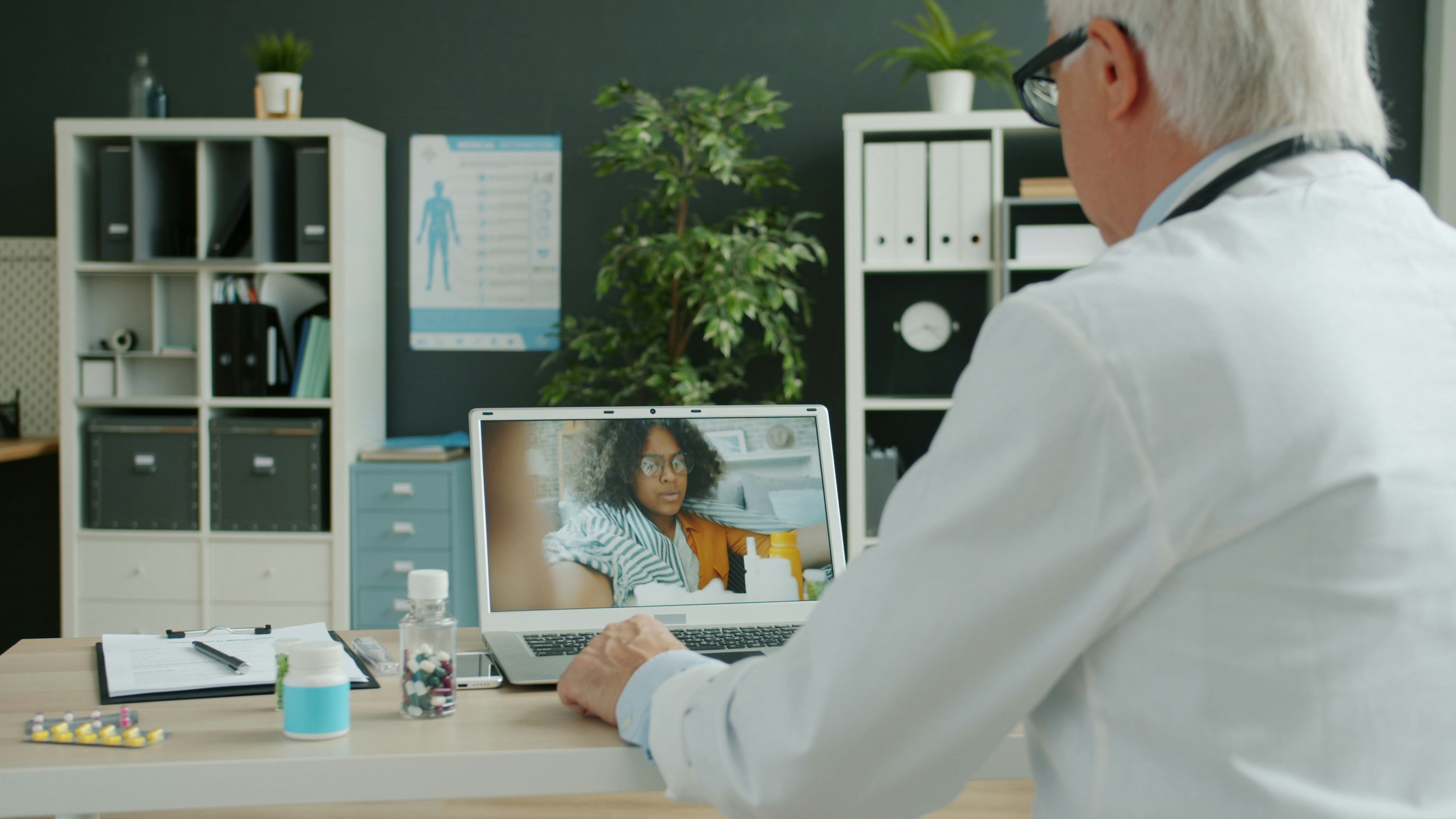
Testing your camera and microphone before appointments
The most common telemedicine frustration occurs when patients encounter technical issues during their scheduled appointment rather than beforehand. Testing your equipment ten minutes early eliminates this stress and ensures your doctor can actually see and hear you. While most platforms now run automatic checks when you join, testing independently beforehand gives you confidence and time to fix any issues.
For computer users (Windows and Mac), test your camera and microphone through your browser settings. Open your web browser (Chrome, Safari, Firefox, or Edge) and search for “camera microphone test” or visit a test site like webcammictest.com. Click to start the test, and your browser will ask permission to access your camera and microphone. Click “Allow.” You should immediately see yourself on screen via your camera, and you'll see visual indicators when you speak into your microphone.
If you see yourself and the microphone indicator move when you speak, your equipment is working correctly. If you see nothing or get error messages, check that your camera isn’t covered or blocked, that you clicked “Allow” when prompted, and that no other programs are currently using your camera (close video apps like Zoom or Skype that might be running in the background).
For iPhone users, your camera and microphone automatically work with the Safari browser on most telemedicine platforms. To test in advance, open the Camera app and take a photo to verify your camera is working. Then open Voice Memos and record a short message to verify your microphone captures sound. If both work in these apps, they’ll work for telemedicine as well. When you join your actual appointment, Safari will ask permission to use the camera and microphone—tap “Allow” for the specific medical website.
For Android users, similar testing applies. Open your Camera app to verify the camera works, and use a voice recording app to test your microphone. When joining the telemedicine appointment through your browser (Chrome is most common on Android), you’ll be asked to allow camera and microphone access—tap “Allow” when prompted.
Position your camera at eye level for the best appointment experience. If using a laptop, this usually works automatically. If using a tablet or phone, prop it against something stable so the camera shows your face clearly without requiring you to hold the device. Sit in a well-lit area facing a window or lamp so your doctor can see you clearly. Avoid sitting with a bright window behind you, as it can make your face appear dark.
Test your internet connection quality. Video calls require steady internet connections. If possible, use WiFi rather than cellular data. If you’re using Wi-Fi and experience choppy video, try moving closer to your Wi-Fi router or ask others in your home to pause streaming during your appointment.

What to prepare for your telemedicine appointment
Virtual appointments require the same preparation as in-person visits, plus some additional documentation that’s easier to have ready when you’re at home.
Write down your current symptoms before the appointment starts. Include when symptoms began, how they’ve changed over time, what makes them better or worse, and how they affect your daily activities. Having this written prevents forgetting important details during the appointment. Keep this list on paper next to your device during the call so you can reference it without taking your eyes off the camera.
Gather your current medications to show your doctor. This is actually easier in telemedicine—you can walk to your medicine cabinet and hold bottles up to the camera so your doctor can see exact names and dosages. For in-person appointments, patients often struggle to remember medication names, but telemedicine lets you show the actual bottles.
Prepare questions you want answered. Write them down before the appointment. Common questions include: Do I need any tests? Should I be concerned about these symptoms? Will this get better on its own, or do I need treatment? When should I follow up? Are there side effects I should watch for with new medications?
Have your pharmacy information ready. If your doctor prescribes medication, they’ll ask where to send the prescription. Know your pharmacy’s name and location, or have the pharmacy phone number available. Note that recent regulations require additional verification for certain controlled substances prescribed via telemedicine—your doctor may need to schedule a follow-up within 30 days to continue prescriptions for these medications.
Keep your insurance card nearby in case administrative questions arise, though most telemedicine platforms pull this information from your existing medical records.
For computer appointments, close other programs to reduce distractions and ensure your device dedicates full resources to the video call. Close unnecessary browser tabs, quit other video programs, and silence your phone if it’s not being used for the appointment.
"Looking forward to your digital pearls of wisdom!"
Mark Lovett, a Screen Skills supporter
Privacy and security for virtual health visits
Healthcare providers must comply with HIPAA (Health Insurance Portability and Accountability Act) regulations to protect patient privacy. This means medical platforms use encrypted connections and secure data storage. However, you also need to take basic privacy precautions on your end.
Take the call from a private location. Unlike in-person doctor visits in private examination rooms, telemedicine happens wherever you are. Choose a room where others can’t overhear your conversation. If you live with family, let them know you need privacy during your appointment time. Close the door and ask others not to interrupt.
Use headphones if discussing sensitive topics. Headphones or earbuds prevent others in adjacent rooms from hearing your conversation, providing additional privacy beyond closed doors. This matters especially in apartments with thin walls or homes where others are nearby.
Be aware of what your camera shows. Your doctor sees whatever is behind you in the video frame. Ensure nothing private or embarrassing appears on screen. Some platforms allow you to blur your background, which helps if you’re in a shared space.
Avoid public WiFi for health appointments. Public WiFi in coffee shops, libraries, or other public locations isn’t secure for sensitive conversations. Use your home WiFi or cellular data instead.
Verify you’re connecting to the legitimate platform. Click only links sent directly from your doctor’s office through official communication channels. Don’t click telemedicine links from unknown sources or suspicious emails, as these could be phishing attempts to steal your information.

When virtual visits work versus when you need in-person care
Telemedicine works well for many health concerns, but cannot replace in-person care for all needs. Understanding which situations are suitable for virtual appointments helps you decide whether to request a video appointment or schedule an in-office visit.
Virtual visits work well for routine checkups when you have no acute problems, prescription renewals for ongoing medications, follow-up appointments after procedures or treatments, mental health counseling and therapy sessions, minor illness evaluation like colds or flu, rash assessment where your doctor can see affected areas through video, discussing test results that came back from previous visits, managing chronic conditions that you’ve already been diagnosed with, and getting second opinions on treatment plans.
In-person visits are necessary for physical examinations requiring touch or instruments (checking for lumps, listening to heart and lungs, examining ears and throat), acute chest pain or difficulty breathing, severe injuries requiring immediate treatment, procedures like vaccinations or blood draws, conditions requiring equipment like blood pressure measurement or EKG, situations where your doctor says they cannot adequately assess symptoms virtually, and any time you or your doctor feel uncomfortable making decisions without physical examination.
Your doctor will tell you if an in-person visit becomes necessary. Sometimes appointments start virtually, but your doctor determines during the conversation that a physical examination is needed. This is normal and appropriate—telemedicine serves as a convenient first step, but your doctor maintains full discretion about when in-person care is required.
Don’t avoid needed care because you prefer virtual appointments. Telemedicine offers convenience, but it’s a tool that works alongside traditional care, not a replacement for all in-person visits. If you’re experiencing serious symptoms, don’t delay care in hopes of a virtual option.
Worth knowing
Telemedicine existed long before the COVID-19 pandemic, though the pandemic accelerated its adoption dramatically. Early telemedicine in the 1960s used closed-circuit television for psychiatric consultations. By the 1990s, some rural hospitals used video conferencing to consult with specialists in distant cities. However, regulatory restrictions, insurance coverage limitations, and patient reluctance limited widespread adoption until 2020.
The COVID-19 pandemic forced rapid regulatory changes that allowed doctors to see patients across state lines and permitted general video platforms like Zoom for healthcare when specialized platforms couldn’t handle the sudden demand. Many of these temporary flexibilities have become permanent, making telemedicine more accessible now than before the pandemic.
Insurance coverage for telemedicine has improved significantly. Most major insurance plans now reimburse virtual visits at the same rate as in-person appointments for covered services. Medicare expanded telemedicine coverage permanently in 2023, making it accessible to more older adults. However, coverage specifics vary by plan, so verify with your insurance whether your virtual appointment will be covered and if any copays apply.
State medical licensing regulations still affect telemedicine availability. Doctors must be licensed in the state where the patient is physically located during the appointment, not just where the doctor practices. This means if you travel to another state, your home doctor might not be able to provide virtual care while you’re away. Some states participate in interstate medical licensing compacts that ease these restrictions, but rules vary.
Prescription regulations for controlled substances changed in January 2026 when the DEA implemented new rules. Doctors can now prescribe certain controlled medications after an initial virtual assessment, but must conduct follow-up verification within 30 days to continue these prescriptions. This affects medications for conditions like ADHD, anxiety, and pain management. Your doctor will explain if this applies to your situation.
Technical requirements for telemedicine remain minimal. Most appointments work fine with smartphone cameras and microphones from the past five years. You don’t need expensive equipment or high-speed internet—standard home WiFi or good cellular data connections suffice. This accessibility ensures that technical barriers don’t prevent people from accessing virtual care.
Before we continue with Tech News, it’s worth knowing that I have another newsletter, Daybreak Notes, and Beans, with a focus on positive news to counterbalance the negative headlines you see all day.
On most days of the week, I share ten uplifting news stories about science, health, art, travel, archaeology, or any other topic I think you’ll enjoy reading or that will give you hope now that we need it. Try it:

Tech news
Apple Health Records integration expanded to major telemedicine platforms. iPhone users can now sync their health information stored in Apple Health with telemedicine platforms like Teladoc and Amwell. This means your recent health data—heart rate, blood pressure readings from home monitors, activity levels—can be shared with your doctor before or during virtual appointments. Set this up in iPhone Settings, Health, Health Records if your healthcare provider supports the feature.
Medicare permanently expanded telemedicine coverage, including mental health services. Changes implemented in 2023 allow Medicare beneficiaries to access virtual mental health appointments, physical therapy evaluations, and some specialist consultations without geographic restrictions that previously limited coverage. This expansion particularly benefits rural patients who previously needed to travel long distances for specialty care. Check with Medicare or your Medicare Advantage plan for current coverage specifics.
HIPAA-compliant video platforms expanded options for smaller practices. Zoom for Healthcare, Google Meet for Healthcare, and Microsoft Teams for Healthcare all offer dedicated HIPAA-compliant versions with enhanced encryption and access controls that meet medical privacy requirements. These are separate products from the consumer versions of these platforms. This means more small medical practices can use familiar video platforms without sacrificing patient privacy. If your doctor uses these platforms, they should specify they’re using the healthcare-compliant version.
App spotlight: Doxy.me (iPhone/Android/Computer)
Doxy.me is a telemedicine platform designed for healthcare providers seeking simple, free video calling for patient appointments. Unlike complex medical record systems, Doxy.me focuses exclusively on the video call itself, making it extremely simple for patients to use.
The platform requires no downloads or account creation for patients. Your doctor sends you a link; at the scheduled time, you click it, and the video call starts immediately in your web browser. This simplicity eliminates the common frustration of downloading apps, creating accounts, and navigating complex medical software just to have a ten-minute conversation with your doctor.
Doxy.me works on any device with a webcam and an internet connection—smartphones, tablets, laptops, or desktop computers. The interface displays your doctor’s video, your own video in a small corner window, and basic controls to mute your microphone or turn off your camera if needed. That’s it. No complex menus or confusing options.
For patients, Doxy.me is completely free because healthcare providers pay for the service. The basic version includes everything needed for standard appointments. Doctors can customize their virtual waiting room with their practice logo and information, but patients just see a simple waiting screen until the doctor joins.
The platform meets all HIPAA requirements for patient privacy, using encrypted connections and secure data handling. Your video call isn’t recorded unless you or your doctor specifically chooses to record it, and no personal information is stored beyond the duration of your appointment.
Doxy.me works particularly well for patients who see multiple doctors at different practices. Unlike proprietary systems, where each healthcare provider uses different software, many smaller practices have adopted Doxy.me. This means you might use the same familiar platform for your primary care doctor, your therapist, and your dermatologist, reducing the learning curve each time.
App spotlight: MyChart (iPhone/Android)
MyChart connects patients with their medical records and healthcare providers at hospitals and large medical systems. If your doctor works for a health system that uses Epic electronic medical records (common at most major hospitals), you likely have access to MyChart.
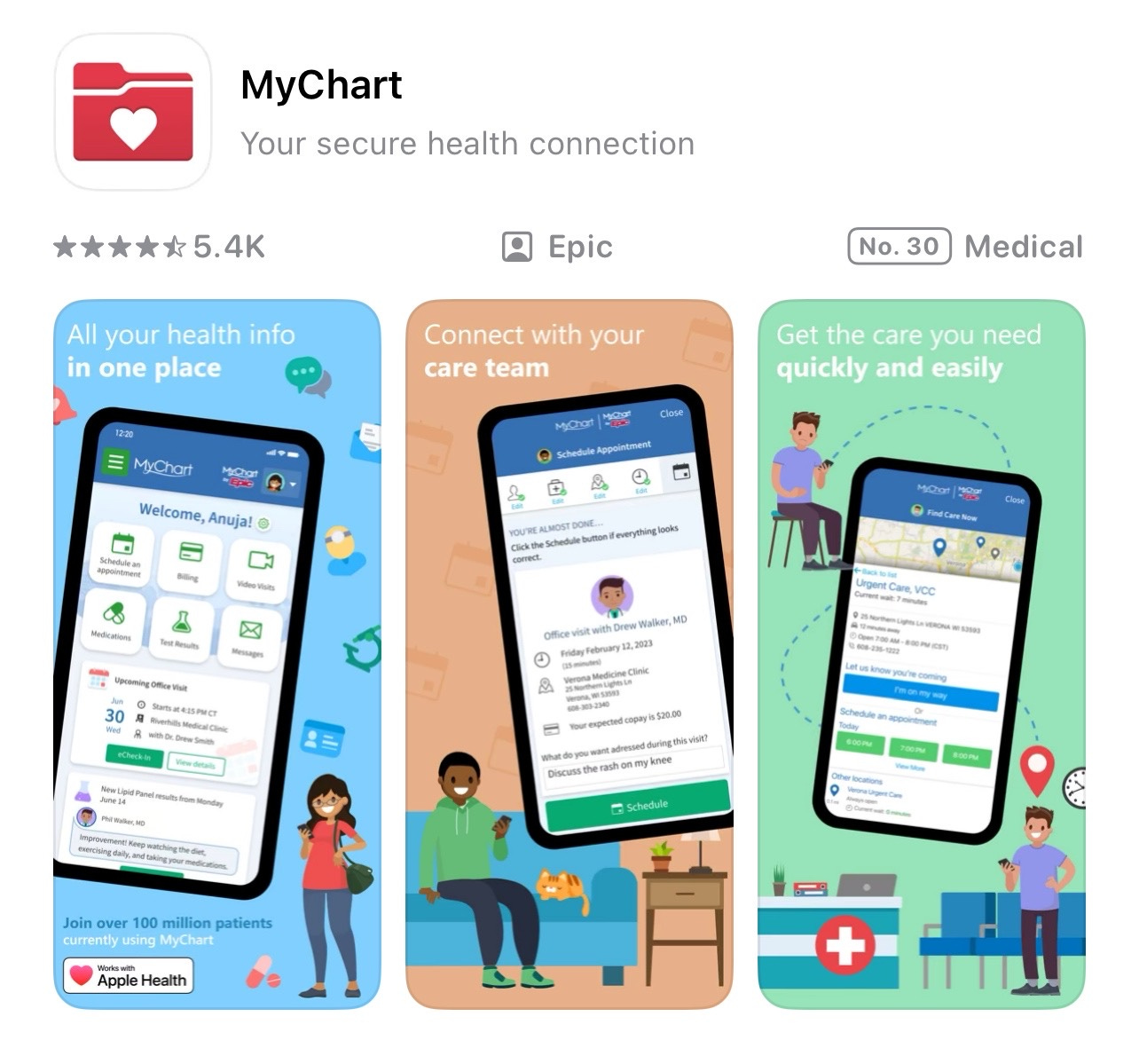
The app goes beyond just video appointments to provide comprehensive access to your health information. View test results as soon as they’re available, request prescription refills, send non-urgent messages to your doctor’s office, schedule appointments, and access your complete medical history, including visit summaries and medication lists.
For telemedicine specifically, MyChart integrates video visits directly into your existing patient portal. When you have a scheduled video appointment, a “Join Video Visit” button appears in the app at the appropriate time. Tap it, and you’re connected to your doctor through the same app where you view your other health information.
This integration provides significant advantages over standalone video platforms. Your doctor sees your complete medical history during the video call without you needing to recall medication names or past diagnoses. If they order lab work during the appointment, the orders will appear automatically in your MyChart account, along with scheduling information. Prescriptions sent to your pharmacy show up in your medication list immediately.
MyChart requires initial setup through your healthcare provider. Ask your doctor’s office if they use MyChart and request activation credentials. You’ll receive a signup code via email and create your account through the MyChart website or app. Once set up, the account remains active for all future appointments with providers in that health system.
The app is free with no subscription costs or in-app purchases. Healthcare systems provide MyChart as a patient service included with your care. Download it from the App Store or Google Play Store and search for your specific health system when prompted during setup.
Security features in MyChart exceed standard telemedicine platforms because the app provides access to your complete medical records. Two-factor authentication is available and recommended. The app automatically logs you out after periods of inactivity to protect your information if someone else accesses your phone.
Quick fix: What to do if the video freezes during your appointment
If your video freezes or audio cuts out during a telemedicine appointment, don’t panic. First, check whether you can still hear your doctor even if the video is frozen—sometimes audio continues to work when the video fails. Tell your doctor, “My video froze. Can you hear me?” If they respond, continue the appointment in audio-only mode. Many medical discussions work fine without video. If both audio and video fail, hang up and immediately rejoin using the same link from your appointment reminder. This usually reconnects you within seconds. If problems persist, ask your doctor’s office if you can switch to a regular phone call for the remainder of the appointment. Most offices have backup phone numbers for situations like this. Finally, check your internet connection—if other people in your home are streaming videos, ask them to pause temporarily to free up bandwidth for your medical appointment.
Meanwhile: Overcoming the awkwardness of the first video appointment
Your first telemedicine appointment may feel strange. Talking to your doctor through a screen instead of in person can seem impersonal and awkward. You might not be sure where to look—at the camera or at your doctor’s face on screen. You might worry about whether the lighting is right or if the camera angle is flattering.
Those concerns typically evaporate within the first two minutes of the actual appointment. Your doctor appears on screen, greets you normally, and starts asking about your symptoms exactly as they would in an office visit. The strangeness disappears once the actual medical conversation starts. The medium doesn’t matter—what matters is the quality of the medical discussion, which remains identical to in-person visits.
The awkwardness many people anticipate before their first video appointment rarely persists once the appointment actually starts. Your doctor has conducted hundreds of these appointments and will guide the conversation naturally. Focus on the medical discussion rather than the technology, and the experience feels surprisingly normal.
Did you read this one?
Questions?
Today’s newsletter covered the basics of telemedicine appointments, from testing your equipment beforehand to understanding when virtual visits work well versus when you need in-person care. I hope this reduces any anxiety you might have about trying virtual healthcare and helps you prepare for successful appointments.
What problems are you encountering with your phone, tablet, or computer right now? Maybe it’s something you’ve been putting up with for months, or a new issue that just started this week. Screen Skills works best when it addresses real problems that real people face, so leave a comment, send me a direct message, or reply to this email and tell me what’s making your digital life harder than it needs to be. Your question might become next week’s newsletter.
Until next time,
Alexander
Today, you can get a 20% discount on the first year of your subscription.
If this newsletter provides useful information that reduces your screen frustration, improves your output, and makes spending time online more fun for you, please consider supporting this newsletter that occupies a unique niche on Substack: digital tips for non-digital people.

A new newsletter: More
There’s always more to say than fits in a daily newsletter. That’s why I started “More“—a place for follow-ups, deeper explorations, and the content that doesn’t fit the structured format here. Think of it as the notebook behind the newsletters.
You can subscribe here:

Read the latest More newsletter that I posted two days ago:

I also publish on Patreon:
For instance: Along the Old IJssel: Stories of Nature, History, and Growing Up

Or perhaps you enjoyed the article and would like to support my writing by buying me a coffee?
Still here?
Then have a look at my other newsletter:
The Planet: a weekly newsletter examining American democracy, freedom of speech, and environmental policy through a European perspective. Having lived, worked, and traveled extensively in the US and beyond as a backpacker, diplomat, and journalist, I explore current events through historical context, showing how lessons from the past inform today’s challenges to democratic values and planetary health.
Last weekend, I published:

This information is beneficial and I can confirm the accuracy of everything you've included. Most of my experience is with MyChart which works well if you see multiple specicialists across multiple large healthcare facilities. You and your doctors have ready access to testing, results, medication information. Thank you 💻📱
Very interesting. Thanks.
Not sure if these are done in Switzerland and I only ever go SEE a doctor when there is no other way, but definitely good to know.