
Three Maps tricks most people never discover (but should)
Plus: Sharing your location so family knows you’re safe, saving favorite restaurants for future visits, and the parking reminder that prevents wandering lost through parking garages

Most people use their Maps app for one thing: getting from point A to point B. They enter a destination, follow the blue line, and close the app upon arrival. But your Maps app includes powerful features that transform how you explore unfamiliar places, remember great discoveries, and keep loved ones informed about your location.
You can create lists of places you want to visit, share your real-time location with family members, and mark favorites that you’ll want to return to later. These features work on both Google Maps and Apple Maps, though each handles them slightly differently.
Today you’ll learn:
How to create saved lists of restaurants, attractions, and places you want to visit for trip planning
Why location sharing lets family members see where you are in real time without constant text updates
The way to drop pins on unmarked locations like trailheads or meeting spots
How Maps remembers where you parked so you can find your car in massive parking structures
Why marking places as favorites creates a personal map of your discoveries
The difference between Google Maps and Apple Maps for organizing places
How to share your location temporarily versus continuously with specific people
For new readers: Screen Skills provides practical digital advice that everyone can understand and apply within minutes. Discover hundreds of simple tricks that make your digital life more efficient and enjoyable.
Today, you can get a 20% discount on the first year of your subscription.
If this newsletter provides useful information that reduces your screen frustration, improves your output, and makes spending time online more fun for you, please consider supporting this newsletter that occupies a unique niche on Substack: digital tips for non-digital people.
Saved lists
Saved lists turn trip planning from overwhelming to organized. Instead of trying to remember that restaurant your friend recommended or the museum someone mentioned, you create collections of places grouped by purpose or trip.
For Google Maps users:
Search for a place like a restaurant or attraction. Once it appears, tap the place name to open details. Look for the “Save” button below the place name. Tap Save, and you’ll see options including “Favorites,” “Want to go,” and “Starred places.” Choose the appropriate list, or create a new list by selecting “New list” at the bottom.
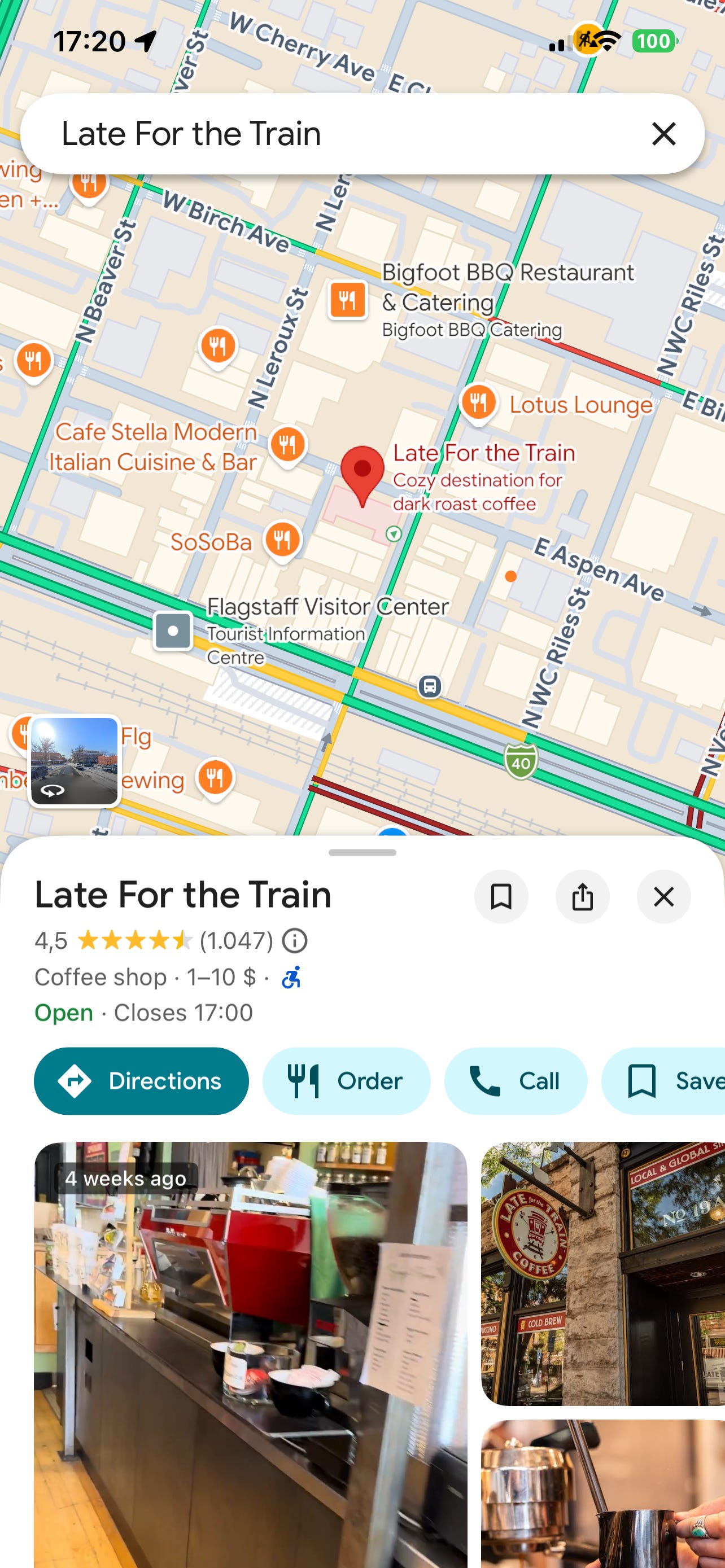
Creating custom lists works well for trip planning. Make a list called “Arizona March 2026” and add every restaurant, hotel, and attraction you’re considering. During your trip, open the list to view all your saved places on one map, with easy access to directions and details.
To view your lists, tap your profile picture in the top right, then select “Your places,” then “Saved.” All your lists appear here. Tap any list to see the places you’ve saved and get directions to them.
For Apple Maps users:
Search for a location and tap it to open details. Look for the “Add to” button (it looks like a bookmark or flag). Tap it and choose “Favorites,” “New Guide,” or add it to an existing guide.
Guides in Apple Maps function like Google’s lists. Create a guide called “Weekend Getaways” or “Best Coffee Shops” and add places as you discover them. The guide becomes a curated collection you can reference later or share with friends planning similar trips.
Access your guides by tapping your profile picture, then selecting “My Guides.” Each guide shows all saved locations on a map with quick access to navigation.
The practical difference: Google Maps integrates better across devices if you use Android phones and the Chrome browser. Apple Maps syncs automatically across iPhone, iPad, and Mac, making it ideal if you use Apple products exclusively. Both work well for their respective ecosystems.

Sharing your real-time location
Sharing your real-time location eliminates the constant “where are you” text messages when meeting up with family or letting loved ones track your progress during long drives.
For Google Maps users:
Open Google Maps and tap your profile picture in the top right corner. Select “Location sharing” from the menu. Tap “Share location” or the blue “New share” button. Choose how long you want to share: one hour, until you turn it off, or a custom duration. Select the person you want to share with from your contacts or tap “More” to share via text message, email, or other apps.
The recipient receives a link showing your real-time location on a map. They can monitor your location as you travel, providing peace of mind for family members without requiring constant updates. When the time expires or you manually stop sharing, your location disappears from their view.
To stop sharing before the time expires, return to Location sharing in your profile menu and tap “Stop” next to the person’s name.
For Apple Maps and iPhone users:
First, ensure location sharing is enabled: Open the Find My app, tap “Me” at the bottom, and make sure “Share My Location” is turned on.
Then, open the Find My app (pre-installed on all iPhones). Tap “People” at the bottom, then tap “Start Sharing Location.” Select a contact from your list. Choose whether to share for one hour, until end of day, or indefinitely.
The person receives a notification and can see your location in their Find My app. This works only between Apple devices, so if your family uses Android phones, Google Maps location sharing is more effective.
To stop sharing, open Find My, tap People, select the person, and choose “Stop Sharing My Location.”
Safety consideration: Only share your location with people you trust completely. Both systems let you control who can see your location and for how long, but once you share it, that person can see your location in real time.
Dropping pins
Dropping pins marks specific locations that don’t have addresses, like hiking trailheads, beach access points, or exact meeting spots in large parks.
For Google Maps users:
Long-press anywhere on the map where you want to mark a location. A red pin appears. Tap the pin to see options including “Save,” “Share,” or “Directions.” You can add this pin to a saved list or share the exact coordinates with someone meeting you there.
For Apple Maps users:
Long-press on the map to drop a pin. Tap the pin, then tap “Add to My Guides” to save it permanently. You can also share the pin’s location directly from this screen.
The parking location reminder solves the universal problem of forgetting where you left your car in a massive parking structure or unfamiliar area.
For Google Maps users:
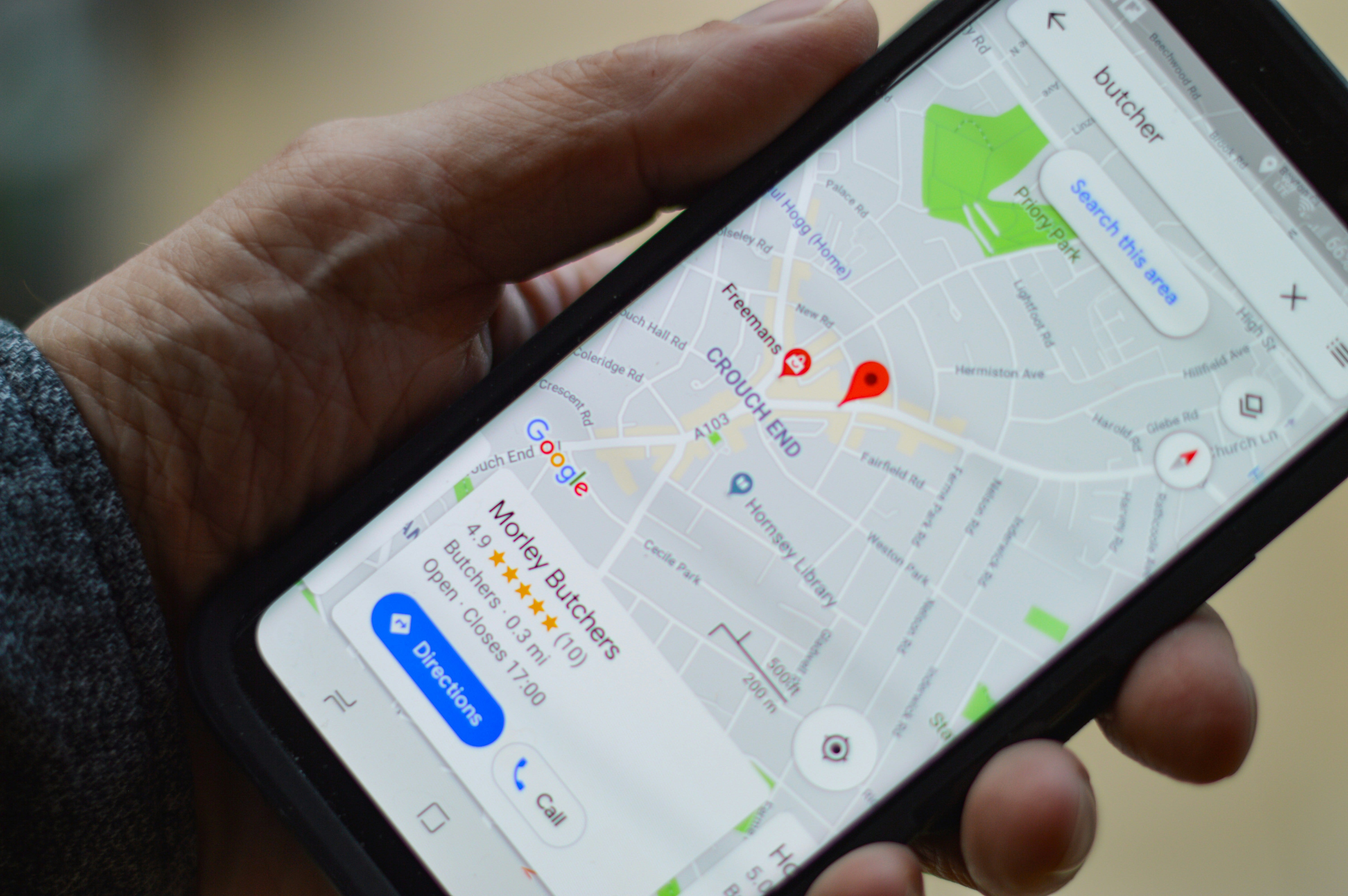
When you park, open Google Maps. Tap the blue dot showing your current location. Select “Save your parking” from the menu that appears. Google marks that spot on your map. Later, when you need to find your car, open Maps and look for the “P” icon showing where you parked. Tap it for walking directions back to that exact spot.
You can add notes like “Level 3, Section B” or set a timer reminder if you’re using metered parking. The parking location automatically deletes after 48 hours, assuming you’ve retrieved your car.
"I am impressed with your work on The Planet and confident Screen Skills will benefit my digital life."
Kale, a Screen Skills supporter
Worth knowing
Digital mapping technology evolved from simple street directories to GPS navigation to the current generation of context-aware location services. Google Maps launched in 2005 with basic directions, added real-time traffic in 2007, and introduced offline maps in 2012. Apple Maps debuted in 2012 to mixed reviews due to accuracy problems, but it has improved significantly through crowdsourced corrections and partnerships with mapping data providers.
The saved lists feature emerged from user behavior: people would take screenshots of interesting places or text addresses to themselves as a primitive bookmarking method. Both companies formalized this behavior into proper list management systems around 2016-2017.
Location sharing initially raised privacy concerns, but both Google and Apple implemented strict controls that require explicit permission and set time limits. The feature became essential during the COVID-19 pandemic for families monitoring elderly relatives and coordinating contact-free deliveries.
Tech news
Google Maps simplified navigation with landmark-based directions. The January 2026 update now gives you directions like “turn right after the red bakery” instead of just street names, making navigation easier in unfamiliar areas. The app analyzes which buildings and landmarks are most visible and memorable along your route. This works particularly well in cities where street signs are hard to spot or in countries where you can’t read the local language. The feature activates automatically during navigation with no settings to change.
Apple Maps added enhanced 3D building views in major cities worldwide. When navigating on foot in cities like New York, London, Tokyo, and Paris, Apple Maps now shows detailed 3D building models that help you identify landmarks and navigate complex intersections. This works particularly well when trying to find building entrances on streets with multiple high-rises. The feature activates automatically when you’re in walking navigation mode in supported cities.
Both mapping services improved bicycle routing across the United States and Europe. The latest updates include elevation profiles showing hills along your bike route, indicators for bike lanes and dedicated paths, and routing that avoids stairs and busy roads when possible. This helps cyclists plan routes that match their fitness level and comfort with traffic. Access these features by selecting the bicycle icon when requesting directions. The routing now accounts for electric bikes with options for prioritizing speed versus scenic routes.
A new newsletter: More
I still have a few handy apps to show you, we’ll get there in a minute. But I also want to share that there’s always more to say than fits in a these newsletters. That’s why I started “More“—a place for follow-ups, updates, deeper explorations, and the content that doesn’t fit the structured format of Screen Skills or the other newsletters. Think of it as a peek into my writing notebook where I share valuable information that would otherwise be lost.
Citymapper navigates public transit better than default Maps apps
(iPhone and Android)
Citymapper specializes in urban public transportation across major cities worldwide, providing subway, bus, train, ferry, and bike-share routing with real-time updates that surpass what Google Maps or Apple Maps offer for transit.
The app excels at showing you every possible route option with accurate time estimates and clear instructions for complex transfers. When a subway line has delays or a bus is running late, Citymapper updates your route in real time and suggests faster alternatives. This prevents you from waiting at stations for trains that aren’t coming.
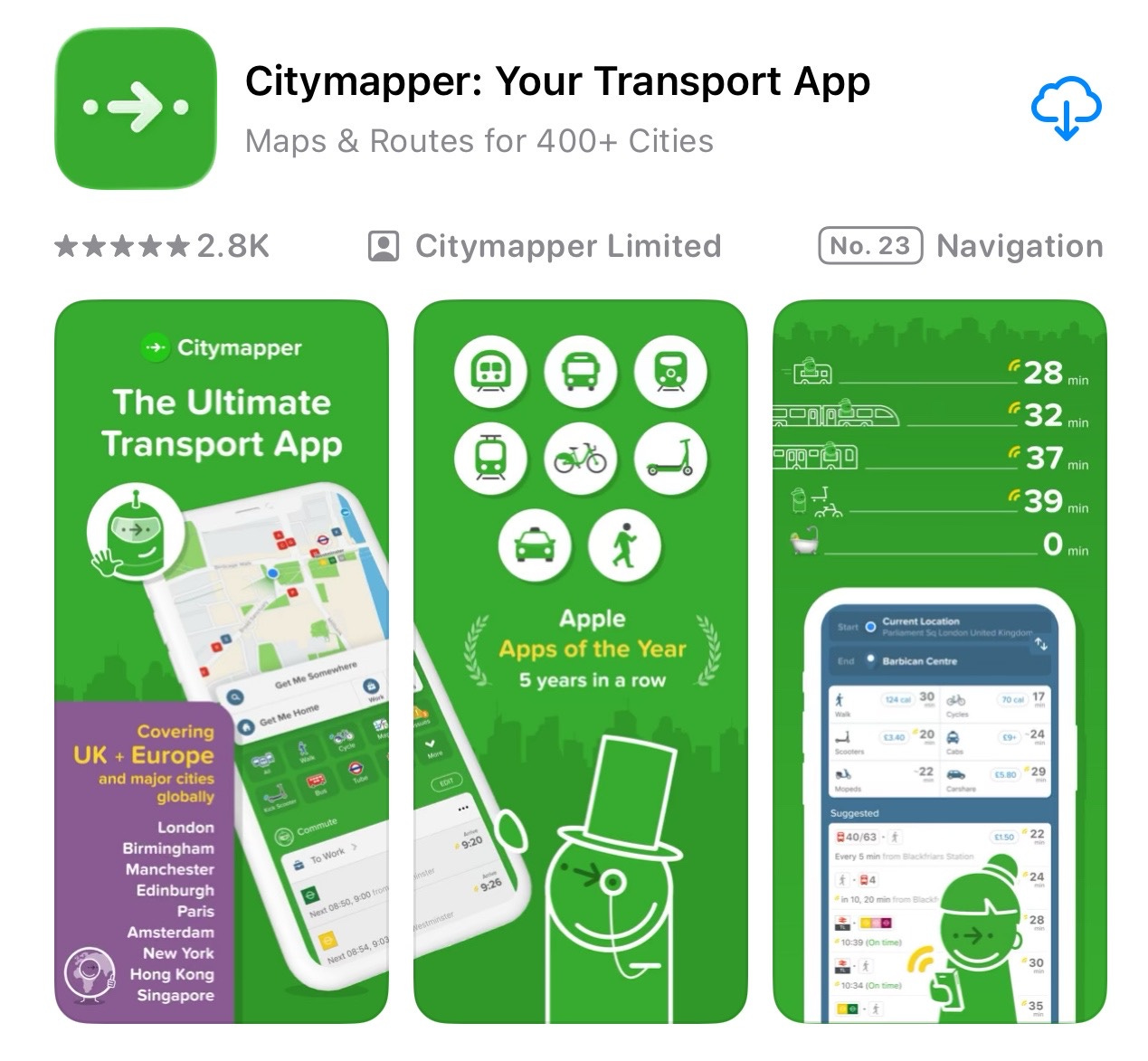
The “Get Me Somewhere” feature provides a single button for your most common trips, like home or work. Tap it, and Citymapper shows your fastest route right now without typing anything.
Live departure boards show when the next several buses or trains will arrive, not just their scheduled times. This accuracy is achieved through integration with transit agencies’ real-time tracking systems.
Coverage includes New York, London, Paris, Berlin, Tokyo, and dozens of other major cities globally. Check the Citymapper website to confirm your city is supported before downloading. The app performs poorly in suburban or rural areas with limited public transit.
Download Citymapper free from the App Store or Google Play Store. The app is completely free with no in-app purchases or subscriptions. Revenue comes from transit planning partnerships with cities.
AllTrails finds hiking trails based on difficulty and scenery
(iPhone and Android)
AllTrails provides detailed hiking trail maps with elevation profiles, difficulty ratings, and recent reviews from other hikers describing current trail conditions. This helps you find trails that match your fitness level and interests, so you don't arrive unprepared for challenging terrain.
Trail maps can be used offline after downloading them in advance, which is important when hiking in areas without cell service. The app tracks your progress along the trail and alerts you if you wander off course, helping keep solo hikers safe in unfamiliar areas.
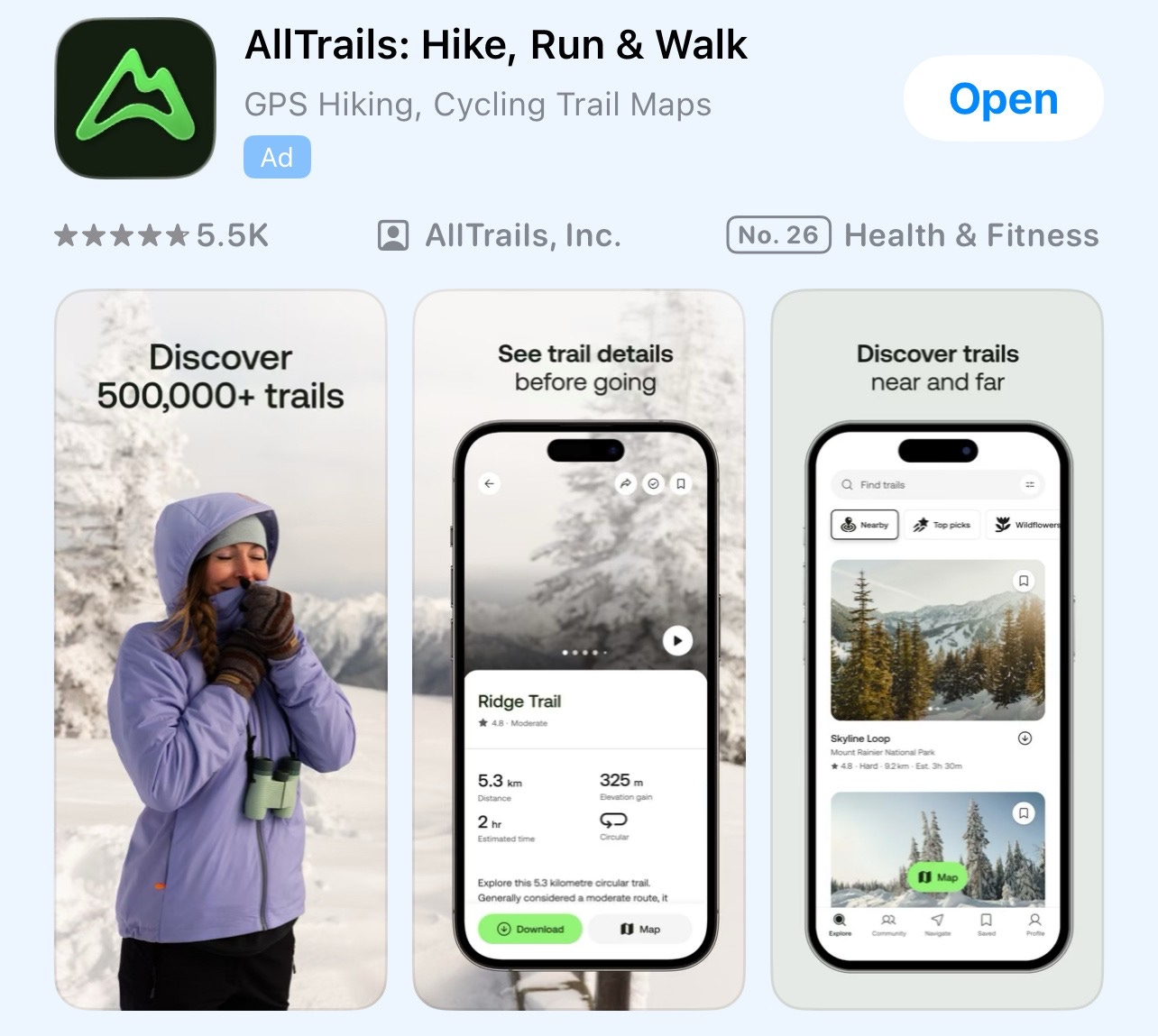
Photos and reviews from recent hikers show what the trails look like now, including seasonal changes, muddy sections after rain, and fallen trees blocking paths. This information is up to date, unlike guidebooks that may be years old.
The app includes filters for dog-friendly paths, wheelchair-accessible routes, trails with waterfalls or lakes, and kid-friendly, easy walks. This searching by specific features helps families and groups with varying abilities find suitable options.
Download AllTrails from the App Store or Google Play Store. The free version provides trail information and basic maps. AllTrails Plus subscription costs around $36 annually and adds offline maps, detailed 3D views, and unlimited trail downloads for serious hikers who explore frequently.
Quick Fix
If your Maps app shows you in the wrong location, the fix takes 15 seconds. On iPhone, go to Settings, Privacy & Security, Location Services, and make sure it’s turned on. Scroll down to Maps and select “While Using the App.” On Android, go to Settings, Location, and turn it on, then find Maps in your app list and ensure location permission is set to “Allow only while using the app.” Restart your phone after making these changes. GPS accuracy improves dramatically once location permissions are configured correctly, and Maps will show your actual position rather than placing you several blocks away.
Did you read this one?
Google Maps Offline: Never Get Lost When Your Phone Has No Signal (August 27, 2025) - If you’re traveling anywhere with spotty cell service, you need to read this. Download entire regions before your trip and navigate with turn-by-turn directions even when you have zero signal. This feature saved me in the mountains of Spain and has become essential for every trip I take. The detailed instructions show exactly how to download maps, manage storage, and use offline navigation that works anywhere in the world. Here is the link:
Meanwhile
I started using saved lists last year during trip planning for Spain, and they’ve completely changed how I explore new places. Instead of texting myself restaurant names or hoping I’ll remember that museum someone mentioned, I create a list for each trip and add places as I discover them through research or recommendations. During the actual trip, I open the list and see everything on one map, which helps me plan efficient routes rather than zigzagging across cities. The surprising benefit came after returning home—those lists became travel journals showing everywhere I went, complete with notes about what I enjoyed. I now have lists for several cities that I can reference when friends ask for recommendations or when I return to the same place years later.
What problems are you encountering with your phone, tablet, or computer right now? Maybe it’s something you’ve been putting up with for months, or a new issue that just started this week. Screen Skills works best when it addresses real problems that real people face, so leave a comment, send me a direct message, or reply to this email and tell me what’s making your digital life harder than it needs to be. Your question might become next week’s newsletter.
Until next time,
Alexander
Today, you can get a 20% discount on the first year of your subscription.
If this newsletter provides useful information that reduces your screen frustration, improves your output, and makes spending time online more fun for you, please consider supporting this newsletter that occupies a unique niche on Substack: digital tips for non-digital people.

A new newsletter: More
Read More if you want to read more about Screen Skills, The Planet, and especially the (video) Notes I posted and the Daybreak Notes & Beans stories.
You can subscribe here:
Read the latest More newsletter that I posted on Saturday:

Earlier today, I also published on Patreon:
Painting with Light in Zierikzee: An Evening at the Sea Light Festival

Or perhaps you enjoyed the article and would like to support my writing by buying me a coffee?
Still here?
Then have a look at my other newsletter:
The Planet: a weekly newsletter examining American democracy, freedom of speech, and environmental policy through a European perspective. Having lived, worked, and traveled extensively in the US and beyond as a backpacker, diplomat, and journalist, I explore current events through historical context, showing how lessons from the past inform today’s challenges to democratic values and planetary health.
On Saturday, I published:

And there is one more newsletter, Daybreak Notes, and Beans, with a focus on positive news to counterbalance the negative headlines you see all day. On most days of the week, I share ten uplifting news stories about science, health, art, travel, archaeology, or any other topic I think you’ll enjoy reading or that will give you hope now that we need it. Try it:

"Sharing your real-time location eliminates the constant “where are you” text messages"
😂 With my busy schedule, my friends know not to text this or receive an angry face emoji. Beginning now I shall collect a "favorite café" list. Worldwide. Organized adventure 🌍 Love it! 📱