
The Five Phone-Camera Tips That Save Your Indoor Christmas Photos (Part 1 of 2)
Plus: Why your phone’s flash ruins holiday photos, apps that help with low-light photography, and the winter photography guide coming Wednesday

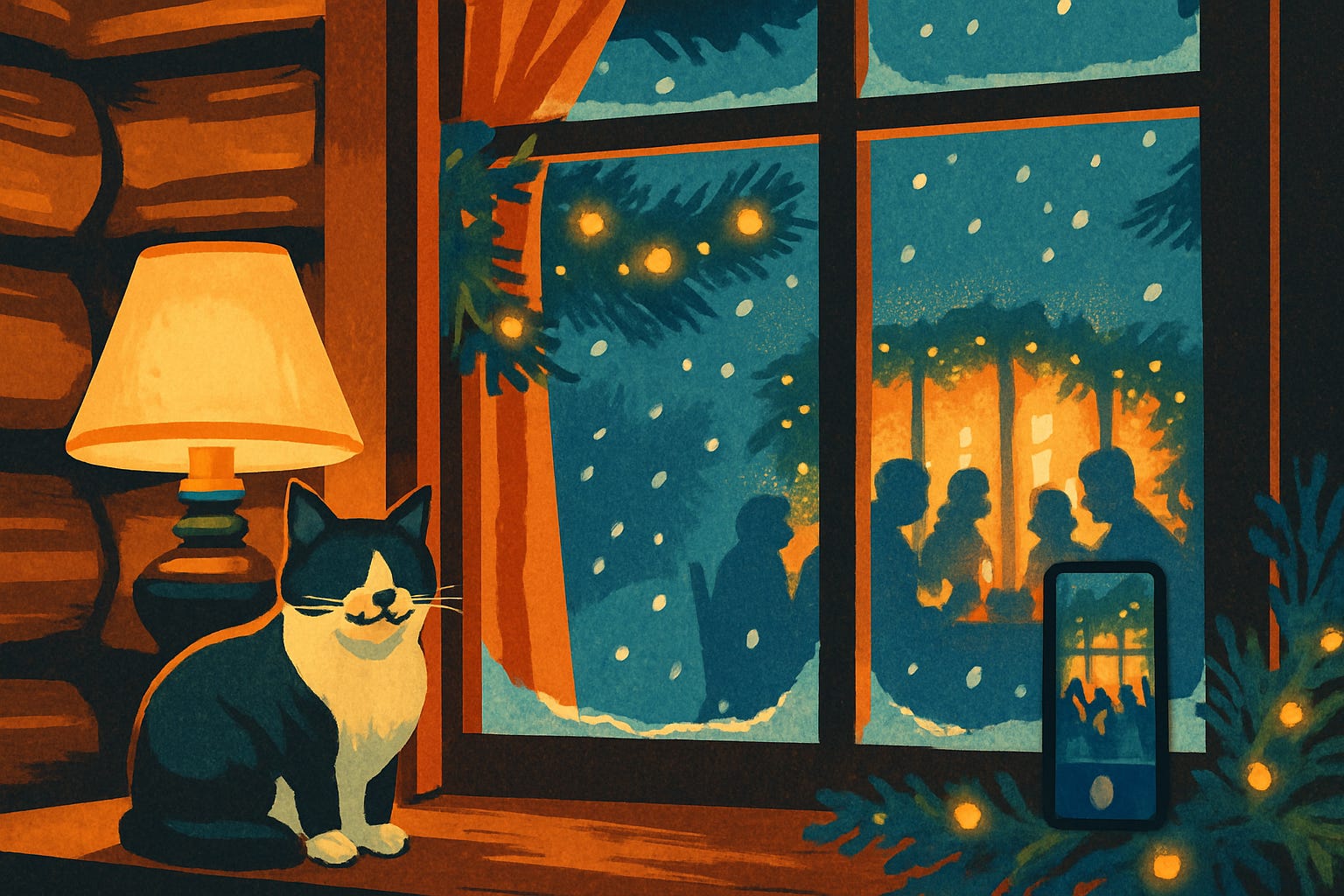
Christmas dinners start this week. You want to capture the warm glow of candlelight, the decorated table, and everyone gathered together. Instead, your photos come out dark, blurry, or washed out with harsh flash. The food looks unappetizing, faces are shadowy, and the cozy atmosphere you saw with your eyes completely disappears in the photos.
Your smartphone can actually capture beautiful indoor holiday photos, but you need to know which features to use. Most people never discover the tools already built into their camera app. These five techniques work in restaurants, at the dinner table, or anywhere with limited lighting during the holiday season.
This is Part 1 of our two-part holiday photography series. Today covers indoor photography for Christmas dinners and family gatherings. Wednesday’s newsletter will show you how to photograph snow scenes and outdoor winter walks.
Today you’ll learn:
How to use tap-to-focus and the exposure slider to fix dark, shadowy photos instantly
Why Night Mode works better than flash for candlelit dinners and dim rooms
The one thing everyone forgets that makes photos look hazy and soft
How to keep group portraits sharp when everyone is fidgeting
Simple ways to steady your phone without a tripod
Two apps that improve low-light photography on any phone
A scam warning about fake photo editing services during the holiday season
For new readers: Screen Skills provides practical digital advice that everyone can understand and apply within minutes. Discover hundreds of simple tricks that make your digital life more efficient and enjoyable.
Today, you can get a 20% discount on the first year of your subscription. If this newsletter provides useful information that reduces your screen frustration, improves your output, and makes spending time online more fun for you, please consider supporting this newsletter that occupies a unique niche on Substack: digital tips for non-digital people.
Why indoor Christmas photos look terrible
Your eyes automatically adjust to low light, but your phone camera cannot do so without help. The camera tries to brighten dark scenes by increasing something called ISO, which makes the image grainy and unclear. Or it uses flash, which creates harsh shadows, washes out colors, and destroys the warm, cozy atmosphere you wanted to capture.
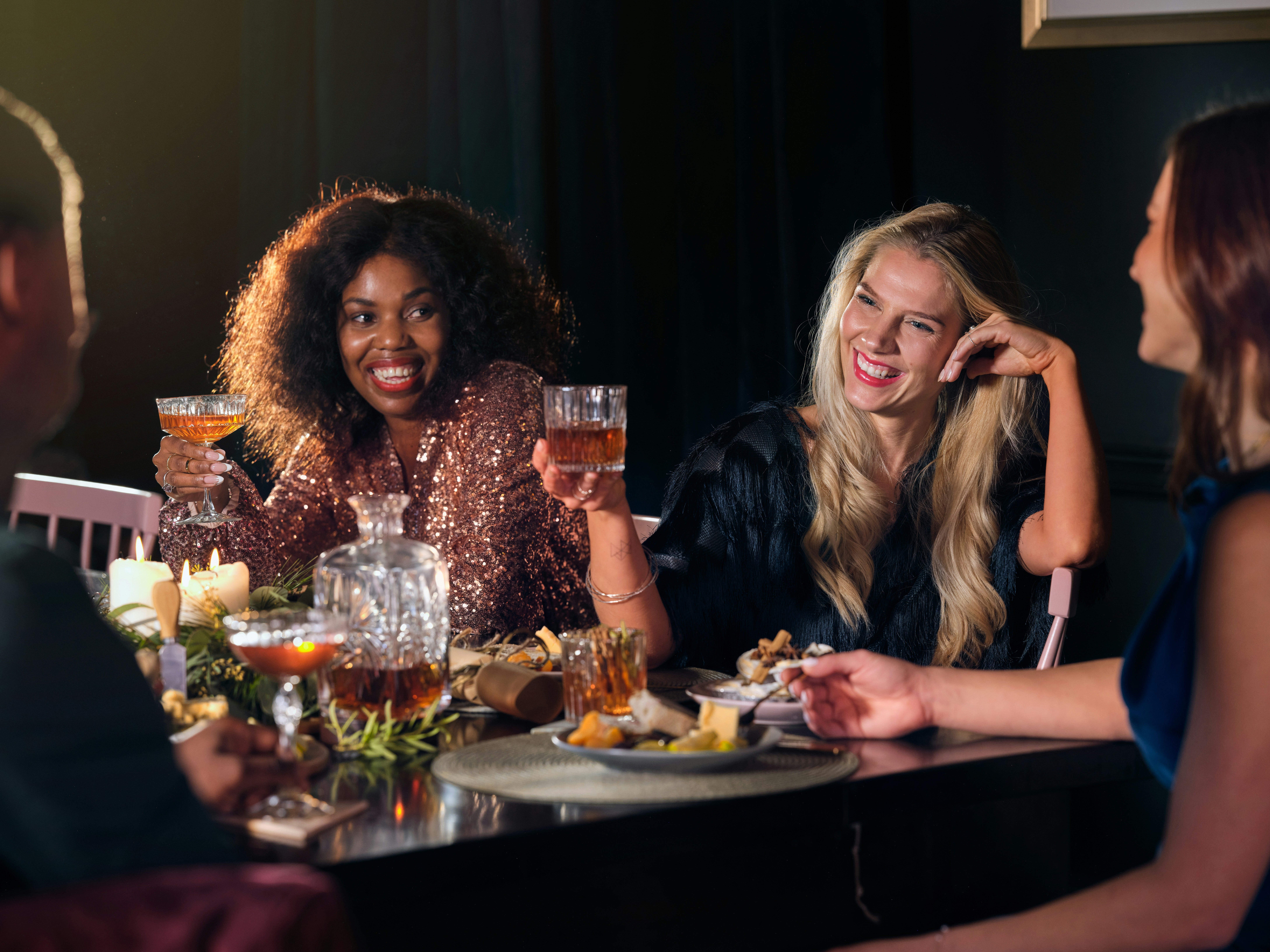
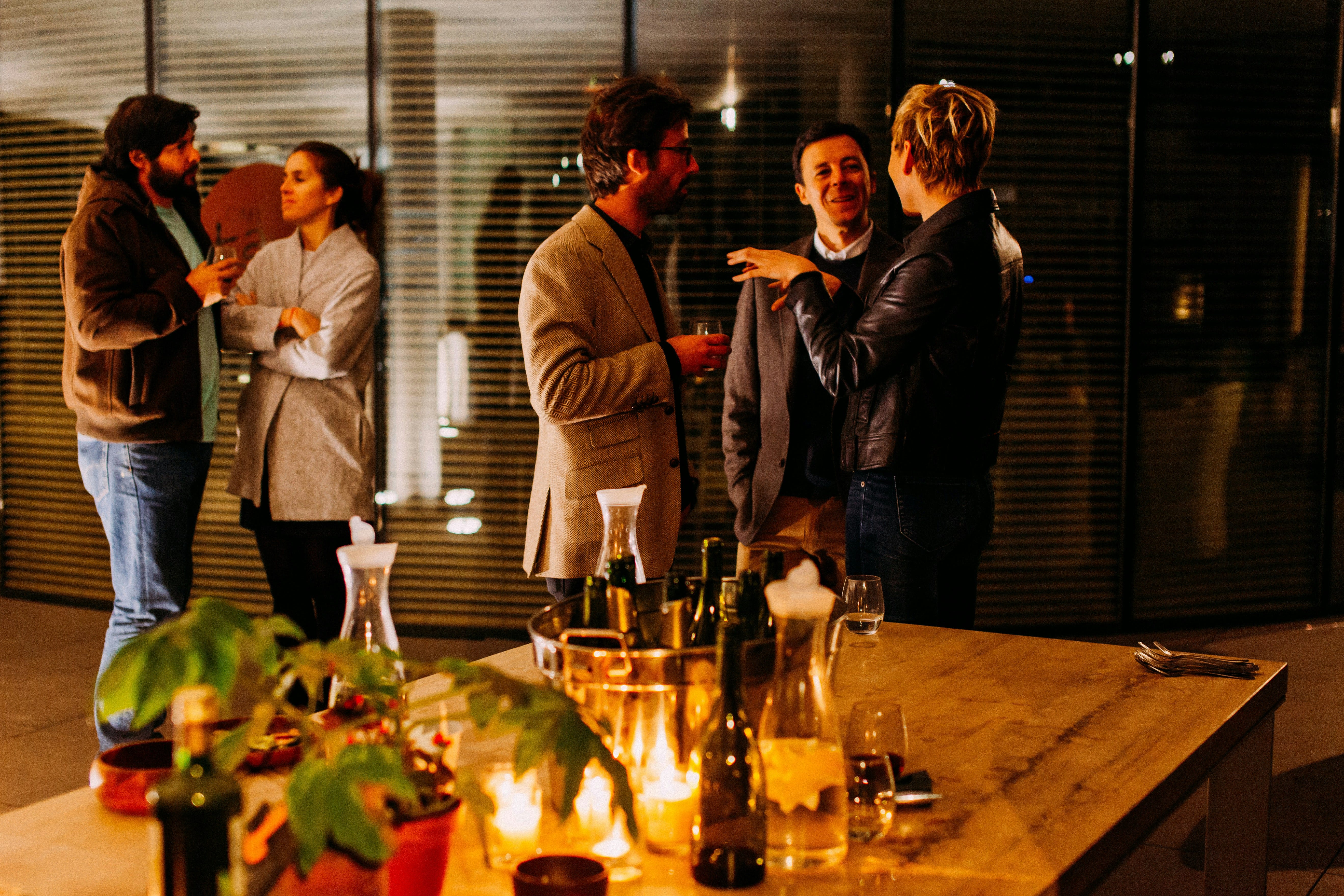
Restaurant lighting and candlelit dinner tables present particular challenges. The light is often yellow or orange, comes from above or below rather than the side, and creates strong shadows on faces. Your phone’s automatic settings usually make these situations worse by trying to correct everything at once.
The good news is that modern smartphones include features specifically designed for low-light photography. You just need to know they exist and how to activate them. These techniques work on both iPhone and Android phones, though the exact menu locations differ slightly.
The five essential techniques for indoor holiday photos
Note: Different phones have different features. I will explain each platform clearly so you can use what works for your device.
Most readers probably already know how to take a basic photo, but your phone can do much more when you take control of its focusing and exposure features instead of letting it guess.
Tap to focus and adjust brightness manually
This single technique improves more photos than any other trick. Your phone camera wants to make the entire scene evenly bright, which often means faces end up too dark or the background gets washed out. You can override this automatic decision.
For iPhone users, open the Camera app and frame your photo. Before taking the picture, tap directly on a person’s face or the main subject you want to photograph. A yellow square appears where you tapped, showing that the camera focused there. Immediately after tapping, a sun icon appears next to the yellow square with a vertical slider. Drag this slider up to make the photo brighter or down to make it darker. You will see the screen brighten or darken as you move the slider. This lets you control exactly how bright the photo should be.
For Android users, the process is similar across most camera apps, but the controls look slightly different. Tap on the face or main subject to focus there. You will see a circle or square appear. Many Android phones show a small plus and minus icon, or a slider that appears when you tap. Swipe up on the screen to brighten or down to darken. Some phones require you to tap once for focus, then tap and hold to reveal the brightness controls.
The key is to tap on what matters most in your photo. If you are photographing people around a dinner table, tap on someone’s face. If you are photographing the food, tap on the food itself. Then adjust the brightness slider until the main subject looks good, even if the background becomes a bit darker. This creates depth and focuses attention where you want it.
Use Night Mode instead of flash
Flash ruins indoor photos. It creates harsh white light that flattens faces, eliminates shadows that give depth, and turns a warm, cozy scene into something that looks like a police interrogation room. Flash also reflects off glasses, creates red eyes, and washes out the natural colors of food and decorations.
Night Mode solves this problem by taking several photos quickly and combining them into a single clear image. The feature works by gathering more light over a longer period, which is why you need to hold the phone steady.
For iPhone users, Night Mode activates automatically when the camera detects low light. You will see a yellow moon icon appear at the top of the screen with a number next to it, like “1s” or “3s.” This number shows how long the camera needs you to hold still. You can tap the moon icon to adjust this time or turn Night Mode off entirely, but I recommend leaving it on and using the suggested time. When you press the shutter button, hold the phone as steady as possible until the yellow progress circle completes.
For Android users with newer phones, Night Mode usually appears as a separate mode in your camera app. Swipe through the modes at the bottom of the screen until you find Night or Night Mode. Some Android phones call it Night Sight or Low Light mode. Once selected, the camera works the same way as iPhone. It will show you how long to hold steady, usually between one and three seconds. Keep the phone still during this time.
Night Mode cannot fix everything. If people move a lot during the capture, they will appear slightly blurry. For children who cannot sit still, you might need to use regular photo mode with good positioning near a light source instead.
Today, you can get a 20% discount on the first year of your subscription. If this newsletter provides useful information that reduces your screen frustration, improves your output, and makes spending time online more fun for you, please consider supporting this newsletter that occupies a unique niche on Substack: digital tips for non-digital people.
Clean your lens before taking any photos
This sounds almost too simple, but a smudged lens makes every photo look worse. Your phone lives in your pocket or purse, where it collects fingerprints, dust, and oil throughout the day. In low light, these smudges become especially visible, creating a hazy effect that makes everything look soft and unfocused.
Before you start taking Christmas photos, wipe your phone’s camera lens with a soft, clean cloth. Your shirt works if you have nothing else, though a microfiber cloth or even a clean napkin is better. Wipe gently in a circular motion, then check that the lens looks clear when you hold it up to the light.
This takes five seconds and dramatically improves photo quality, yet most people never think to do it. Make it a habit before any important photos, not just at Christmas.
Position people near light sources, not bright backgrounds
Where people stand in relation to light makes an enormous difference. The worst position is standing in front of a bright window or with the Christmas tree lights directly behind them. This creates what photographers call backlighting, where faces appear as dark silhouettes against a bright background.
Instead, position people so that light falls on their faces. During the day, this means near a window but facing the window, not standing in front of it. In the evening, position people near lamps, close to the Christmas tree, or near the candles on the dinner table. The light should come from the side or slightly in front of them, not from behind.
For group photos around the Christmas dinner table, this often means moving your own position rather than asking everyone to move. Walk around the table until you find an angle where faces are lit by the candles or overhead lights. This might mean shooting across the table instead of down its length, or positioning yourself near a lamp so its light illuminates faces from your direction.
If you must photograph someone in front of a bright background like a window or Christmas tree, use the tap-to-focus technique explained earlier. Tap directly on the person’s face and drag the exposure slider up to brighten them. The background will become very bright or even white, but the person’s face will be visible and properly exposed.
Keep the phone steady using surfaces and your body
Blurry photos in low light usually result from camera shake, not focusing problems. When light is limited, your phone uses a slower shutter speed, which means any movement during the photo creates blur. Even the natural shake of holding your phone in your hands can cause this.
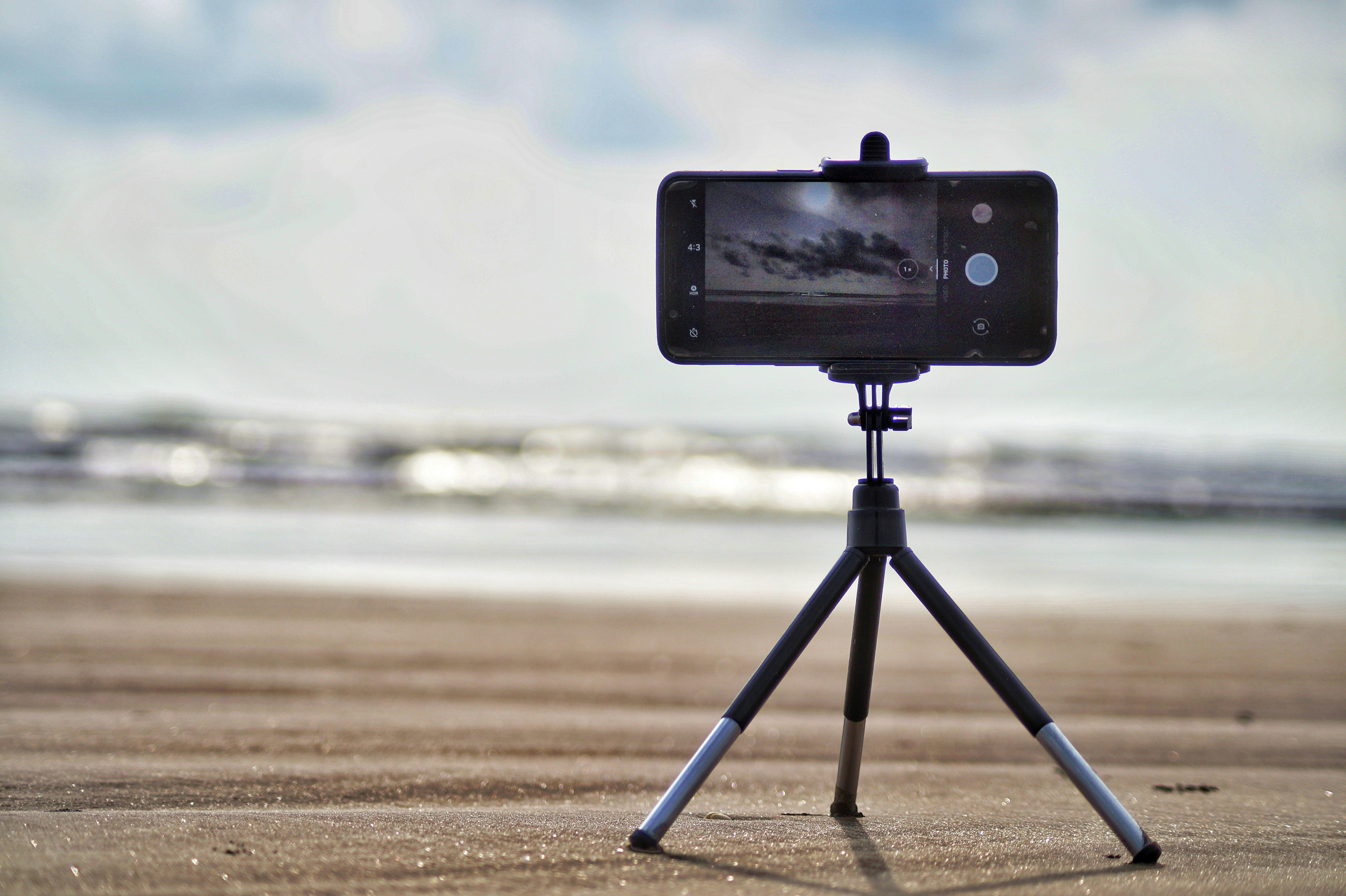
Professional photographers use tripods, but you can achieve similar results using what is available. Rest your phone on the edge of the dinner table when photographing across it. Lean the phone against a glass or bottle for stability. Use a stack of books or a napkin under one edge to angle the phone correctly. Any stable surface works better than just holding the phone in the air.
When you cannot use a surface, steady your phone using your body. Press your elbows firmly against your sides or chest while holding the phone. This creates a more stable platform than holding your arms out away from your body. You can also brace yourself by leaning against a wall or doorframe. Take a breath, let it out halfway, then press the shutter button gently rather than jabbing at it.
For group photos where you want to be in the photo, use your phone’s self-timer. Every phone camera has this feature, usually found in the settings menu or as an icon that looks like a clock or stopwatch. Set it for three or ten seconds, position the phone on a stable surface aimed at the group, press the shutter button, then quickly join the group. The phone will count down and take the photo automatically, eliminating any shake from pressing the button.
One practical tip: Take multiple photos of important moments, especially group shots. Someone always blinks or looks away in one photo. If you take three or four photos, you can choose the best one later. This is especially important with Night Mode, since you cannot take rapid-fire shots the way you can in regular mode.
Worth knowing
Night Mode technology became available to consumers only in recent years. Google introduced Night Sight for Pixel phones in 2018, and Apple added Night Mode to iPhones starting with the iPhone 11 in 2019. Before these features, indoor low-light photography on smartphones was nearly impossible without flash.
The technology works by combining multiple exposures, a technique professional photographers have used for decades in a process called bracketing. Your phone now does this automatically in a fraction of a second, processing the images internally before showing you the final result.
Portrait Mode, which blurs the background while keeping faces sharp, also helps in low light by forcing the camera to focus precisely on faces rather than trying to keep everything in focus. This feature works best when people are between three and eight feet away from the camera.
The human eye can adapt to changes in light much faster than any camera. This is why scenes that look bright and clear to you often appear dark in photos. Your phone cannot replicate what your eye does naturally, which is why manual control of focus and exposure is so important.
Tech news you can use
Apple releases iOS 18.2 with camera improvements
Apple’s recent iOS update includes refinements to how the camera handles low-light scenes, particularly in Portrait Mode. The update improves how the phone separates subjects from backgrounds in dim lighting and reduces the processing time for Night Mode photos. If you have an iPhone, go to Settings, then General, then Software Update to check if this update is available. The installation takes about 15 minutes and requires Wi-Fi.
Google Photos adds Christmas-themed memories
Google Photos will automatically create seasonal highlight reels this month, grouping your Christmas photos into shareable collections. The feature appears in the Memories section of the app and updates as you take more holiday photos. If you use Google Photos, check the Memories tab in late December to see these automatically generated collections. You can edit which photos appear before sharing with family.
WhatsApp introduces HD photo sharing by default
WhatsApp recently changed how it handles photo quality when sending images through the app. Previously, photos were compressed significantly, reducing quality. You can now choose HD or Standard quality before sending any photo. When attaching a photo in WhatsApp, look for the HD toggle switch that appears before you send. This is particularly useful for sharing Christmas photos with family members who want to print them or view them on larger screens.
It is Christmas: Screen Skills is the perfect gift for your friend who has been frustrated for years with phone and desktop basics. Screen Skills has easy-to-apply instructions, and zero technological knowledge is required.
App spotlight: Adobe Lightroom (iPhone)
Adobe Lightroom provides a built-in camera with manual controls that work particularly well in low light, and it costs nothing to use the basic version. The app combines photo capture with editing tools, making it easy to improve photos immediately after taking them.
The camera includes tap-to-focus with manual brightness adjustment, which gives you control without overwhelming complexity. Lightroom can shoot in RAW format for maximum editing flexibility, though the regular photo format works perfectly well for most Christmas photos. The interface is surprisingly clean and beginner-friendly despite offering professional-level features.
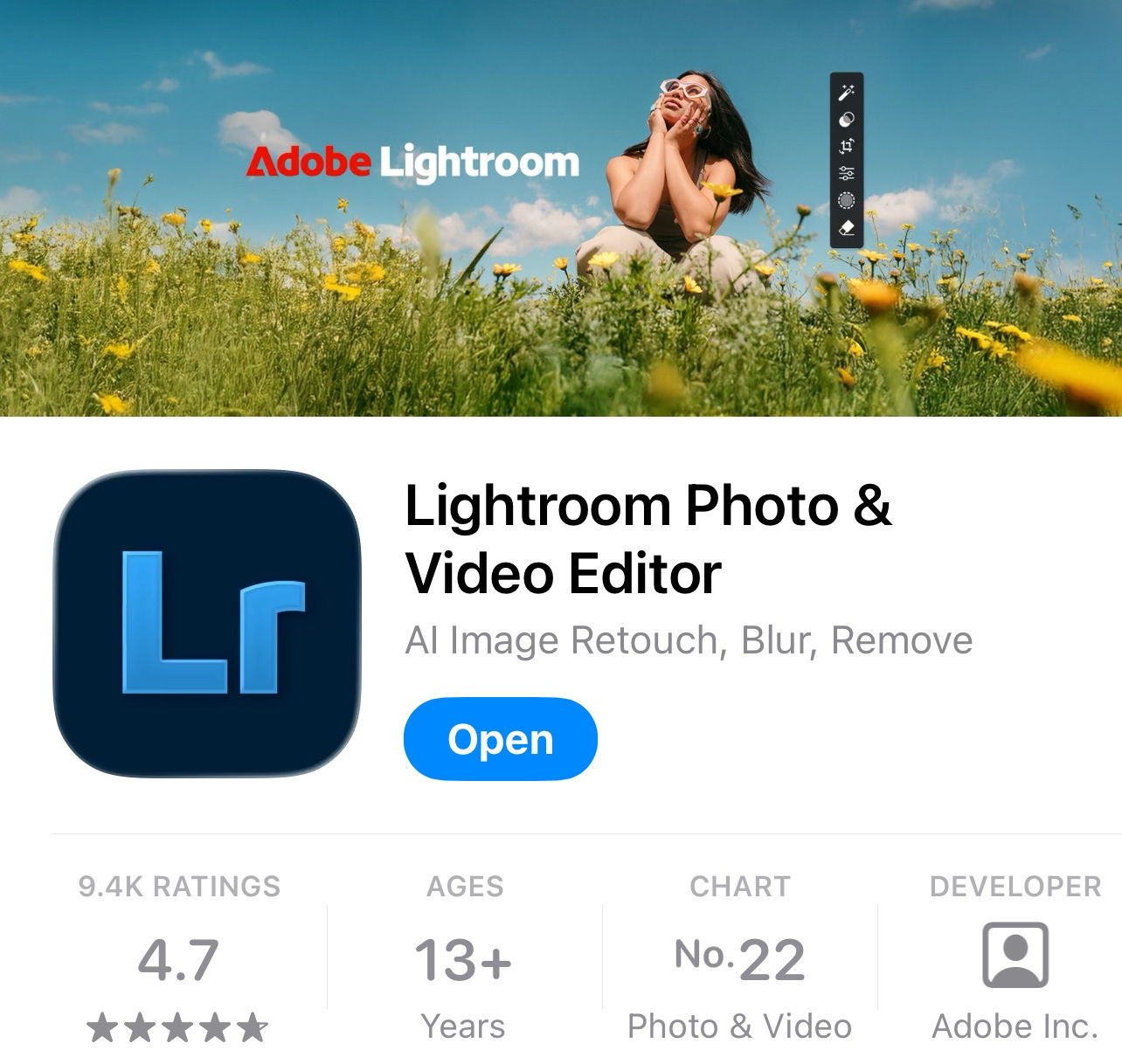
What makes Lightroom particularly useful for holiday photography is the seamless connection between taking photos and editing them. You can capture a dim dinner scene, then immediately brighten faces, adjust warmth, and improve colors without switching apps. The editing tools include simple sliders that show exactly what each adjustment does.
Download Adobe Lightroom from the App Store. The basic version is free and includes the camera and essential editing tools. The paid subscription adds cloud storage and advanced features, but the free version provides everything needed for better Christmas photos. After installation, tap the camera icon at the bottom to access the built-in camera rather than just using it as an editor.
App spotlight: Open Camera (Android)
Open Camera is a free, open-source camera app for Android that adds manual controls and stabilization features to any Android phone. The app includes exposure bracketing, which takes multiple photos at different brightnesses and lets you choose the best one later.
The stabilization feature is particularly useful for low-light photography. The app shows you when the phone is level and steady enough to take a clear photo. This visual feedback helps you hold the phone correctly for sharper images. Open Camera also includes a self-timer with customizable delays and the ability to take multiple shots automatically.
Download Open Camera from the Google Play Store. The interface looks more technical than the built-in camera, but you can leave most settings at their defaults and just use the stabilization indicator and manual exposure controls. The app contains no advertisements and costs nothing.
Scam alert: Fake photo restoration services
During the holiday season, advertisements appear on social media offering to restore old family photos or enhance recent photos using artificial intelligence. Some of these services are legitimate, but many are scams designed to collect your photos and credit card information.
Legitimate photo editing services exist and charge reasonable fees, but they do not advertise through pop-up ads or unsolicited social media messages. If you want to restore old family photos as a Christmas gift, use established services recommended by people you know, or local camera shops that offer photo restoration.
Never upload photos to websites you found through advertisements without researching the company first. Check for reviews on independent sites, not just testimonials on the company’s own website. Legitimate services will have business addresses, clear refund policies, and contact information you can verify.
Meanwhile: Wednesday’s outdoor photography guide
Part 2 of this holiday photography series publishes on Wednesday. That newsletter will cover how to photograph snow scenes without making everything look gray, how to keep your phone working in cold weather, and how to capture outdoor holiday lights effectively.
The outdoor guide includes tips for winter walks, photographing children playing in snow, and dealing with the technical challenges of bright white snow that confuses camera meters. If you have specific questions about outdoor winter photography, reply to this email and I will address them in Wednesday’s newsletter.
After the holidays, I can provide a complete guide to organizing photo chaos. We covered bits of this in previous newsletters, but I can give you an updated, comprehensive version that addresses the many photos you will have after Christmas. Would that be helpful? Reply and let me know if you want a complete photo organization guide for the new year.
Did you read this one?
The Wellbeing Settings That Improve Mental Health and Reduce Technostress

Your phone and computer already include powerful tools designed to reduce digital stress and improve your mental wellbeing. These built-in features limit interruptions, reduce eye strain, and help you establish healthier boundaries with technology. Most people never turn them on.
Questions?
What frustrates you most about taking indoor photos during the holidays? Are there specific situations where your photos always turn out poorly? Reply and let me know what challenges you face so I can address them in future newsletters.
Until next time,
Alexander
Today, you can get a 20% discount on the first year of your subscription. If this newsletter provides useful information that reduces your screen frustration, improves your output, and makes spending time online more fun for you, please consider supporting this newsletter that occupies a unique niche on Substack: digital tips for non-digital people.

I also publish on Patreon:
My stories on Patreon are more personal and informal. For instance, on Saturday, I wrote: Parking My Rust Bucket at Buckingham Palace
Or perhaps you enjoyed the article and would like to support my writing by buying me a coffee?
Still here?
Then have a look at my other two newsletters:
The Planet: a weekly newsletter examining American democracy, freedom of speech, and environmental policy through a European perspective. Having lived, worked, and traveled extensively in the US and beyond as a backpacker, diplomat, and journalist, I explore current events through historical context, showing how lessons from the past inform today’s challenges to democratic values and planetary health.
Today, I published:

Daybreak Notes and Beans: a daily newsletter with a focus on positive news to counterbalance the negative headlines you see all day. Five days a week, I share ten uplifting news stories about science, health, art, travel, archaeology, or any other topic I think you’ll enjoy reading or that will give you hope now that we need it.
Have a look by clicking here:

Great tips to make our holiday merrier! Wait, if you came to our celebrations and actually took the pictures for us we would be merrier still 😊 Otherwise guaranteed we would still have photos which appeared to be taken in a "police interrogation room" or worse 😂
Looking forward to Wednesday's outdoor photo tips, thanks!
📱📸 <- no flash