
The Copy-Paste Tricks That Will Change How You Use Your Computer
Plus: Windows clipboard security update, iPhone Universal Clipboard fix, password manager warnings, and much more

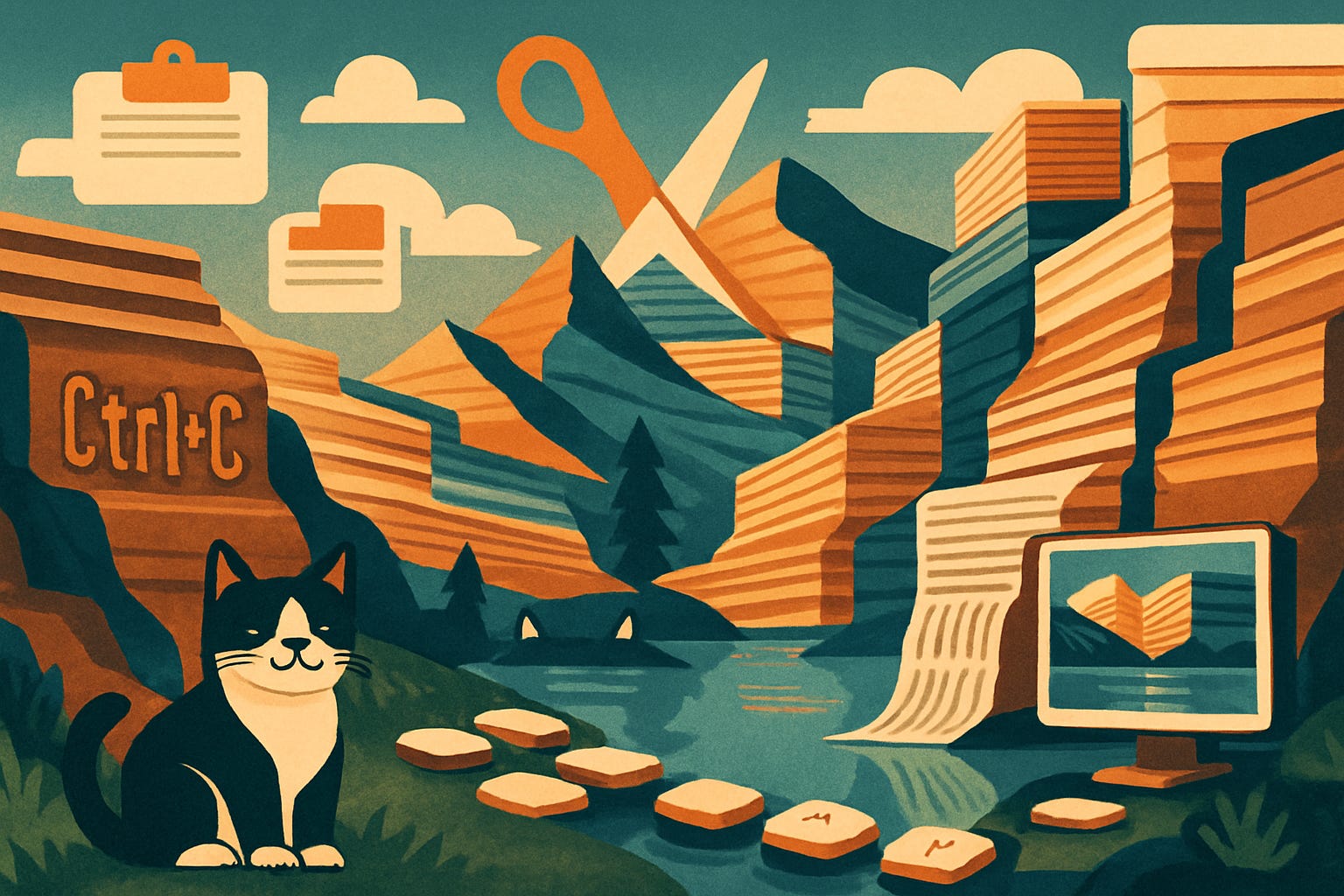
Of course, you know how to copy and paste; you do it dozens of times daily. Why would you even read such a long newsletter about something you already know?
Well, you’re most likely using the same basic technique from 1983. Meanwhile, your computer has been secretly recording everything you’ve copied, can paste without those annoying formatting issues, and even shares your clipboard between all your devices. These features, and more, sit dormant on millions of computers because nobody explains they exist.
Modern clipboard features solve the problems that waste your time every day: retyping information you copied earlier, fixing messed-up formatting from websites, losing important text you copied accidentally, and switching between phone and computer to transfer information. These aren’t add-on programs; they’re already built into Windows, Mac, iPhone, and Android.
Today you’ll learn:
How to see everything you’ve copied in the last month
The paste command that eliminates formatting problems forever
Sharing clipboard texts between your phone and computer instantly
Two apps that supercharge copy-paste beyond belief
Why clipboard history is both powerful and dangerous
The special paste options hiding in every program
And more
For new readers: Screen Skills provides practical digital advice that everyone can understand and apply within minutes. Discover hundreds of simple tricks that make your digital life more efficient and enjoyable.
Today, you can get a 20% discount on the first year of your subscription. If this newsletter provides useful information that reduces your screen frustration, improves your output, and makes spending time online more fun for you, please consider supporting this newsletter that occupies a unique niche on Substack: digital tips for non-digital people.
Why basic copy-paste isn’t enough anymore
The original copy-paste replaced retyping, saving countless hours since its invention at Xerox PARC. But modern digital life demands more: moving text between devices, removing unwanted formatting, recovering accidentally overwritten copies, and organizing frequently used text snippets. Your devices can do all of this, but the features hide behind keyboard shortcuts most people never discover.
Every time you copy something new, it replaces what you previously copied. This limitation causes daily frustration when you need something copied earlier. Clipboard history solves this, storing your last 25 copies for instant access. Once enabled, you never lose copied text again.
Master copy-paste with these hidden features
Note: Different computers and phones have different methods. I’ll explain each one clearly so you can find what works for your device.
First, a quick reminder of the basics:
Most readers probably already use these, but just in case: on Windows, you copy with Ctrl+C, cut with Ctrl+X, and paste with Ctrl+V. On Mac, it’s the same but using the Command key instead of Ctrl: Command+C to copy, Command+X to cut, and Command+V to paste. You can also right-click on selected text and choose copy, cut, or paste from the menu.
Understanding clipboard history - your computer’s copy memory:
When you copy text, your computer usually remembers only the most recent thing you copied. But modern devices can remember the last 25 things you copied. This feature is called “clipboard history.” Let’s see how to turn it on and use it.
For Windows 10 and 11 users:
First, you need to turn on clipboard history. Go to Settings> System> Clipboard. You’ll see a switch labeled “Clipboard history” - turn it ON.
Now your computer will remember everything you copy. To see your history, press the Windows key and the letter V at the same time. A panel appears showing everything you’ve recently copied. Click on any item to paste it. You can even “pin” items you use frequently, like your address, so they stay there permanently.
For Mac users:
Unfortunately, Mac computers don’t have built-in clipboard history, which many consider Apple’s biggest oversight. You can only access the last thing you copied.
However, Apple offers something different called “Universal Clipboard.” This feature lets you copy text on your iPhone and immediately paste it on your Mac, or vice versa. For example, you could copy a phone number from an email on your Mac and paste it into a text message on your iPhone.
To use Universal Clipboard, you need three things: both devices must be signed into the same Apple ID, both must have Bluetooth turned on, and both must have WiFi enabled. When these conditions are met, anything you copy on one device can be pasted on another within about two minutes. This works with text, images, and even files.
For iPhone and iPad users:
iPhones and iPads don’t have clipboard history either. However, when you long-press in any text field and select “Paste,” you might see options to paste from your Mac or other Apple devices if you’ve recently copied something there.
There’s also a hidden gesture many don’t know: double-tap with three fingers to undo your last action, or triple-tap with three fingers to redo it. This helps when you accidentally delete something you typed.
For Android phone users:
If you use Google’s Gboard keyboard, you already have clipboard history. Look for a clipboard icon in the top row of your keyboard. Tap it to see recent things you’ve copied. If you don’t see it, go to your keyboard settings and turn on “Show clipboard.”
Samsung phones have their own system: swipe in from the edge of your screen to see the Edge panel, then look for Clipboard. Google Pixel phones let you hold down the space bar to access the clipboard.
Paste without formatting - solving the mess when you copy from websites:
Here’s a common problem: you copy text from a website and paste it into your document, and suddenly it’s in a huge font, a different color, or weird spacing. This happens because you’re pasting not just the text, but also all its formatting.
“Paste without formatting” solves this. It pastes only the words, making them match your document’s style. Here’s how to do it - and remember, you still copy or cut with the normal commands (Ctrl+C or Command+C). This special command only changes how you paste:
On Windows: After copying normally with Ctrl+C, hold Ctrl+Shift+V to paste without formatting (instead of just Ctrl+V). This strips away all formatting.
On Mac: After copying normally with Command+C, hold Command+Shift+Option+V to paste without formatting in most programs. In Google Docs and Chrome, it’s simpler: Command+Shift+V.
Alternative method for any computer: Right-click where you want to paste, look for “Paste Options,” and choose “Keep Text Only” or “Paste without formatting.”
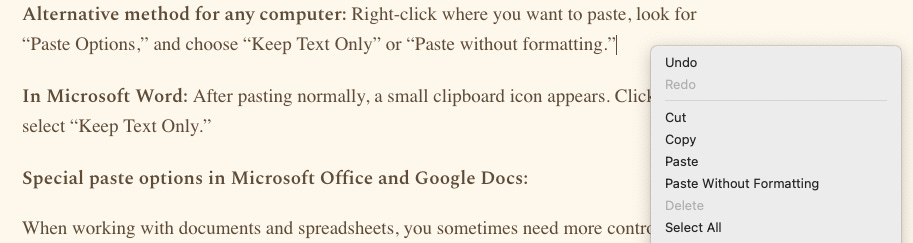
In Microsoft Word: After pasting normally, a small clipboard icon appears. Click it and select “Keep Text Only.”
Special paste options in Microsoft Office and Google Docs
When working with documents and spreadsheets, you sometimes need more control over what you paste. Both Microsoft Office and Google Docs offer “Paste Special” options that give you precise control.
To access Paste Special on Windows, press Ctrl+Alt+V after copying. On Mac, press Command+Control+V. A menu appears with options like:
Paste values only (for spreadsheets): Pastes numbers without formulas
Paste formulas only: Keeps the math but not the formatting
Paste formatting only: Copies just the look, not the content
Transpose: Flips rows into columns or columns into rows
Sharing your clipboard between devices:
For Apple users (iPhone, iPad, and Mac):
If you have multiple Apple devices, you can share the clipboard across them using Universal Clipboard. Copy text on your iPhone, and you can paste it on your Mac within two minutes. This requires all devices to be signed in with the same Apple ID and for Bluetooth and WiFi to be turned on. There’s no button to press; it just works automatically when these conditions are met. (And if your experience so far has been that MacBook to iPhone works better than the other way around, keep reading, I’ll get to that in a moment. There is good news.)
For Windows and Android users:
Windows 11 can share the clipboard with your Android phone using the “Phone Link” app (pre-installed on Windows) and the “Link to Windows” app (downloadable from the Google Play Store). Once connected, anything you copy on one device can be pasted on the other.
Another option: if you use Google Chrome and sign in with the same Google account on both your computer and phone, Chrome will sync your clipboard across devices.
Creating text shortcuts for things you type often:
Both Windows and Mac let you create shortcuts that automatically expand into full text. For example, typing “addr” could automatically become your complete address.
On Windows: Go to Settings, then Time & Language, then Typing, then scroll down to “Advanced keyboard settings.” Look for “Input method options” and set up text substitutions.
On Mac: Go to System Settings, then Keyboard, then “Text Replacements.” Click the + button to add shortcuts. Type “@@” in the Replace column and your email address in the “With” column. Now, whenever you type @@, it becomes your email address.
Pro tip: Create a simple document with text you use frequently: your address, phone number, email signature, and common responses to emails. Keep this document minimized on your computer. When you need any of these texts, open the document, copy what you need, and paste it where you want it. This is simpler than remembering shortcuts and works on any computer.
Today, you can get a 20% discount on the first year of your subscription. If this newsletter provides useful information that reduces your screen frustration, improves your output, and makes spending time online more fun for you, please consider supporting this newsletter that occupies a unique niche on Substack: digital tips for non-digital people.
Worth knowing
Copy-paste was invented in 1973 by Larry Tesler at Xerox PARC, inspired by the physical newspaper layout where editors literally cut and pasted paper. The commands were originally called “cut,” “copy,” and “paste” to mirror these physical actions. Tesler later worked at Apple, implementing copy-paste in the Lisa and Macintosh.
Clipboard security presents real risks. Malicious websites can sometimes read your clipboard in certain browsers, potentially stealing passwords you’ve copied. Never copy passwords from password managers - use their auto-fill features instead. If you must copy sensitive information, immediately copy something else afterward to overwrite it.
The keyboard shortcuts Ctrl+C and Ctrl+V (or Command on Mac) were chosen because C stands for Copy and V is next to C on the keyboard, making them easy to press in sequence. The V doesn’t stand for anything - it’s just conveniently located, although for me it always looks like the tip of the tubes of glue I used when running a printing company in the 1980s. Similarly, the X, for cutting, looks to me like a pair of scissors. I have no idea if that was the original thought or if I just made that up years ago to remember what is what for shortcuts.
Professional writers and programmers often use specialized clipboard manager programs that can store hundreds of items, organize them by category, and search through them. While these are overkill for most users, they show how important clipboard management can be for productivity.
Tech news you can use
Microsoft Patches Critical Clipboard Security Flaw
Windows users must update immediately to fix a vulnerability that allows websites to steal clipboard contents. The December update, released Tuesday, prevents malicious sites from accessing copied passwords, credit card numbers, and personal information.
To update: Go to Settings, then Windows Update, then click “Check for updates.” Install any available updates and restart your computer. The fix also adds clipboard encryption, protecting sensitive data even from other programs on your computer.
iPhone’s Universal Clipboard Finally Fixed in iOS 18.2
Apple’s iOS 18.2 (releasing Monday) fixes the frustrating delays in Universal Clipboard between iPhone and Mac (in that order). I mentioned my frustration with this earlier in this newsletter. Previously, when you copied something on your iPhone, it could take 30 seconds or more to appear on your Mac, and sometimes it didn’t work at all. So instead of waiting, I often just pasted it into Notes (not the Substack Notes, but the Notes app), where it synchronised immediately. The update promises to reduce this to under 2 seconds and adds a small notification showing when content syncs between devices.
The update also adds clipboard sharing with nearby non-Apple devices using Quick Share, though this feature requires additional setup. To update when available: go to Settings, then General, then Software Update.
Google Docs Adds Visible “Paste Without Formatting” Button
Google Docs finally added a visible “Paste without formatting” button to the toolbar, ending years of user complaints about the feature's hidden location. Rolling out this week, look for a clipboard icon with a “T” next to the regular paste button.
The update also remembers your paste preference. If you usually paste without formatting, Google Docs will make that your default. Google Sheets and Slides will get the same feature next month.
App spotlight: Ditto (Windows)
Ditto transforms the Windows clipboard from remembering one item to remembering unlimited items. This free program stores everything you copy, makes it searchable, and even syncs between multiple computers.
After installing Ditto from ditto-cp.sourceforge.io, it runs quietly in the background. To see your clipboard history, press Ctrl and the backtick key (` - found below the Esc key). A window appears showing everything you’ve ever copied. Type any word to search through your history instantly.
Ditto’s best feature is groups. You can save related items together for projects. Writing a newsletter? Group all your research links, quotes, and images together. The app can also sync across computers via Google Drive or Dropbox, so your clipboard history follows you wherever you go.
The program is entirely free and open-source, meaning volunteer programmers maintain it for the community. There’s even a portable version that doesn’t require installation, perfect for work computers where you can’t install software.
App spotlight: Paste (Mac/iPhone/iPad)
Since Macs don’t have built-in clipboard history, Paste fills this gap beautifully. This app ($14.99 per year) provides unlimited clipboard history with visual previews, making it easy to find what you copied days or weeks ago.
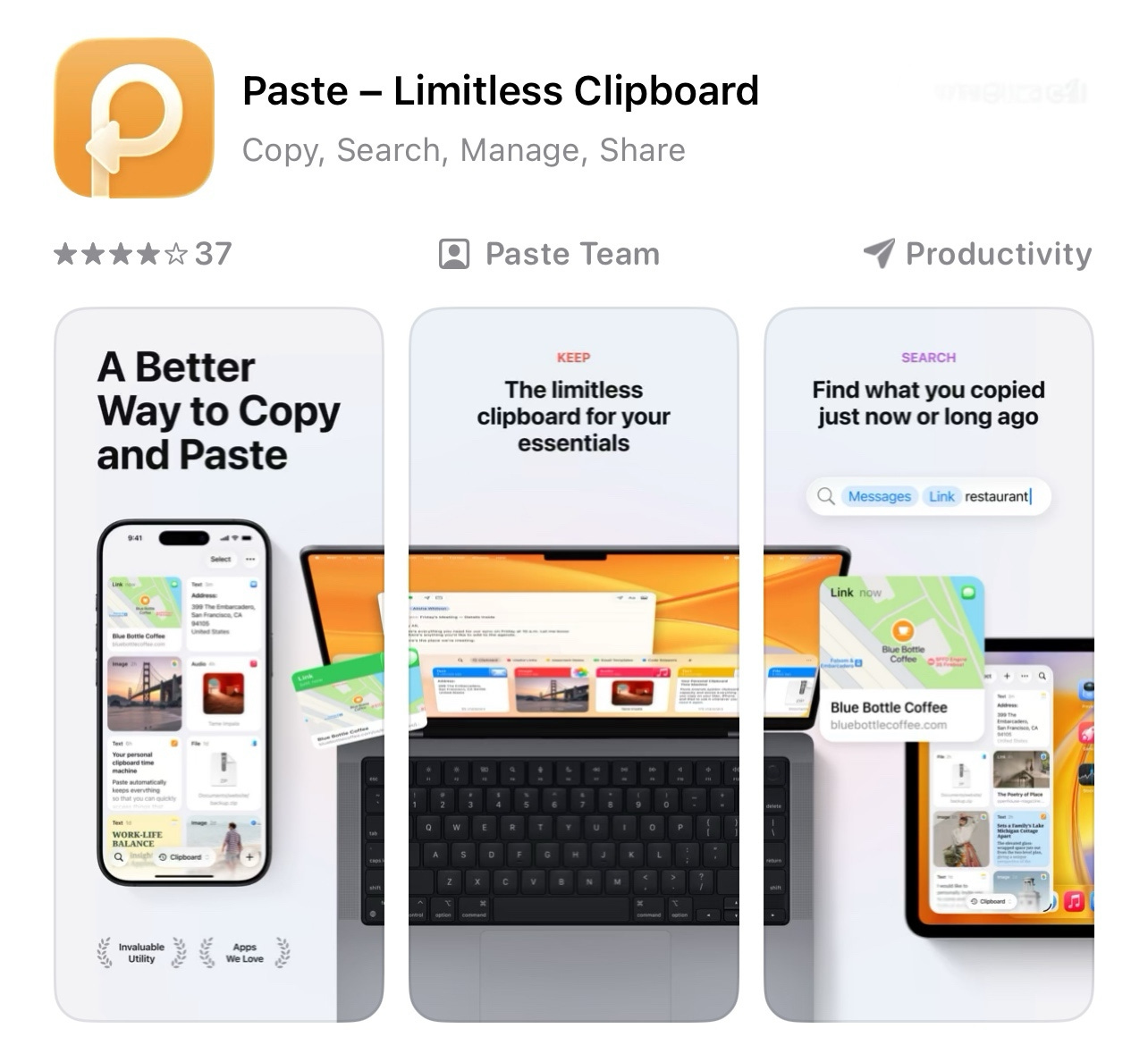
The app shows your clipboard history as visual cards, not just text lists. You can see the actual formatting, images, and colors of what you copied. It even searches text within images you’ve copied, so if you copied a screenshot of an email, you can search for words in that screenshot.
Paste extends Apple’s Universal Clipboard feature by organizing everything in a timeline. See what you copied on your iPhone this morning and on your Mac this afternoon, all in one place. The app syncs through iCloud, so your clipboard history is available on all your Apple devices.
You can try Paste free for one week by downloading it from pasteapp.io. The subscription covers all your devices and includes all future updates.
Quick fix: Clear sensitive data from clipboard
Copied a password or credit card number? Here’s how to clear it immediately to prevent theft:
Windows: Press Windows+V to see clipboard history, click the three dots menu, and select “Clear all.” Or simply copy a single space to overwrite the sensitive data.
Mac: Macs don’t have a clipboard clear option. Just copy something else immediately - even a single period or space will overwrite the sensitive information.
iPhone/Android: Copy a single character to overwrite what’s there, or restart your phone to clear the clipboard completely.
Better practice: Never copy sensitive information if you can avoid it. Password managers can fill in passwords without using the clipboard. If you must copy sensitive data, immediately copy something else afterward. Many banking apps automatically clear the clipboard 60 seconds after you copy an account number, but don’t rely on this.
Meanwhile: The clipboard mistake that haunts job seekers
Recruiters report a shocking trend: 15% of resumes contain pasted text with wrong formatting, different fonts, or fragments from other documents. This happens when people copy from multiple sources without checking the result.
Always use “Paste without formatting” (Ctrl+Shift+V on Windows, Command+Shift+Option+V on Mac) when creating professional documents. Then review the entire document for consistency. One recruiter shared: “We received a resume where half was Times New Roman and half was Comic Sans. The candidate copied from an old resume without noticing.”
Even worse is clipboard contamination. When you copy from websites, you often grab hidden code, advertisements, or tracking pixels along with the text. These invisible elements can appear when you paste into certain programs, creating embarrassing gaps or weird symbols.
The solution: always paste into Notepad (Windows) or TextEdit (Mac) first, then copy the clean text from there into your final document. This two-step process removes all hidden formatting and ensures clean, professional documents.
Did you read this one?
The Receipt Organization Trick That Saves Thousands in Warranties and Takes 5 Minutes to Set Up

That washing machine you bought in June just broke. The warranty covers it, but where’s the receipt? Maybe in your email, possibly in a drawer, or was it in that shopping bag you threw away? Americans lose $65 billion annually in unused warranties and missed returns simply because they can’t find receipts.
Questions?
What’s your biggest copy-paste frustration? Is it losing copied text, fighting with formatting, or moving text between devices? Reply with your clipboard challenges.
Until next time,
Alexander
Today, you can get a 20% discount on the first year of your subscription. If this newsletter provides useful information that reduces your screen frustration, improves your output, and makes spending time online more fun for you, please consider supporting this newsletter that occupies a unique niche on Substack: digital tips for non-digital people.

I also publish on Patreon:
For instance, click here.

Or perhaps you enjoyed the article and would like to support my writing by buying me a coffee?
Still here?
Then have a look at my other two newsletters:
The Planet: a weekly newsletter examining American democracy, freedom of speech, and environmental policy through a European perspective. Having lived, worked, and traveled extensively in the US and beyond as a backpacker, diplomat, and journalist, I explore current events through historical context, showing how lessons from the past inform today’s challenges to democratic values and planetary health.
Daybreak Notes and Beans: a daily newsletter with a focus on positive news to counterbalance the negative headlines you see all day. Five days a week, I share ten uplifting news stories about science, health, art, travel, archaeology, or any other topic that I think you’ll enjoy reading or that will give you hope now that we need that.
Have a look by clicking here:
Yesterday, I published:

This Screen Skills is a treasure of information and not just the copy-cut-paste-clipboard highlights. I love Worth Knowing and the other bits of history. Thanks! 📱💻
This Screen Skills taught me something! I needed to know what a ‘clipboard’ is. Now I have to put your instructions to use. 😊