
The Complete Guide to Smarter Navigation
Plus: Google Maps gets an AI brain transplant, map tricks, natural language navigation, Apple Maps catches up, and automatic parking memory

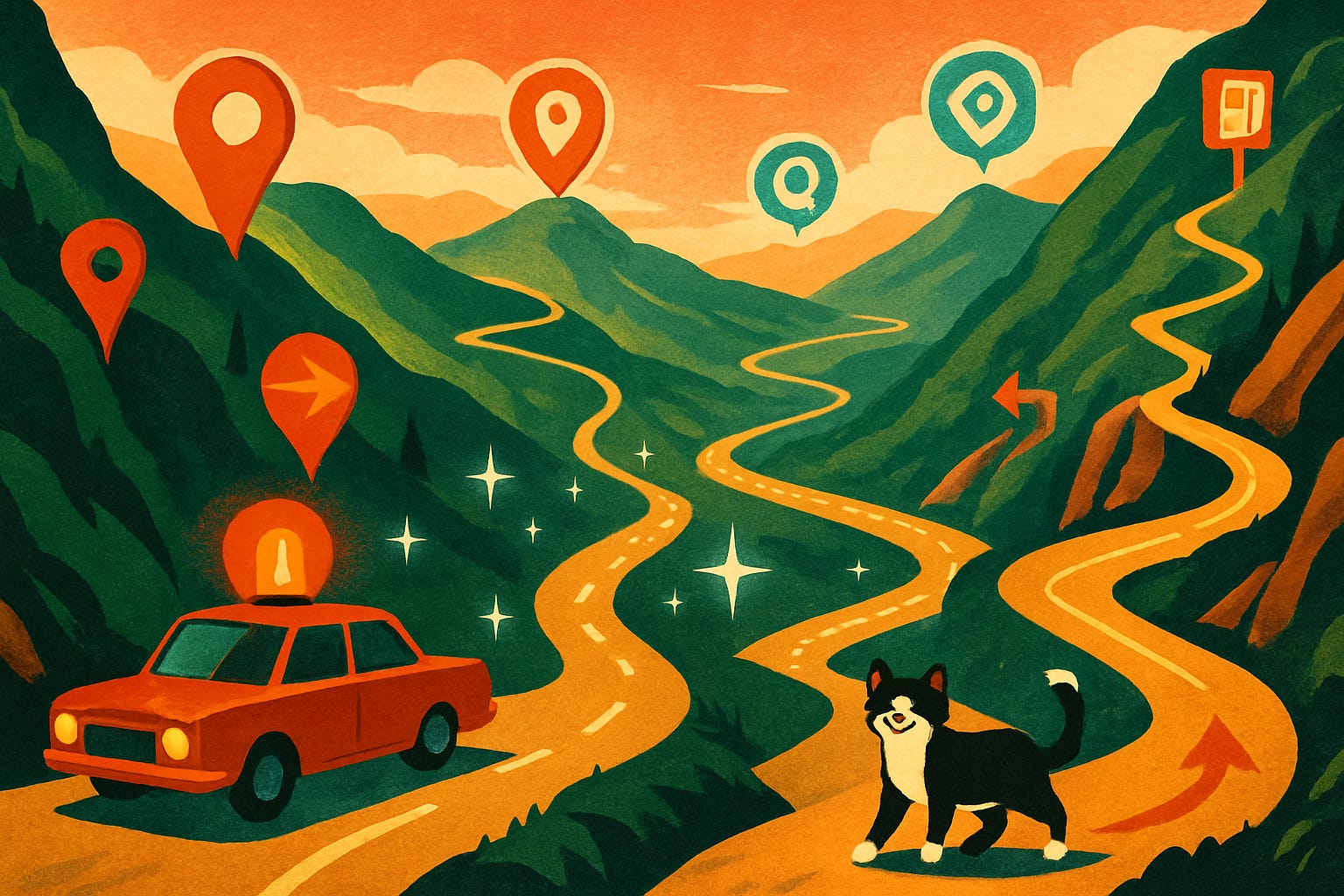
Google Maps just changed forever. Yesterday, the familiar microphone icon disappeared, replaced by Gemini AI that understands questions like “Find me a coffee shop with parking near my route that’s still open.” It’s a complete reimagining of how we navigate. But even without AI, your maps app has dozens of hidden features that transform holiday travel from stressful to smooth.
Most people use 10% of their map app’s capabilities. They type an address, follow the blue line, and hope for the best. Meanwhile, your maps can plan trips with multiple stops, remember where you parked, share your arrival time with family, automatically avoid toll roads, and even work perfectly without an internet connection. These features have existed for years, waiting to be discovered.
Today you’ll learn:
How to add multiple stops without restarting navigation
The one-tap trick that shares your exact arrival time
Setting permanent preferences to avoid tolls and highways
Two navigation apps that beat Google Maps at specific tasks
Why landmark navigation changes everything for older drivers
The parking features that prevent “where’s my car?” panic
For new readers: Screen Skills provides practical digital advice that everyone can understand and apply within minutes. Discover hundreds of simple tricks that make your digital life more efficient and enjoyable.
Today, you can get a 20% discount on the first year of your subscription. If this newsletter provides useful information that reduces your screen frustration, improves your output, and makes spending time online more fun for you, please consider supporting this newsletter that occupies a unique niche on Substack: digital tips for non-digital people.
Why navigation needs these hidden features
Holiday travel means complicated routes: picking up relatives, stopping for groceries, avoiding traffic, and finding parking at unfamiliar destinations. Basic navigation fails these real-world needs. You shouldn’t have to restart navigation after each stop or guess whether there’s parking at your destination.
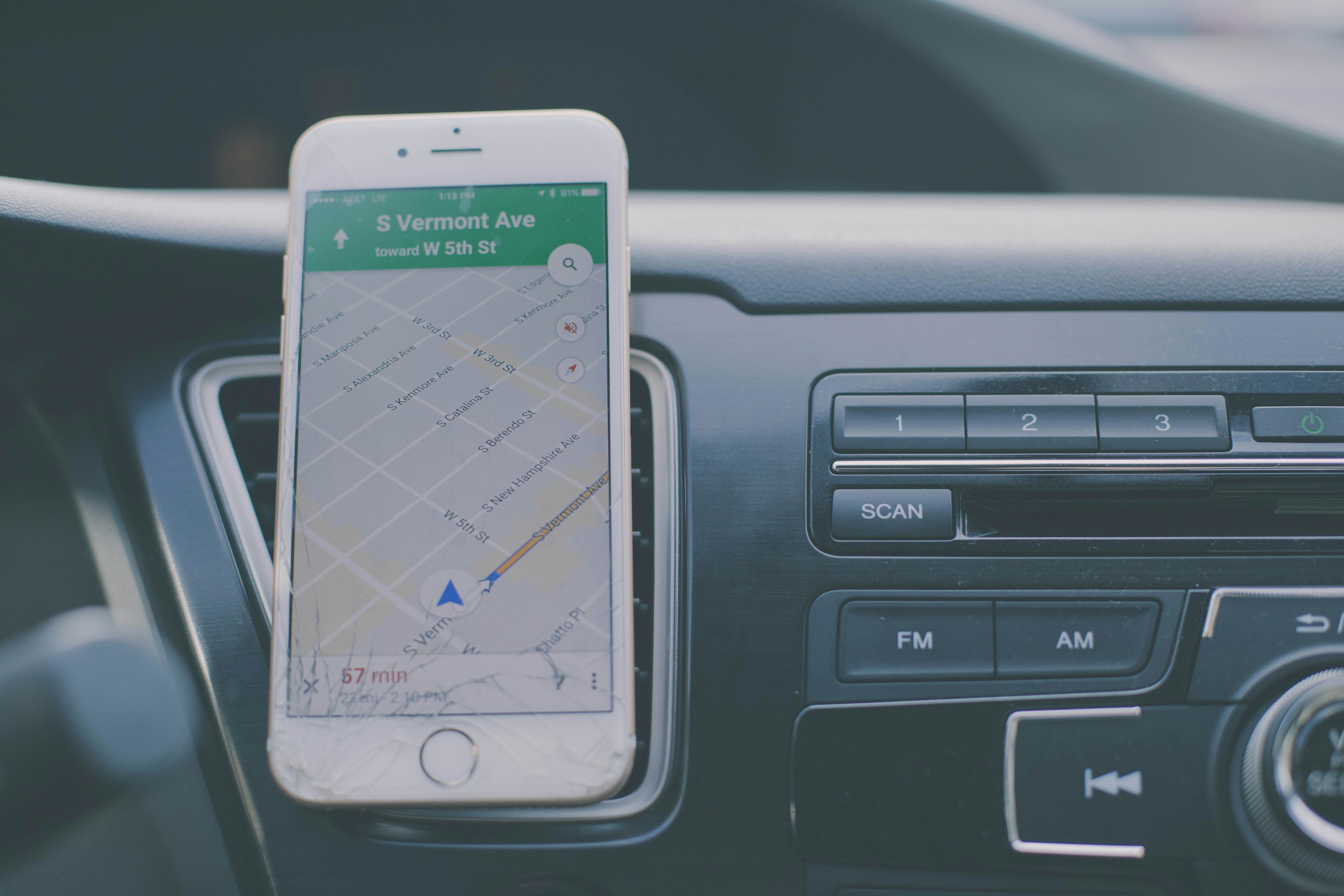
Modern navigation apps solve these problems, but their best features hide in menus most people never explore. The difference between stressful and smooth travel often comes down to knowing these tricks before you need them.
Master navigation with these essential tricks
Note: Settings menus vary between app versions. If these descriptions don’t match exactly, look for similar options in your map app’s settings.
Adding multiple stops to any trip:
Google Maps: Enter your final destination first. Tap the three dots menu. Select “Add stop”. Search for your stop or tap locations on the map. Drag stops to reorder them. Maps recalculates the entire route optimally.
Apple Maps: Start navigation to the final destination. Swipe up on the route card. Tap “Add Stop.” Choose from suggestions or search. Continue adding up to 15 stops. Automatically optimizes stop order.
Sharing your location and arrival time:
Live location sharing (both platforms): Start navigation. Tap the “Share” button or “Share trip progress.” Select contacts to notify. They receive a link showing your location and ETA Updates automatically if you’re delayed.
One-time location share: Long-press any location on the map. Tap “Share.” Choose how to send (text, email, WhatsApp). Recipients see the exact location even without the app
Avoiding tolls and highways permanently:
Google Maps: Settings (profile picture) > Settings > Navigation settings. Toggle “Avoid tolls” and/or “Avoid highways.” These become your default for all trips. Override per trip if needed
Apple Maps: Settings app > Maps > Driving (not in Maps app itself) Toggle “Avoid Tolls” and “Highways” Applies to all future navigation
Save where you parked:
Google Maps: The Blue dot shows your location. Tap it and select “Save parking.” Add notes like parking level or meter time. Creates a reminder notification and shows walking directions back to the car.
Apple Maps: Automatically detects when you park (if connected to car Bluetooth), shows “Parked Car” on the map, and lets you tap to add a photo of the location. Sets a reminder when the meter expires
Finding gas without leaving your route:
Google Maps: While navigating, tap the search icon. Select “Gas stations” to show only stations along your route. Displays current prices and adds minimal time. One tap adds it as a stop.
Apple Maps: Swipe up during navigation. Tap “Gas Stations” to show options ahead with prices. Automatically returns to the original route.
Download maps for offline use:
Google Maps: Search for a city or area. Tap the name at the bottom. Select “Download”. Choose area size (uses 100-500 MB). Works fully offline, including search
Apple Maps (iOS 17+): Search for an area. Tap “Download Map.” Select region size. Includes turn-by-turn navigation offline
Tip: Download maps while on WiFi before trips. Even with good cell service, offline maps load faster and save battery. Download your entire route, including the destination city, for complete coverage.
Worth knowing
Google’s Gemini AI integration started rolling out in the U.S. this week. It replaces the Google Assistant microphone with a sparkle icon. Instead of robotic commands, you can now ask natural questions: “Find a Mexican restaurant with outdoor seating that’s kid-friendly along my route.” Gemini understands context, allowing follow-up questions like “What about parking?” or “Are they open now?”
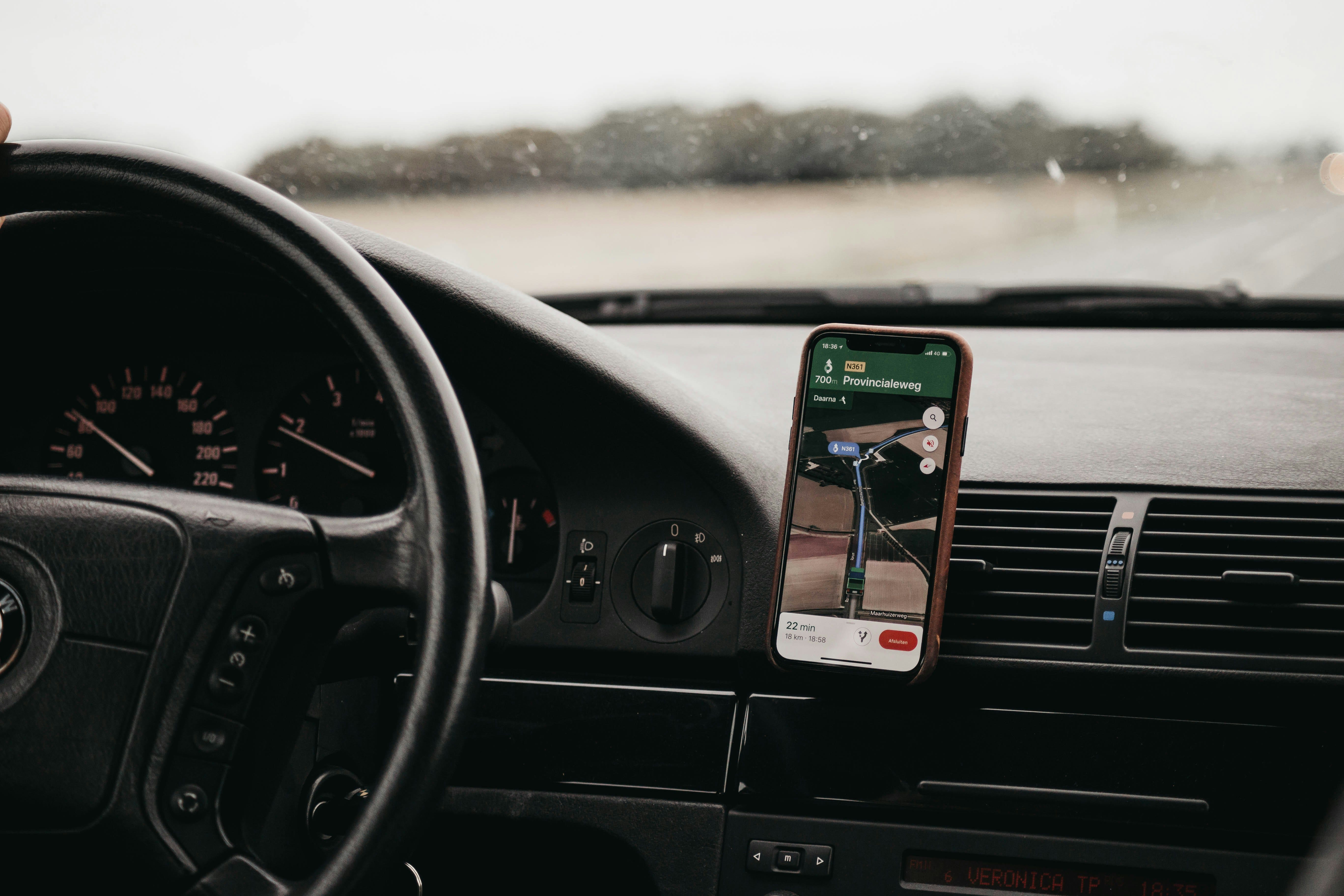
The new landmark-based navigation addresses a major complaint from older drivers. Instead of “turn right in 500 feet,” Gemini says “turn right after the Thai restaurant.” This matches how humans naturally give directions. Currently US-only, with global expansion expected later.
Apple Maps has quietly caught up to Google Maps in many areas. Its privacy-first approach doesn’t track your location history, lane guidance excels in complex intersections, and integration with iPhone features like Siri and CarPlay often works more smoothly than Google’s alternatives.
Competition intensified this year: OpenAI’s ChatGPT can now plan complex trips, Meta’s AI assistant provides navigation through WhatsApp, and even Amazon’s Alexa offers turn-by-turn directions. This competition drives rapid improvement in the features we get for free.
Tech news you can use
Apple Maps Adds Real-Time Transit Predictions
Apple Maps now shows live transit arrival times in 20 more cities, including Miami, Atlanta, and Seattle. The December update includes wheelchair accessibility icons, elevator outage alerts, and real-time crowding indicators for buses and trains. Most useful: price comparisons between transit and rideshare options for the same journey. Update your iPhone to iOS 18.2 (releasing next week) for these features.
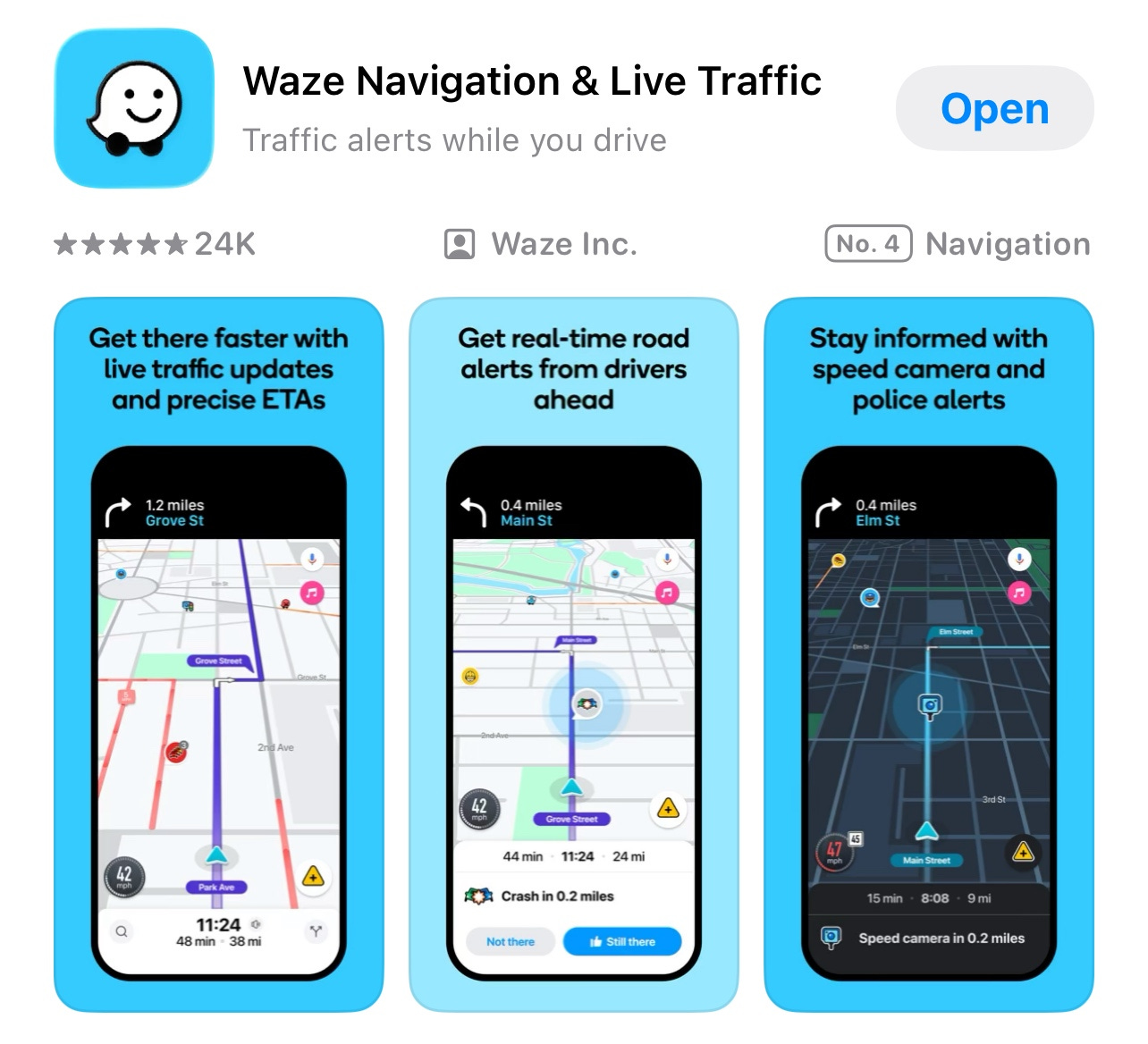
Waze’s Winter Driving Features Activate Automatically
Waze activated special winter driving features that warn about black ice, snow-covered roads, and reduced visibility conditions. The app crowdsources hazard reports from other drivers, alerting you before you reach dangerous areas. New “winter voice” provides extra time for warnings in bad weather. These features are automatic; no settings needed. Especially valuable for holiday travel through unfamiliar winter conditions.
Today, you can get a 20% discount on the first year of your subscription. If this newsletter provides useful information that reduces your screen frustration, improves your output, and makes spending time online more fun for you, please consider supporting this newsletter that occupies a unique niche on Substack: digital tips for non-digital people.
App spotlight: Roadtrippers (iPhone/Android)
Roadtrippers transforms long drives into adventures by showing interesting stops you’d never find otherwise. Planning a 6-hour holiday drive? Roadtrippers reveals hidden gems, scenic viewpoints, quirky attractions, and local restaurants within minutes of your route.
The free version lets you plan trips with up to 7 stops, showing travel time, distance, and fuel costs. It categorizes discoveries: historical sites, natural wonders, weird roadside attractions, and local food favorites. Perfect for making holiday travel memorable rather than just endurable.
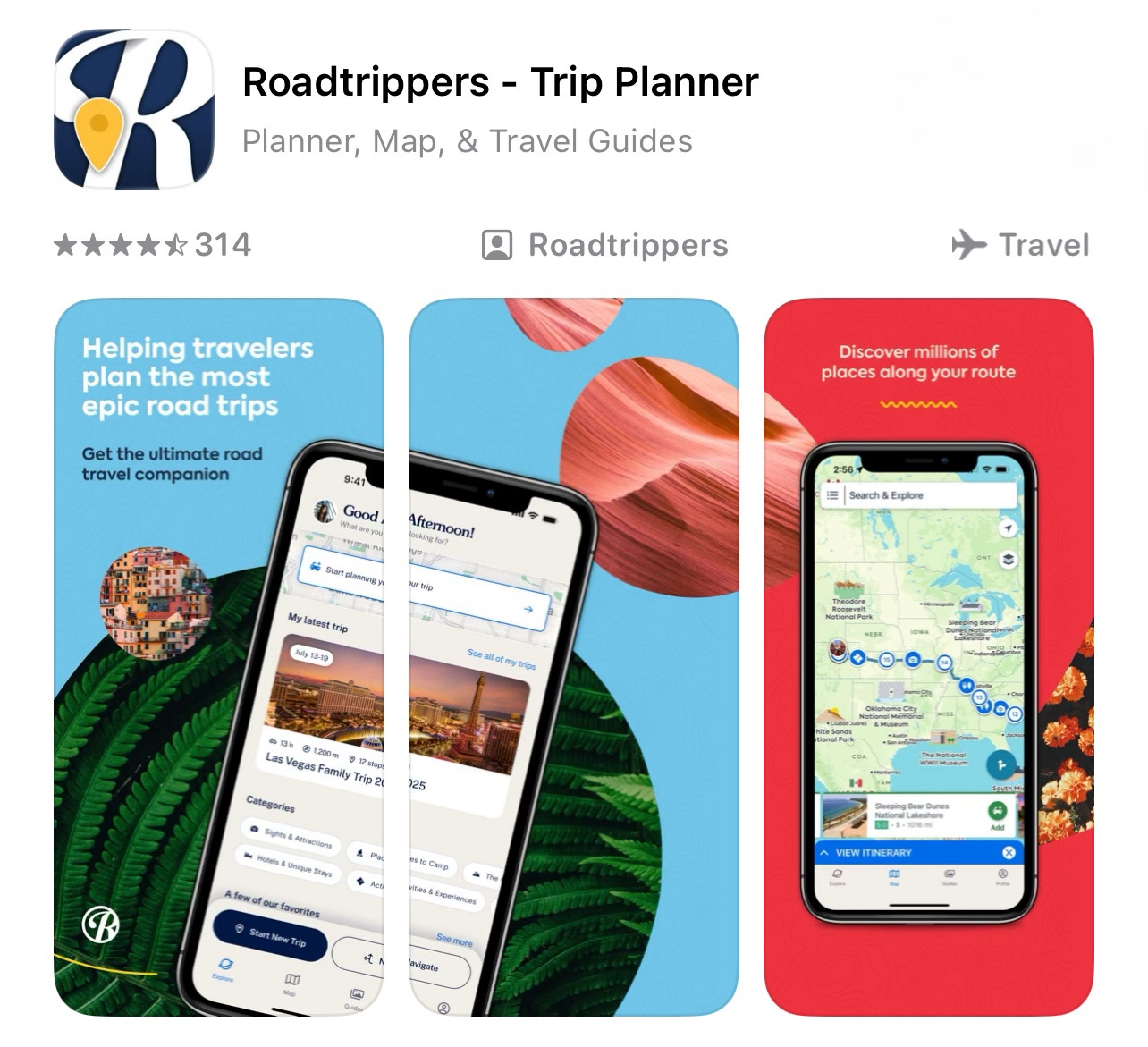
Premium ($29.99/year) allows unlimited stops, offline maps, and custom categories. The “Places to Camp” filter helps RV travelers, while “Pet Friendly” shows where dogs are welcome. Collaborators can add suggestions to shared trips, ideal for family travel planning.
App spotlight: HereWeGo (iPhone/Android)
HereWeGo excels at offline navigation, crucial for rural holiday visits with poor cell service. Download entire countries (not just cities) for complete offline functionality, including address search, business information, and full navigation.
The app’s strength: international travel without data charges. Download maps at home, navigate abroad without roaming fees. Public transit directions work offline in 1,900 cities. Walking directions include elevation changes, helpful for those avoiding steep hills.
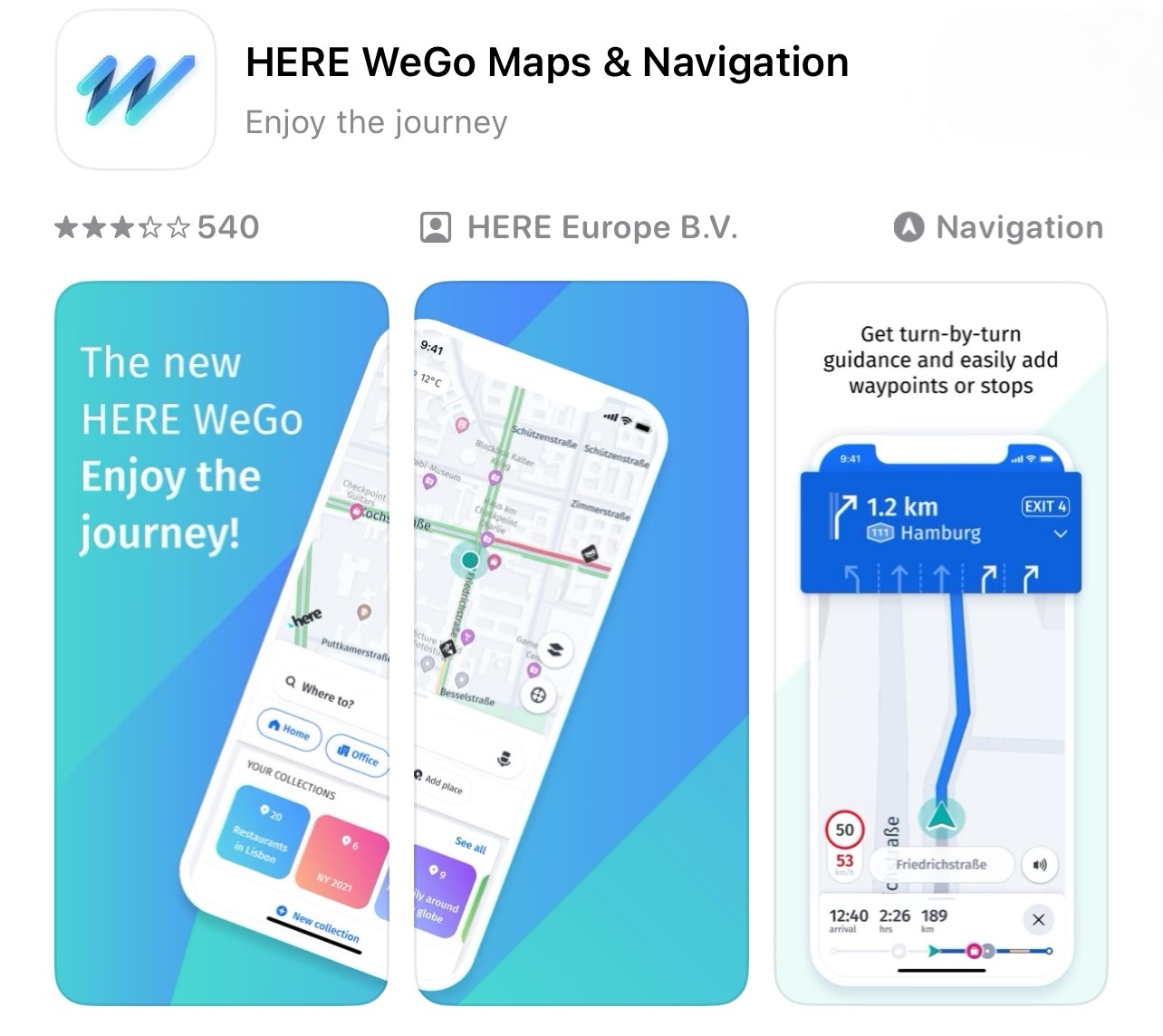
Completely free with no ads or a premium version. Initially, Nokia’s mapping service, now owned by automotive companies, is ensuring long-term support. Particularly good for older users: simple interface, large buttons, clear voice directions.
Quick fix: Find your car in any parking lot
Lost in a mall parking lot? Your phone remembers where you parked, even if you forgot to save it.
iPhone: If your phone is connected to your car’s Bluetooth, Maps automatically saves your parking spot. Open Maps, look for the “Parked Car” marker. Tap for walking directions back.
Android: Google Maps > Your Timeline > Today > See where you parked. Shows your location when you stop driving. Tap for directions back.
No Bluetooth? Take a photo of the nearest pillar/sign when parking. Your photo timestamp and location data create a permanent record. Search your photos for “parking” or check photos from that time.
Meanwhile: Voice navigation safety for older drivers
The new Gemini AI in Google Maps that I already mentioned addresses a critical safety issue: fumbling with phones while driving increases accident risk by 23 times. Older drivers particularly benefit from natural voice commands that don’t require memorizing specific phrases.
Say “Hey Google, I need gas” instead of tapping through menus. Ask “What’s the weather at my destination?” without taking your hands off the wheel. Report “There’s construction ahead” to help other drivers. These conversational commands work even with mild cognitive decline, which can make menu navigation challenging.
Most importantly, Gemini allows family members to help remotely. Share your trip, and relatives can add stops to your route from their phones, ensuring you don’t miss essential detours or forget planned stops.
Did you read this one?
Simple Settings That Double Your Phone’s Daily Battery Life

Your phone battery shouldn’t die by 3 PM. Yet millions of smartphones barely make it through a workday because hidden settings silently drain power in the background. These battery vampires have been active since you first turned on your phone, consuming 30-40% of your daily charge for features you probably don’t even use.
Questions?
What navigation challenge frustrates you most? Is it complex routes with multiple stops, finding parking, or navigating without internet? Reply with your travel tech troubles.
Until next time,
Alexander
Today, you can get a 20% discount on the first year of your subscription. If this newsletter provides useful information that reduces your screen frustration, improves your output, and makes spending time online more fun for you, please consider supporting this newsletter that occupies a unique niche on Substack: digital tips for non-digital people.

I also publish on Patreon:
Last week, I published: The Little Farmer and His Geese: Meet Heitor, the Boy Behind Those Videos You Can’t Stop Watching

Or perhaps you enjoyed the article and would like to support my writing by buying me a coffee?
Still here?
Then have a look at my other two newsletters:
The Planet: a weekly newsletter examining American democracy, freedom of speech, and environmental policy through a European perspective. Having lived, worked, and traveled extensively in the US and beyond as a backpacker, diplomat, and journalist, I explore current events through historical context, showing how lessons from the past inform today’s challenges to democratic values and planetary health.
On Saturday, I published this article:

Daybreak Notes and Beans: a daily newsletter with a focus on positive news to counterbalance the negative headlines you see all day. Five days a week, I share ten uplifting news stories about science, health, art, travel, archaeology, or any other topic that I think you’ll enjoy reading or that will give you hope now that we need that.
Have a look by clicking here:
Yesterday, I published:

"These features have existed for years, waiting to be discovered."
😂 guilty
These tips are so helpful particularly now with holiday shopping and traveling. The app Roadtrippers seems fun and educational. And the pet-friendly feature is useful for many of us 🐶 Thanks! 📱