
The Complete Beginner's Guide to Sharing Video on Substack
Plus: the automatic transcript Substack generates for every video, why Notes are the fastest way to share a quick video, and a phishing warning for newsletter writers

Yesterday’s issue of Screen Skills covered CapCut, the free tool that lets you combine phone clips into a short, polished video. Today, I will answer the natural follow-up question: once you have the video, what do you do with it?
Substack gives you three ways to share a video, and all three are straightforward enough to do in under a minute once you know where to look. The features described below are available to every Substack writer.
Today you’ll learn:
The difference between a dedicated video post and a video inside a regular newsletter article
How to publish a video post from your Substack dashboard in a few clicks
How to insert a video into an article you are writing
How to add a video to a Substack Note, both on the website and on your phone
What happens after you publish, including the automatic transcript Substack currently generates for you
For new readers: Screen Skills provides practical digital advice without technical jargon. I focus on tools that enhance your digital life without overwhelming you with complexity. You can apply what you learn here within minutes.
Today, you can get a 20% discount on the first year of your subscription.
If this newsletter provides useful information that reduces your screen frustration, improves your output, and makes spending time online more fun for you, please consider supporting this newsletter that occupies a unique niche on Substack: digital tips for non-digital people.
Three ways to share video on Substack
Substack offers three distinct options, each suited to slightly different purposes. A dedicated video post puts the video front and center, the way a filmmaker would share a short film, or as you see me using it for Morning Comments on More. Inserting a video inside an article works the way I do this towards the end of Daybreak Notes and Beans newsletters. There you see in “Moment of Science” or “Moment of Beauty”, that the video appears partway through a written piece. And a Note is the quickest option of all, suited for a short clip you want to share in the moment.
All three are easy. The core action is the same in each case: you find the video on your device and upload it. What changes is where you start.
Option one: a dedicated video post
Sign in to your Substack account on the web and go to your dashboard. On the left side, you will see a button labeled “Create.” Click it, and a short menu appears. You will see options including Article and Video. Choose Video. You will see this screen:
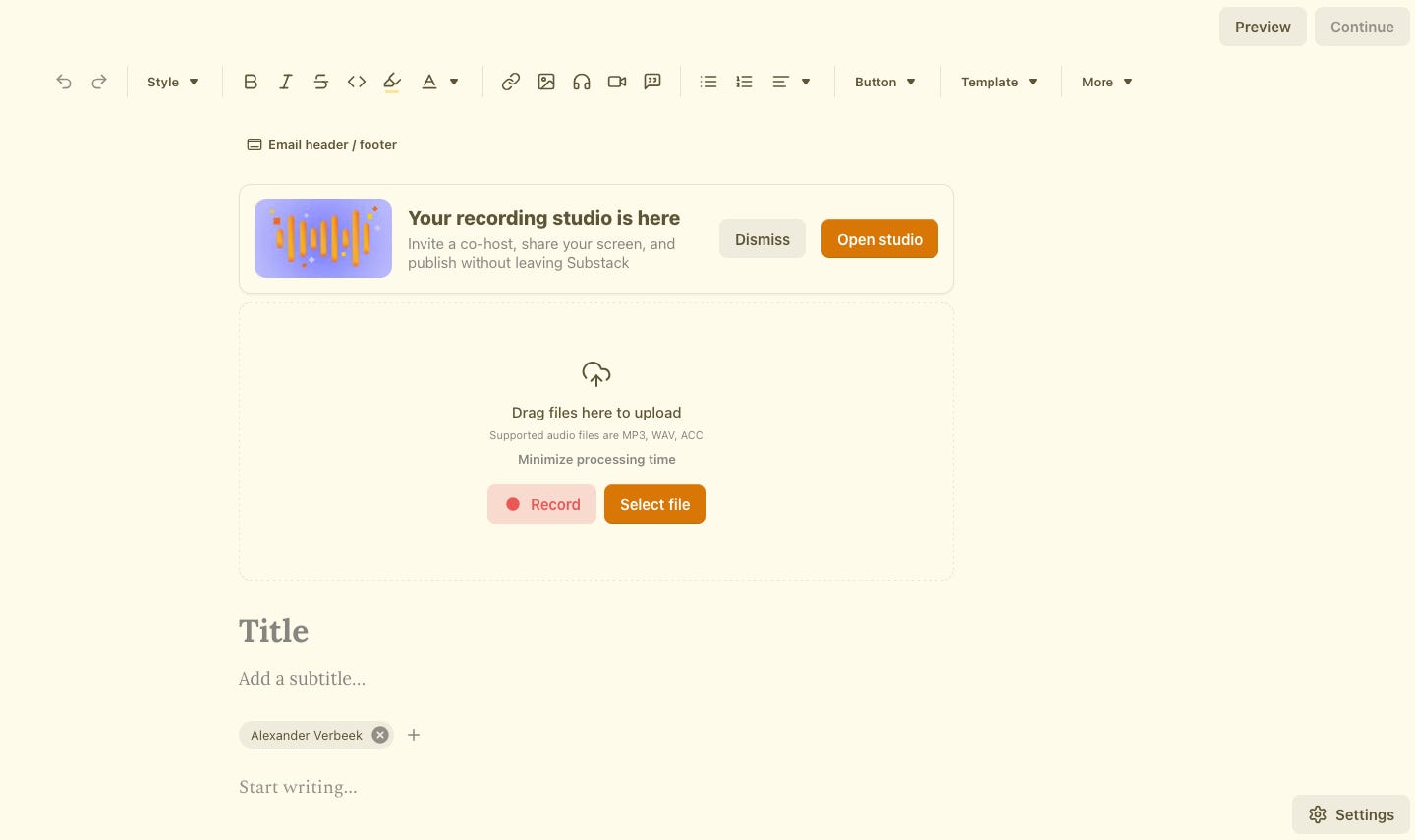
A template opens with a large area at the top that says “Drag files here to upload” and offers a “Select file” button. Click “Select file,” find the video (for instance, the one you saved from CapCut), and select it. The upload begins immediately.
While the video uploads, fill in the title and subtitle fields below it. Then add whatever text you want in the body. This could be a full story about where you filmed it, or simply a single line: “Video impressions from last weekend’s walk.” The video will appear at the top of the post when published.
When you are ready, click “Continue,” review the publishing settings, and click “Send.” Your subscribers will receive it by email and in the Substack app.
For an example of a video post, click here.
Option two: a video inside a regular article
Start the same way. Go to the “Create” button and choose Article. Write your title, subtitle, and the text of your piece. When you reach the point where you want the video to appear, look at the toolbar running along the top of the editing area. Roughly in the middle of that bar is a small video camera icon. Hover over it, and it will say “Insert video.” Click it.
A box appears saying “Drop your video here or click to browse.” Select your video file. Substack accepts the most common formats, including MP4, MOV, and AVI. Once selected, click Insert, and the video will appear inside your article at exactly that position, not at the top, but wherever you placed it in the text.
This option suits issues where the video supports a written piece rather than being the main event.
For an example of embedding a video in an article, click here.
Option three: a Note with video
Notes are Substack’s version of a short social post, and adding video to one takes about ten seconds.
On the website, go to “Create” and choose Note. A simple composing area opens. You can start by typing text or go straight to the video. At the bottom of the composing area, look for the row of icons. The second icon is for inserting a video. Click it, select your video, click Open, and it attaches immediately. When you are ready, press Post.
On the Substack app on your phone, the process is even faster. Tap the plus button at the bottom right of the screen. A composing area opens with the prompt “What’s on your mind?” Below that, you will see a row of icons. Tap the first one on the left, then choose “Add video.” Your phone’s video library opens, and you select the clip you want. Once it uploads, tap Post in the top right corner. Done.
I share short video clips this way regularly, often on the phone, often in under a minute. I prefer to post articles and video posts via my desktop and notes via the app on my phone, but all three options for posting video are available on both desktop and the phone app.
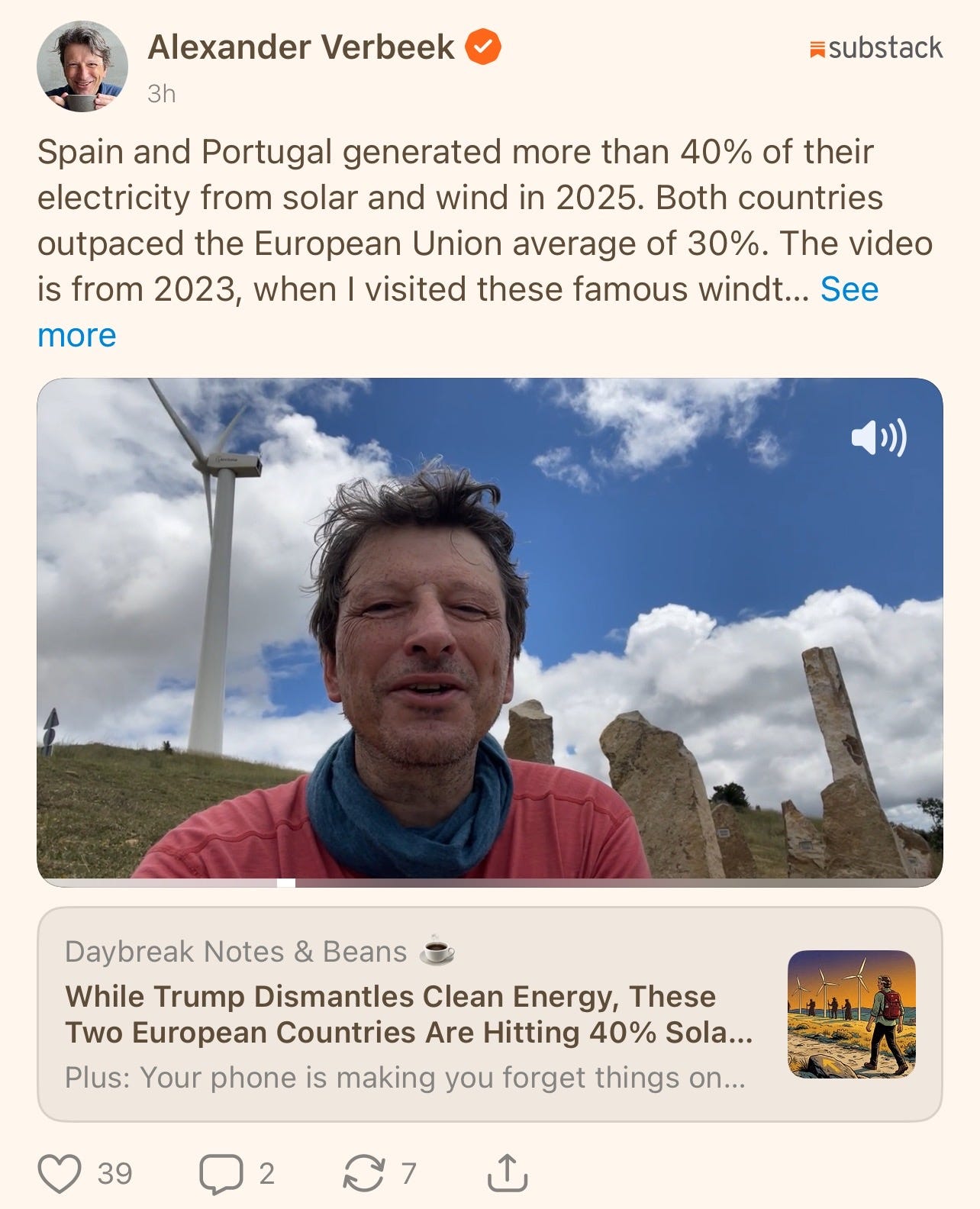
Here is a screenshot from my phone of a Note I published with a video. If you want the link to an article under the video, first paste the video, then paste the link to the article.
What Substack does automatically after you publish
One feature worth noting: Substack currently generates a written transcript for every video post with audio. This transcript appears below your video when readers open the post, and it is interactive, meaning readers can click on any line to jump to that moment in the video. You can edit the transcript if anything was transcribed incorrectly, or turn it off entirely if you prefer not to show it. I find these transcripts remarkably good, even if you happen to talk with a Dutch accent. So when you check the transcription, you mainly have to check for unusual words. But even there, you’ll be surprised how Tchaikovsky, Stravinsky, and Dvořák don’t need any correction.
Worth knowing
Substack introduced video posts in private beta around 2021, initially only on desktop. The ability to publish video directly from the mobile app came later, making it possible to film, edit, and publish without touching a computer at all. Substack also allows viewers of your video posts to create short, shareable clips and either download them or share a link back to the full video on your publication. The clip includes your publication name and address, which means that your readers sharing your content can bring new people to your work.
Tech news
Readers can now clip and share segments of your Substack videos. When someone watches a video post on Substack’s website, they can select a short segment, create a clip from it, and share it as a link or download it for posting elsewhere. The clip links back to your full video, which means sharing by your audience can bring new readers to your publication. This feature applies to dedicated video posts rather than videos embedded inside regular articles.
YouTube keeps tweaking its upload flow for beginners. Recent updates to Creator Studio have focused on clearer steps and better defaults for first-time uploads, making the publishing process feel less intimidating for people sharing video for the first time.
Substack’s app keeps your place in videos. When a reader on the Substack app watches part of a video and then navigates away, the app remembers where they stopped and resumes from that point when they return. This makes longer videos more practical to watch across multiple sessions.
App spotlight: Substack (iPhone and Android)
The Substack app is where most of your readers already consume your newsletter, and it is also where you can post Notes and video posts directly from your phone. The video upload flow in the app is the most straightforward: tap the plus button, choose your video from your library, add a title, and publish. Search for “Substack” in the App Store on iPhone or the Google Play Store on Android. It is free.
App spotlight: CapCut (iPhone and Android)
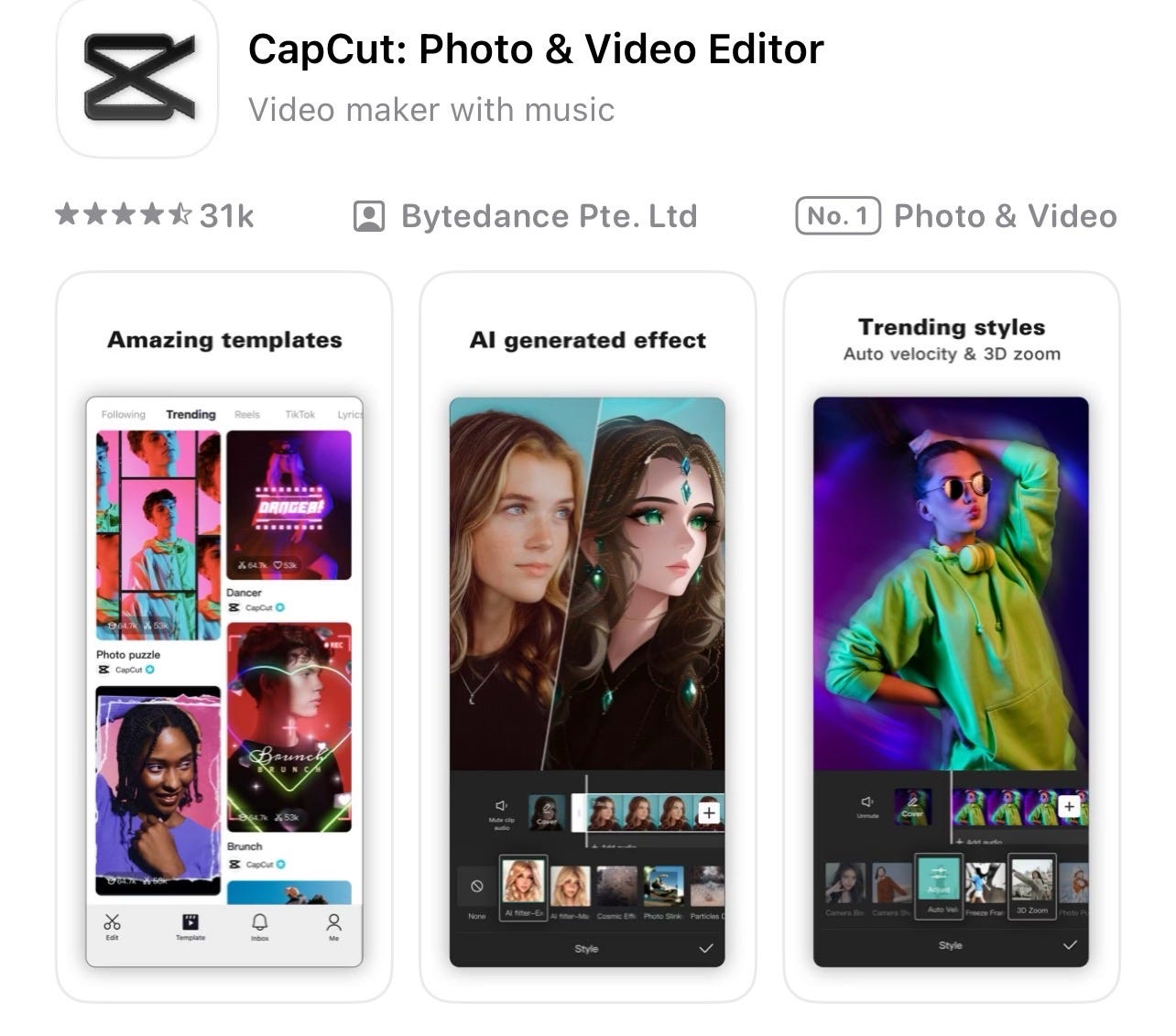
Yesterday’s issue covered CapCut in detail, but it's worth a reminder: the video you edit in CapCut saves directly to your camera roll or Downloads folder, and that is the file you upload to Substack using any of the three methods above. The two tools work together naturally. CapCut handles the editing; Substack handles the publishing. If you missed yesterday’s issue, the link is in the Did You Read This One section below.
Scam alert
If you receive an email or message claiming to be from Substack asking you to verify your account or re-enter your payment details, do not click any links in it. Substack will never ask for your password or payment information by email. Go directly to substack.com, sign in there, and check your account settings if you have any concerns. This type of message is a phishing attempt, and they are becoming more common as Substack grows in visibility.
Meanwhile
This issue is the second part of a pair. Yesterday, we covered how to edit your phone videos using CapCut, the free browser-based tool that lets you combine clips, add music, and trim out the shaky parts. Today covers what to do with the finished video. Together, the two issues take you from raw footage to published video, using only free tools.
Did you read this one?
The New Free Tool That Turns Your Phone Clips Into One Polished Video — yesterday’s issue, which covers CapCut and the editing process that produces the video you just learned how to share.
Questions?
What would you like Screen Skills to cover in a future issue? Leave a comment, send a DM, or reply to this email.
A few more thoughts to share:
Most technology writing assumes you’re already keeping up. It’s written for people who follow tech news as a hobby, who know the jargon, who want to go deeper. That’s a real audience, but it’s a small one. The much larger group, people who use screens every day for work, connection, and daily life without being specialists, rarely get the clear, patient explanation they deserve.
Screen Skills is for that group.
I will never assume you already know something.
I will never skip a step because it seems obvious.
And I will never make you feel behind for not knowing something that nobody properly explained to you in the first place.
If that sounds like the newsletter you’ve been looking for, consider subscribing.

Until next time,
Alexander
Still here?
Don’t go; read this first:
We’ve reached the end of the Screen Skills newsletter, but there is always more to read, like The Planet: my newsletter on politics, or Daybreak Notes & Beans: the good-news newsletter that I publish most days of the week. Or you can read about my travels in The Curious Wanderer. You may also enjoy the More newsletter, which includes, for instance, the Morning Compass with a summary of the news. It’s worth staying here a moment and picking an article that you like to read.
🧭 Morning Compass
This morning, I published today’s Morning Compass in the More newsletter. This is the best way to quickly catch up on what’s going on during your first coffee.
This morning, I published:

🎙️Morning Comments
In More, I also often publish short video posts, like this one from earlier today:
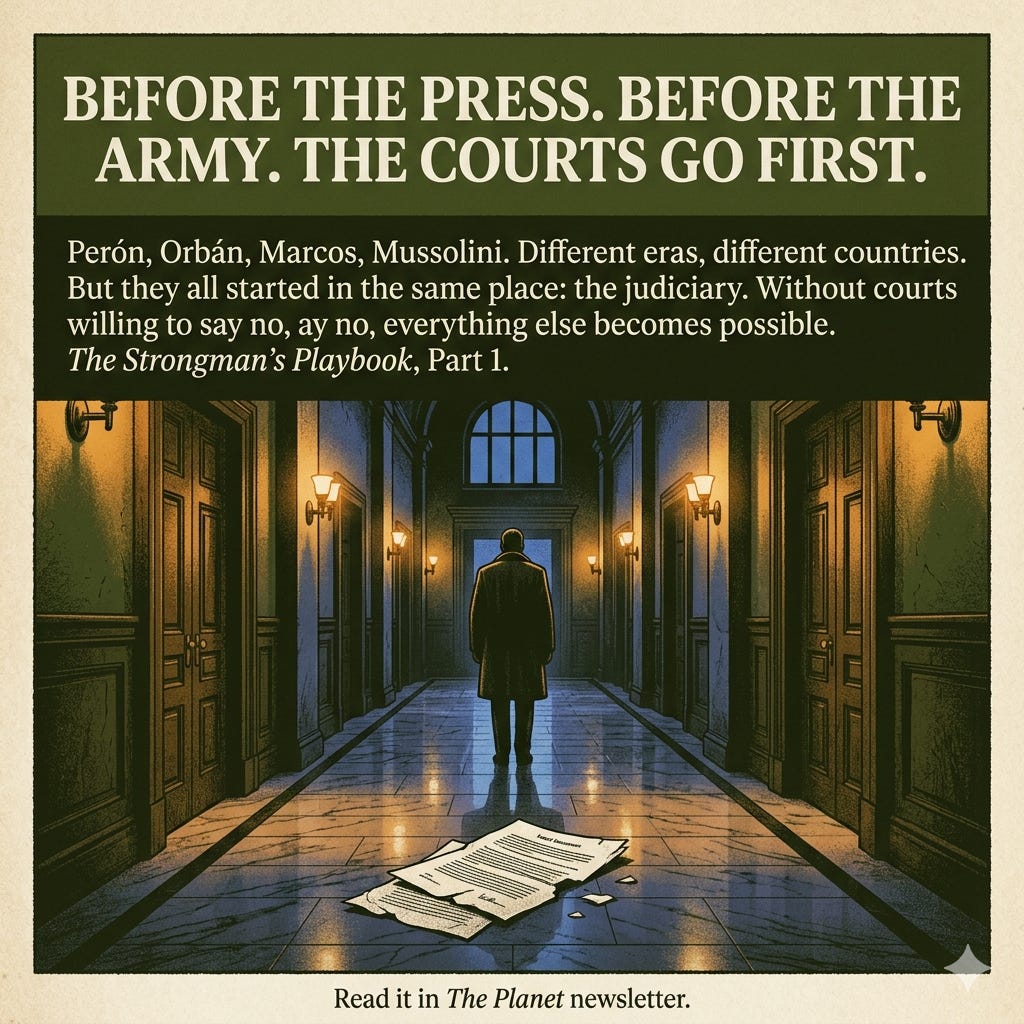
The Planet
On Sunday, I published part 1 in the series “The Strongman’s Playbook”, it’s the follow up of “The Fall”:

The Curious Wanderer
On Saturday, I published:

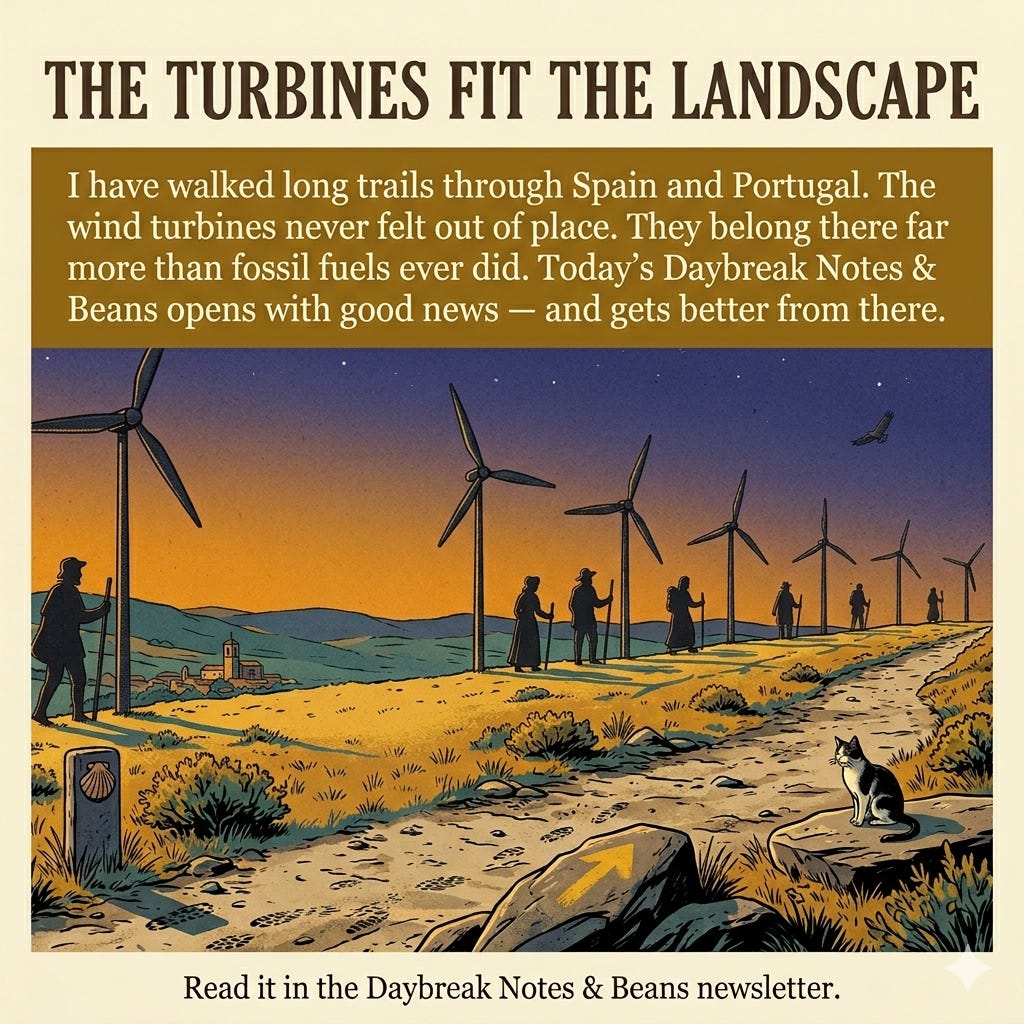
Daybreak Notes & Beans
Today, I published:

Today, you can get a 20% discount on the first year of your subscription.
If this newsletter provides useful information that reduces your screen frustration, improves your output, and makes spending time online more fun for you, please consider supporting this newsletter that occupies a unique niche on Substack: digital tips for non-digital people.
"All three are easy. The core action is the same in each case: you find the video on your device and upload it. What changes is where you start."
Always sharing cleanly and clearly. Thank you!! 📱💻📹
Thanks for this. I've published videos before but this is a nice summary. I'm planning on recording video when out on adventures.
Loving your step by step guides.