
Stop Constant Interruptions: Your Complete Notification Management Guide
Plus: Per-app notification controls on iPhone and Android, time-sensitive notifications that override Do Not Disturb, and the one-time audit that cuts interruptions permanently


Your phone buzzes. An app wants your attention. You check it—nothing important. Five minutes later, another buzz. Then another. By the end of the day, you’ve been interrupted dozens of times by notifications that didn’t matter. Most of these alerts come from apps you barely use, yet they demand attention as urgently as messages from family or critical work emails.
Every app on your phone requests permission to send notifications, and most people tap “Allow” without thinking about it. Months later, you’re drowning in alerts from shopping apps, news apps, games, and services you’ve forgotten you even installed. Your phone includes powerful controls that let you silence these interruptions permanently while keeping the notifications that actually matter.
Today you’ll learn:
How to turn off notifications for specific apps on iPhone, Android, Mac, and Windows
Managing notification badges (those red numbers) that create false urgency
Grouping versus individual alerts and which approach reduces interruption
Lock screen, banner, and notification center settings explained clearly
Time-sensitive notifications that override Do Not Disturb when necessary
The scheduled delivery feature that delivers non-urgent alerts on your schedule
These instructions work on current versions of iOS 18, Android 15, macOS Sequoia, and Windows 11 as of early 2026.
For new readers: Screen Skills provides practical digital advice that everyone can understand and apply within minutes. Discover hundreds of simple tricks that make your digital life more efficient and enjoyable.
Today, you can get a 20% discount on the first year of your subscription.
If this newsletter provides useful information that reduces your screen frustration, improves your output, and makes spending time online more fun for you, please consider supporting this newsletter that occupies a unique niche on Substack: digital tips for non-digital people.
Why notifications become overwhelming
Apps compete for your attention constantly. Each notification is a brief interruption intended to bring you back to the app, whether you need to be there or not. Shopping apps notify you about sales. News apps alert you to every story. Social media apps tell you about likes, comments, and posts from people you barely know. Games remind you to play. Email apps buzz for every message regardless of importance.
These interruptions accumulate throughout the day, creating a constant state of distraction. Research shows that recovering focus after an interruption takes several minutes, meaning frequent notifications significantly reduce productivity and increase stress. The mental burden of constantly checking your phone drains energy even when individual notifications seem trivial.
Most people never configure notification settings after initial app installation. When you install an app and it requests notification permission, tapping “Allow” seems harmless. But multiply that decision across dozens of apps over months or years, and you’ve given permission for unlimited interruptions from sources you may not even remember authorizing.
The solution isn’t turning off all notifications—some alerts genuinely matter. Messages from family, calendar reminders for appointments, and time-sensitive work notifications deserve immediate attention. The key is to differentiate between notifications that serve you and those that serve the apps themselves.
How to control notifications on iPhone
iPhone provides detailed notification controls for every installed app, letting you customize exactly how each app can interrupt you. These settings work independently—turning off notifications for a shopping app doesn’t affect your message or email alerts.
To manage iPhone notifications, open Settings and tap Notifications. You’ll see a list of every app on your phone with a preview of its current notification settings. Apps with notifications enabled show their alert style (Lock Screen, Notification Center, or Banners). Apps with notifications disabled show “Off” next to their names. This overview helps you quickly identify which apps are allowed to interrupt you. Note that on some iOS 18 devices, you can also access per-app notification settings through Settings → Apps.
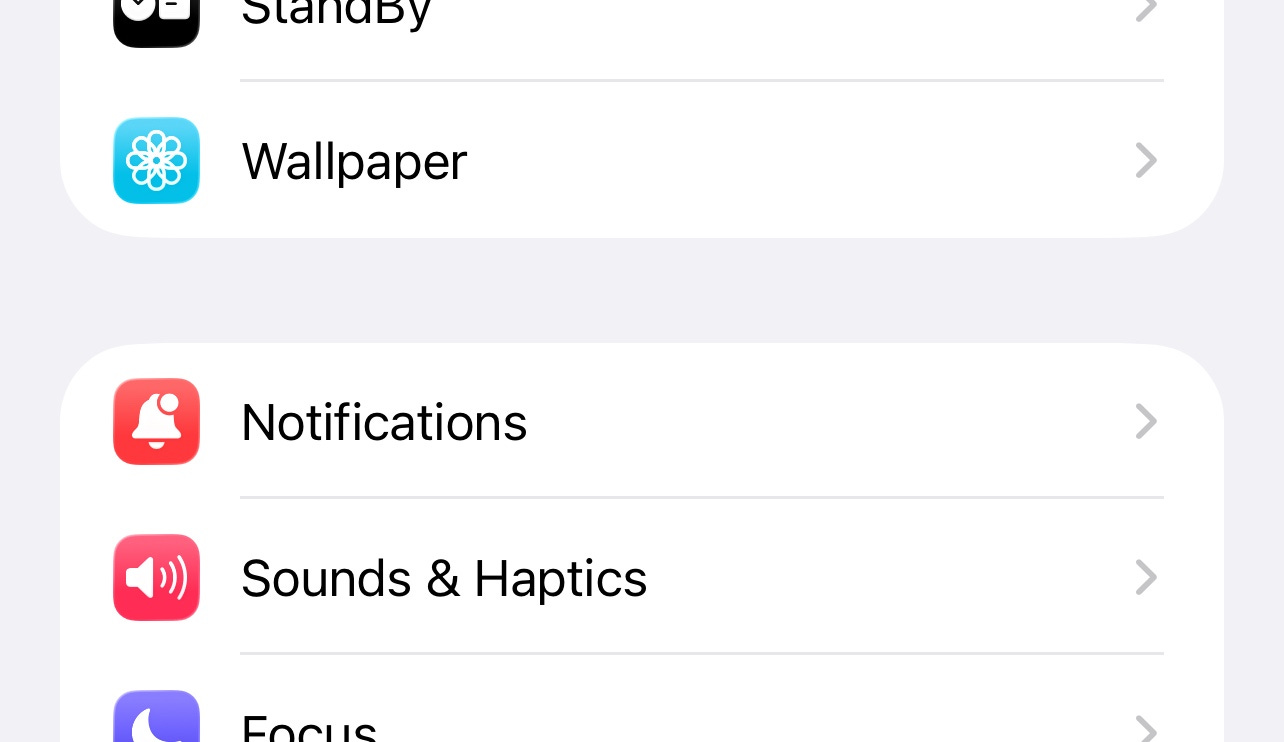
Tap any app in the list to see its detailed notification settings. At the top, you’ll see “Allow Notifications” with a toggle switch. Turning this off completely silences that app—no sounds, no banners, no badges, nothing. The app can still function normally, but it will not interrupt you. This works perfectly for apps you use occasionally but don’t need alerts from, like shopping apps or games.
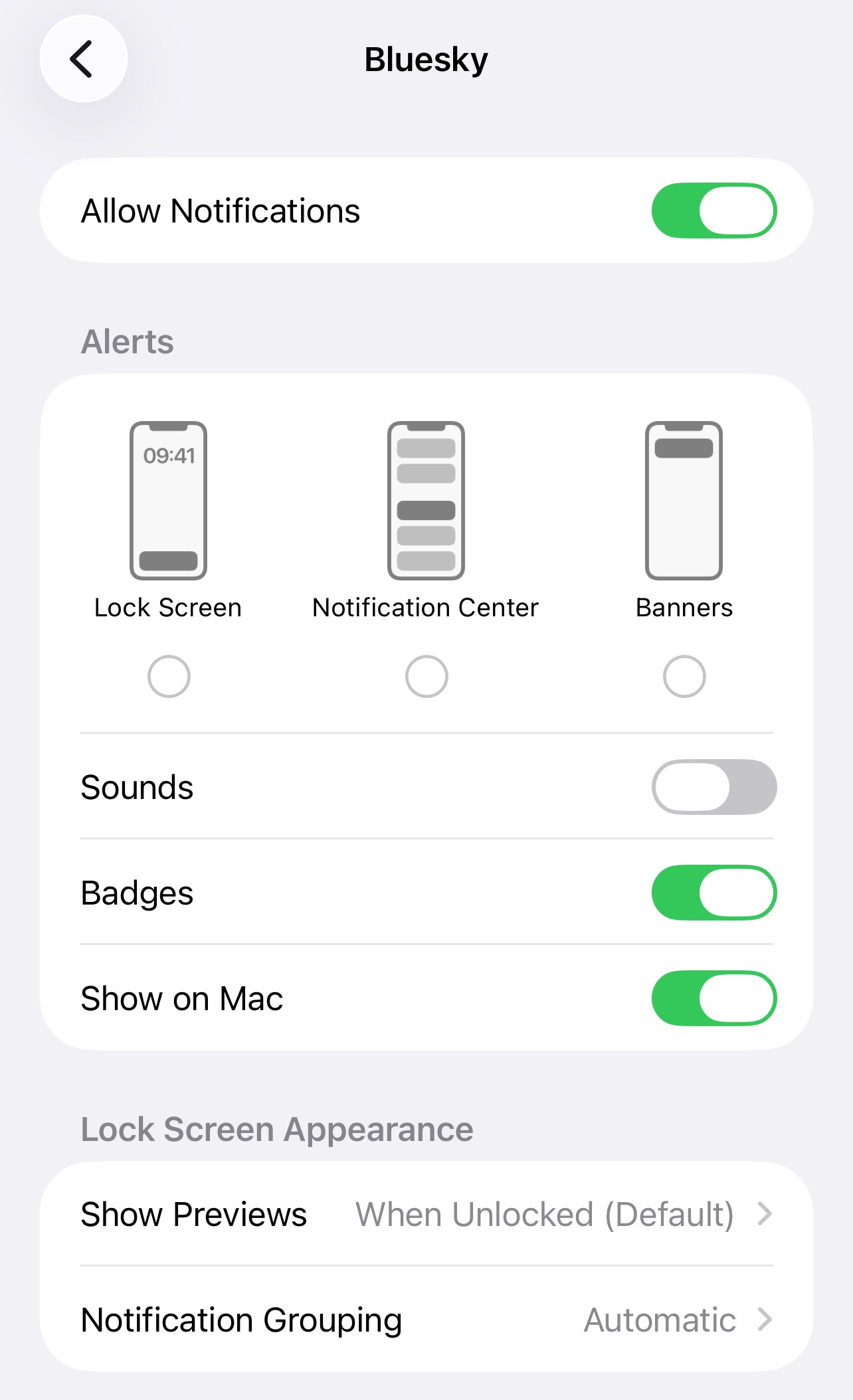
If you want some notifications but not constant interruptions, leave “Allow Notifications” on but customize how alerts appear. Below the main toggle, you’ll see options for where notifications show up:
Lock Screen determines whether notifications appear when your phone is locked
Notification Center controls whether they appear when you swipe down from the top of your screen
Banners controls whether notifications briefly pop up on your screen while you’re using your phone
You can enable any combination of these—for example, allowing notifications in Notification Center for later review but preventing banners that interrupt whatever you’re doing.
Banner style offers two important choices: Temporary or Persistent. Temporary banners appear briefly at the top of your screen then disappear automatically. Persistent banners stay on screen until you actively dismiss them. For most apps, temporary banners reduce interruption—you see the notification but it doesn’t demand immediate action. Reserve persistent banners for critical apps, such as Messages or Phone, where you want notifications to remain visible until you respond.
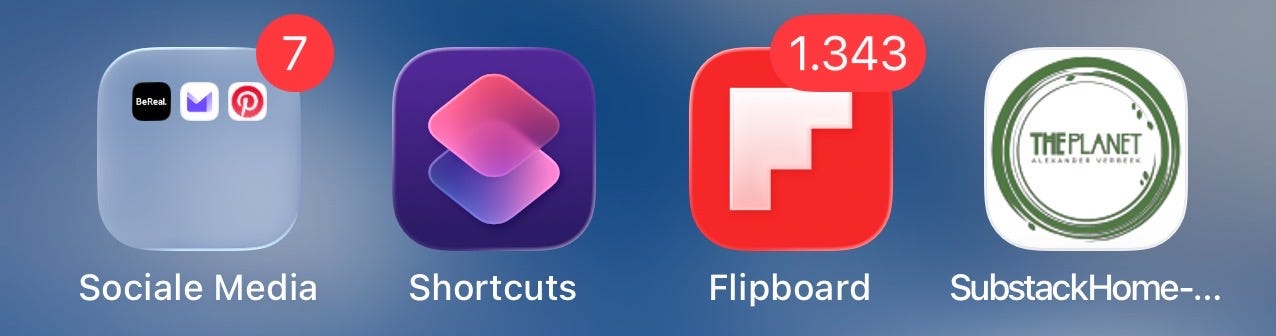
Notification badges are the red numbers on app icons that indicate unread items. Many people find these badges create false urgency, making them feel obligated to open apps just to clear the number. In each app’s notification settings, you’ll see a toggle for “Badges.” Turn this off to remove the red numbers while still receiving other types of notifications. This works especially well for email apps, where badge counts can climb into the hundreds, creating unnecessary stress.
Notification grouping determines whether multiple notifications from one app stack together or appear individually. Tap “Notification Grouping” in an app’s settings to choose Automatic, By App, or Off. “By App” groups all notifications from that app into a single expandable stack. “Automatic” lets iOS decide based on the content. “Off” shows each notification separately. Grouping reduces clutter significantly for apps that send many notifications, like group messaging apps or news apps.
Time-sensitive notifications represent a category that can break through Focus filters. Some apps mark certain notifications as time-sensitive—things like delivery notifications, ride-share alerts, or security warnings. In each app’s notification settings, you’ll see “Time Sensitive Notifications” if that app supports this feature. When enabled, these notifications can interrupt you even during Focus mode if you’ve configured your Focus filters to allow time-sensitive alerts. This ensures truly important notifications reach you while blocking routine interruptions.
Scheduled Delivery (formerly called Notification Summary) lets you receive non-urgent notifications at specific times. Instead of interruptions throughout the day, iOS can deliver certain app notifications only during scheduled times you choose—perhaps morning, lunch, and evening. Find this in Settings → Notifications → Scheduled Delivery. Select which apps should use scheduled delivery and when you want to receive batched notifications. This works brilliantly for news apps, social media, and other services that send frequent but non-urgent updates.
"This is just the resource that I need.
I hope it pans out! Thank you!!!"
Anita, a Screen Skills supporter
How to control notifications on Android
Android notification controls work similarly to iPhone but with some interface differences and additional customization options. The principles remain the same—you control each app individually and decide exactly how it can interrupt you.
To manage Android notifications, open Settings and tap Notifications or Apps & notifications, depending on your Android version and phone manufacturer. You’ll see either a list of recent notifications or a list of all apps. If you see recent notifications first, tap “See all” or “App settings” to view all installed apps. Each app shows its current notification status—enabled or disabled.
Tap any app to see its notification settings. At the top, you’ll see “Show notifications” with a toggle. Turning this off completely silences that app on Android, preventing all alerts, sounds, badges, and pop-ups. The app continues to work normally but cannot interrupt you. This provides the simplest way to silence apps you don’t need notifications from.
Android organizes app notifications into categories that you can control individually. Many apps create multiple notification categories—for example, a messaging app might have separate categories for direct messages, group messages, and promotional notifications. Tap “Categories” or the app name to see these subdivisions. You can enable notifications for important categories while disabling less critical ones. This granular control exceeds what iPhone offers, allowing you to fine-tune which types of alerts each app can send.
Each notification category offers detailed behavior controls. Tap a category to set its importance level, sound, vibration, and whether it can override Do Not Disturb. Android’s importance levels range from “Urgent” (makes sound and pops up) to “Low” (no sound, appears only in notification shade) to “Minimum” (no sound, no visual disruption). Setting categories to “Low” or “Minimum” lets you receive notifications for later review without immediate interruption.
Notification dots are Android’s version of iPhone’s badges—small dots on app icons indicating unread notifications. To control these, go to Settings, Apps & notifications, Notifications, and look for “Allow notification dots” or “App icon badges” depending on your Android version. You can disable dots entirely or control them per app. Many people find that disabling notification dots reduces the compulsion to constantly check apps.

Android’s notification channels give apps fine-grained control that you can override. When you receive a notification, long-press it to see quick controls. You’ll see options to turn off notifications from that category, make them silent, or adjust their priority. This lets you configure notifications in the moment when you realize an app is being too disruptive, without navigating through settings menus.
Notification digest (formerly called scheduled summary) helps manage apps that send many alerts. Some Android versions include this feature that delivers non-urgent notifications at specific times rather than immediately. Check your notification settings for “Notification digest” or similar features. This works particularly well for news apps, social media, and other services that send frequent but non-urgent updates.
How to control notifications on Mac
Mac notification settings mirror many iPhone concepts but adapt them for desktop use, where interruptions affect productivity differently. I simply don’t use them because desktop notifications often appear while I’m actively working; if they constantly distract me, I’ll never finish this newsletter. In an emergency, people can call me, and I’ll look at the notifications on my phone during the next coffee break.
To manage Mac notifications, open System Settings and click Notifications. You’ll see a list of every app and service that can send notifications on your Mac. Click any app to see its notification settings. The interface resembles iPhone’s notification settings but is adapted for the larger screen and different use patterns of a computer.
Each app’s notification settings show an “Allow notifications” toggle at the top. Turning this off completely silences that app on your Mac. Below that, you’ll see notification style options: None, Banners, or Alerts. Banners appear briefly in the upper right corner, then disappear automatically. Alerts stay on screen until you dismiss them. For most apps, banners provide sufficient notification without demanding immediate action.
Mac notifications include a badge option for dock icons. When enabled, apps display a red number on their dock icon to indicate unread items or pending notifications. This creates the same false urgency as iPhone badges—you feel compelled to open the app to clear the number. Disable “Badge app icon” for apps where you don’t need this constant reminder.
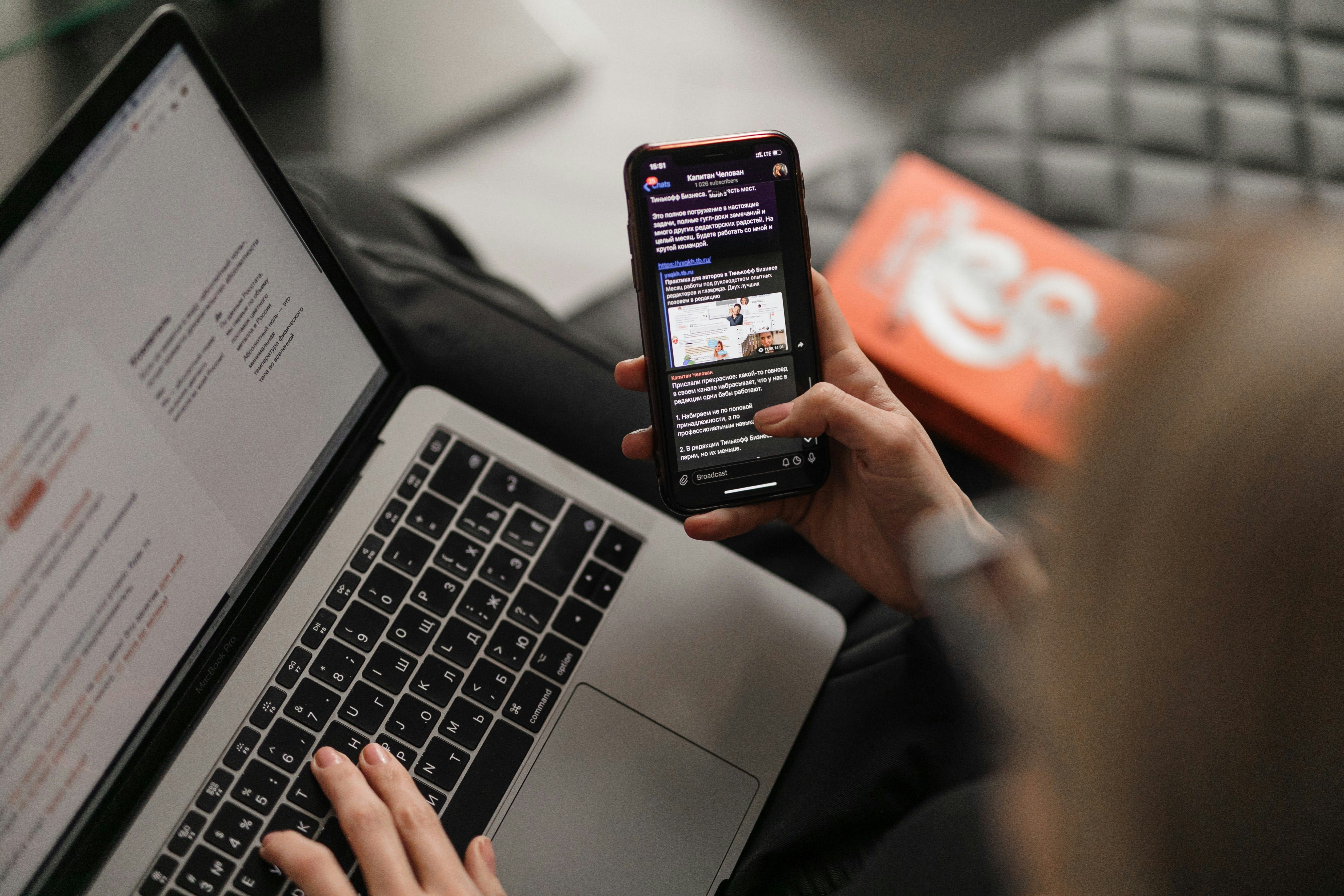
Notification previews determine how much information appears in notifications. You can choose to show previews always, when unlocked, or never. “When unlocked” provides good privacy—notifications appear on your lock screen but don’t show sensitive content until you unlock your Mac. This works well for email and message notifications in shared or office environments.
Focus filter integration lets Mac notifications respect your Focus settings from iPhone and iPad. If you use Focus filters across Apple devices, your Mac automatically adopts the same notification filtering. This means that setting up Do Not Disturb or Work focus on your iPhone automatically silences the same app categories on your Mac. The Focus system syncs seamlessly across iOS 18, iPadOS 18, and macOS Sequoia.
Before we continue with Windows notifications, I would like to mention my other newsletter, Daybreak Notes, and Beans, with a focus on positive news to counterbalance the negative headlines you see all day. On most days of the week, I share ten uplifting news stories about science, health, art, travel, archaeology, or any other topic I think you’ll enjoy reading or that will give you hope now that we need it. Try it:
How to control notifications on Windows
Windows notification management evolved significantly in Windows 10 and 11, providing comprehensive controls over how apps interrupt your work. The system now matches the depth of customization across Mac and mobile platforms.
To manage Windows notifications, open Settings and click System, then Notifications. At the top, you’ll see a master toggle for “Notifications” that turns all notifications on or off system-wide. Below that, individual apps appear, each with its own toggle. This two-tier system lets you quickly disable all notifications temporarily or configure apps individually for permanent settings.
Click any app to see its detailed notification settings. You’ll see options for notification banners, notification sounds, and whether notifications should show in the notification center. Disabling banners prevents pop-up interruptions while still logging notifications for later review in the notification center. This provides a good middle ground for apps you want to monitor but don’t need immediate alerts from.
Windows notifications include priority settings that determine interruption level. Some apps support priority or category settings similar to Android. Look for options to set notification priority as “High,” “Normal,” or “Low.” High-priority notifications make sounds and appear prominently. Low-priority notifications arrive silently and can be grouped to reduce visual clutter.
Focus (formerly called Focus Assist) is Windows’ equivalent to Focus filters on Apple devices. You can access Focus through the notification center (Windows+A) or in Settings under System, Focus. This feature temporarily silences notifications based on rules you set—during certain hours, when duplicating your screen for presentations, or when playing games. Unlike per-app notification settings, which are permanent, Focus provides temporary quiet periods.
Notification badges don’t exist in Windows the same way they do on mobile devices and Mac. Instead, Windows displays notification counts in the system tray (the area at the bottom-right corner of your screen). You can hide icons for specific apps by clicking the arrow in the system tray and selecting “Notification area settings.” This prevents visual clutter from apps you don’t need to monitor constantly.
Worth knowing
Notification systems evolved from early mobile phones that could only receive text messages and calls. When smartphones introduced third-party apps, each app developer wanted the ability to notify users, creating the notification explosion we experience today. Early iPhone iOS versions offered minimal notification controls—you could only enable or disable notifications entirely, with no customization options.
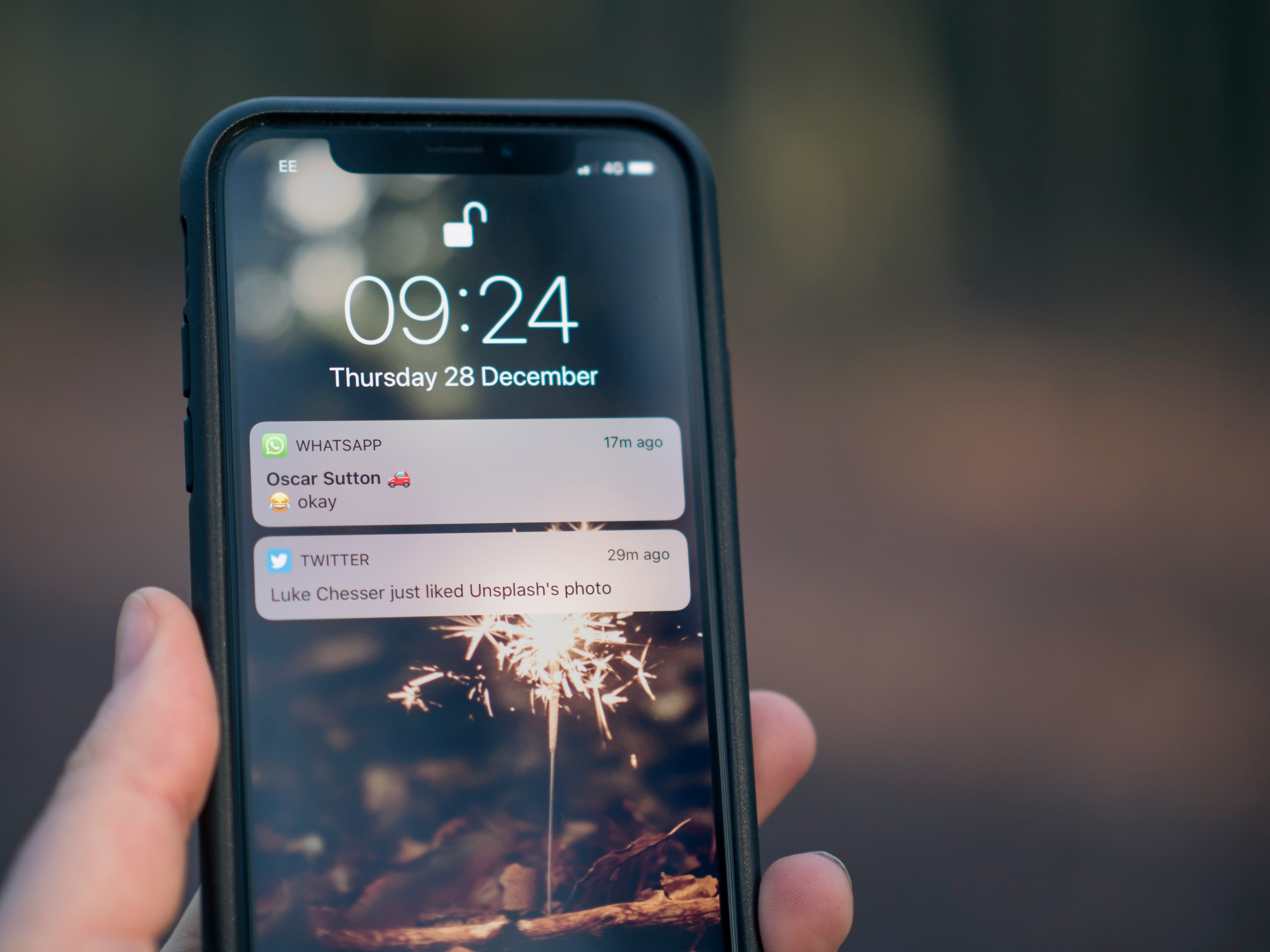
Apple introduced the Notification Center in iOS 5 (2011) and gradually added more granular controls over the following years. Android followed a similar path, with notification channels introduced in Android 8 (2017) providing the category-based controls that now define both platforms.
The psychological impact of notification badges drives significant user engagement for apps. Studies show people feel compelled to clear red notification badges, creating a dopamine loop similar to other addictive behaviors. This explains why many productivity experts recommend disabling badges entirely—removing the visual trigger breaks the compulsion to constantly check apps.
Time-sensitive notifications emerged as a compromise between constant interruptions and missing truly important alerts. iOS 15 (2021) introduced this category, followed by Android’s similar implementation. These notifications must meet specific criteria defined by platform guidelines—developers cannot arbitrarily mark all their notifications as time-sensitive.
Notification grouping algorithms try to balance information density with readability. When multiple notifications from one app arrive, systems must decide whether to show them individually (more informative but cluttered) or group them (cleaner but less detailed until you expand). Most platforms now default to grouping while letting users override this behavior per app.
Tech news you can use
iPhone iOS 18 added more granular notification controls for messages and calls. You can now set different notification behaviors for different message threads or contact groups. This means silencing group chats while keeping personal messages at full alert level, or allowing family calls to always ring through while sending work calls to voicemail during off-hours. Look for these controls in Messages and Phone app settings under Notifications.
Android 15 introduced notification cooldowns that automatically silence repetitive apps. If an app sends many notifications in quick succession, Android now mutes subsequent notifications temporarily through its notification cooldown feature. This prevents notification spam from misbehaving apps while still allowing occasional important alerts through. The feature works automatically without configuration, though you can disable it per app in notification settings.
Microsoft Windows 11 added notification stacking that groups similar notifications. Instead of displaying multiple notifications from a single app as separate items, Windows now stacks them with a count indicator. Click the stack to expand and see all notifications. This reduces notification center clutter while preserving access to all alerts. The feature is enabled by default but can be disabled in notification settings if you prefer individual notifications.
App spotlight: Notification History (Android)
Android includes a hidden notification history that logs every notification you’ve received recently, even ones you’ve already dismissed. This solves the common problem of accidentally swiping away an important notification before reading it completely.
To access notification history, go to Settings, Notifications, Notification history. You’ll need to enable this feature first—it’s off by default to save system resources. Once enabled, Android logs all notifications for the past 24 hours. The history shows the app that sent each notification, when it arrived, and the notification content exactly as it appeared when delivered.
This history view proves invaluable when you dismiss a notification by accident. Instead of trying to recreate what the notification said or waiting for the app to notify you again, you can simply open notification history and see the exact message. This works particularly well for notifications containing verification codes, delivery updates, or other time-sensitive information you need to reference after dismissing.
The notification history also helps identify which apps interrupt you most frequently. Scrolling through a day’s history reveals patterns you might not notice from individual notifications—perhaps one app sends dozens of low-value notifications while apps you care about send only a few. This awareness helps you make informed decisions about which apps deserve notification privileges.
Notification history uses minimal battery and storage, logging only text and basic metadata rather than images or rich content. You can clear the history manually anytime or disable the feature if you decide you don’t need it.
App spotlight: One Sec (iPhone/Android)
One Sec takes a unique approach to notification management by adding a breathing delay before opening apps. Rather than blocking notifications entirely, it makes you pause and consider whether you actually need to check the app right now.
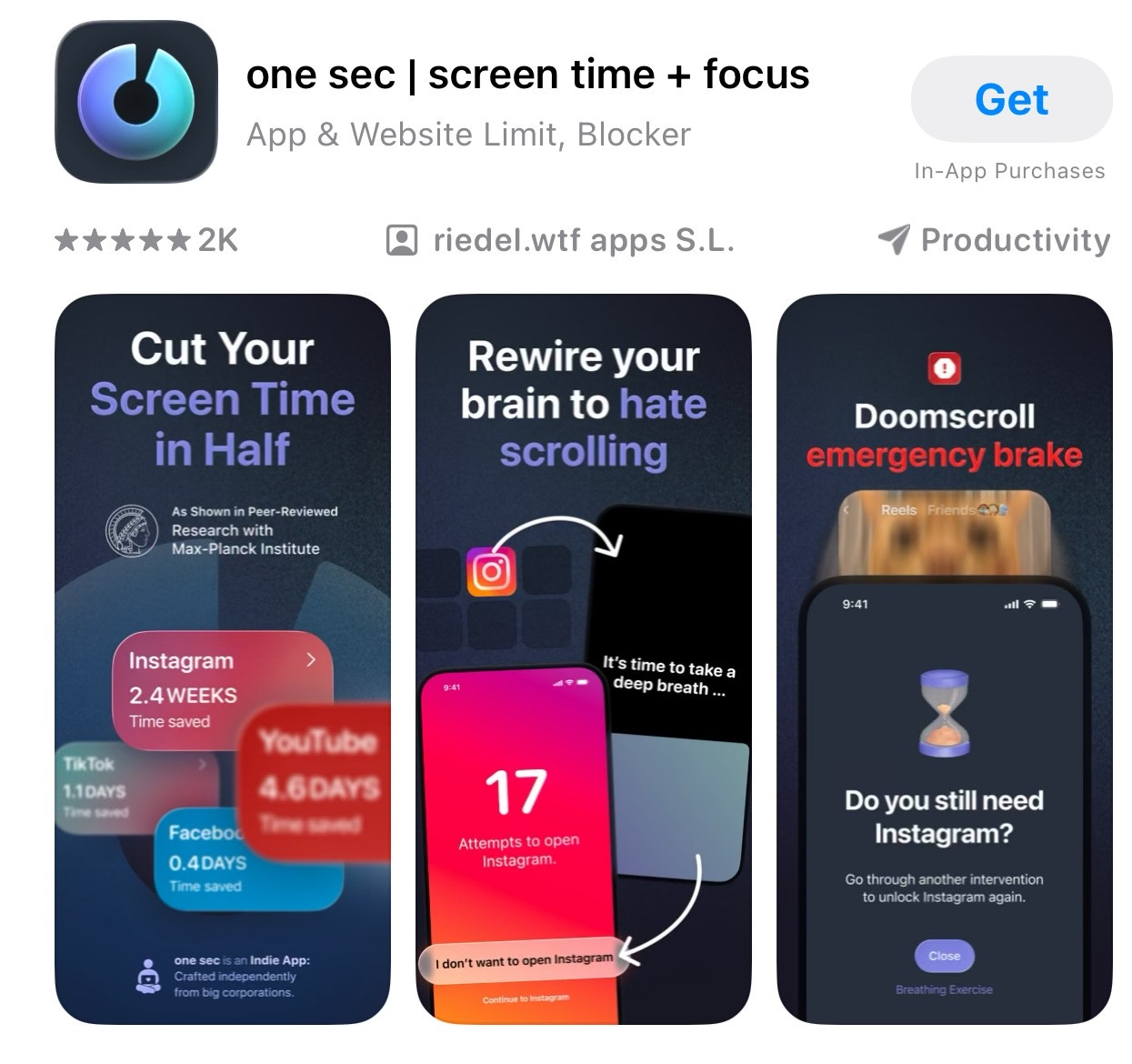
When a notification arrives from an app you’ve configured in One Sec, tapping it doesn’t immediately open the app. Instead, One Sec shows a brief breathing exercise—typically 5 to 15 seconds—before allowing the app to open. That brief pause helps you decide if the alert really deserves your attention right now.
The pause in breathing gives you time to decide whether the notification requires immediate attention or can wait. Research shows that this brief interruption significantly reduces compulsive app checking without the friction of a complete block. You can still check the app—you just do so consciously rather than reflexively.
One Sec lets you configure different delay lengths for different apps. Social media apps may experience longer delays (15 seconds), while messaging apps may experience shorter delays (5 seconds). You can also set up shortcuts that bypass the delay in genuinely urgent situations, maintaining flexibility while building healthier notification habits.
The app costs $1.99 per month or $12.99 per year after a free trial. The price supports ongoing development and includes features like detailed statistics showing how many compulsive app opens you’ve prevented and how much time you’ve saved by not mindlessly checking apps.
Quick fix: Turn off all badges at once
On iPhone, you can disable notification badges for all apps systematically rather than configuring each app individually. Go to Settings, Notifications, and tap through apps to disable “Badges” without entering each app’s full settings screen. This takes about two minutes to work through all your apps and eliminates the false urgency that red notification numbers create. On Android, the process varies by manufacturer, but most Samsung and Google Pixel phones offer a global “App icon badges” toggle in Settings, and a Notifications option that disables all badges system-wide in one tap.
Meanwhile: The notification audit
Most people have never systematically reviewed which apps can send notifications. Spend fifteen minutes performing a notification audit—go through your notification settings and disable notifications for every app you don’t recognize or don’t use regularly. You’ll likely find apps you forgot you installed, games you played once, or services you signed up for months ago. Disabling notifications for unused apps provides immediate relief from interruptions while identifying candidates for deletion if you haven’t opened them in months. This one-time cleanup significantly reduces daily notification volume and helps you regain control of your attention.
Did you read this one?
Questions?
Today’s newsletter covered methods for controlling notifications across all your devices, reducing interruptions while keeping the alerts that actually matter. I hope this helped you understand how to configure notifications per app, manage badges and grouping, and differentiate between notification types, but I know digital interruption management is just one of many challenges.
What problems are you encountering with your phone, tablet, or computer right now? Maybe it’s something you’ve been putting up with for months, or a new issue that just started this week. Screen Skills works best when it addresses real problems that real people face, so leave a comment, send me a direct message, or reply to this email and tell me what’s making your digital life harder than it needs to be. Your question might become next week’s newsletter.
Until next time,
Alexander
Today, you can get a 20% discount on the first year of your subscription.
If this newsletter provides useful information that reduces your screen frustration, improves your output, and makes spending time online more fun for you, please consider supporting this newsletter that occupies a unique niche on Substack: digital tips for non-digital people.

A new newsletter: More
There’s always more to say than fits in a daily newsletter. That’s why I started “More“—a place for follow-ups, deeper explorations, and the content that doesn’t fit the structured format here. Think of it as the notebook behind the newsletters.
You can subscribe here:
Read the latest More newsletter that I posted two days ago:

I also publish on Patreon:
For instance: Along the Old IJssel: Stories of Nature, History, and Growing Up

Or perhaps you enjoyed the article and would like to support my writing by buying me a coffee?
Still here?
Then have a look at my other newsletter:
The Planet: a weekly newsletter examining American democracy, freedom of speech, and environmental policy through a European perspective. Having lived, worked, and traveled extensively in the US and beyond as a backpacker, diplomat, and journalist, I explore current events through historical context, showing how lessons from the past inform today’s challenges to democratic values and planetary health.
This weekend, I published:

"This works especially well for email apps, where badge counts can climb into the hundreds, creating unnecessary stress."
Yikes! No!
This edition is so helpful. Customizations.
Also, I'm pleased Screen Skills is archived so I can investigate a subject which intrigues me but I don't have time for it now. Thanks 📱💻
Thank you for your helpful “instruction manual” on the pesky notifications!
Your suggestions have been put in place!